Using the Viewer
The Viewer puts the picture first. Its header has three tasks, in plain words; a panel floats over the right of the picture and follows the task (the panel button in the header hides it).
| Task | Use it to |
|---|---|
| View | Look at the frame: size, colour, how bright it gets (with a warning when parts are brighter than your screen shows), the node's input settings, notes and bookmarks |
| Compare | Put B against A: the compare_image input or a still you grab. Split (drag the line), Difference, Flip, B only or A only |
| Check | What needs a look, in sentences: run the checks over every frame (broken pixels, range, alpha, flicker), then show an overlay: exposure map, clipping, out of gamut, or Rebuilt by AI |
| Pro tools | The full layout: Color (grade, masks, effects, scopes), Inspect (channels, pixel probe, analysis) and QC (every check and flagged frame) |
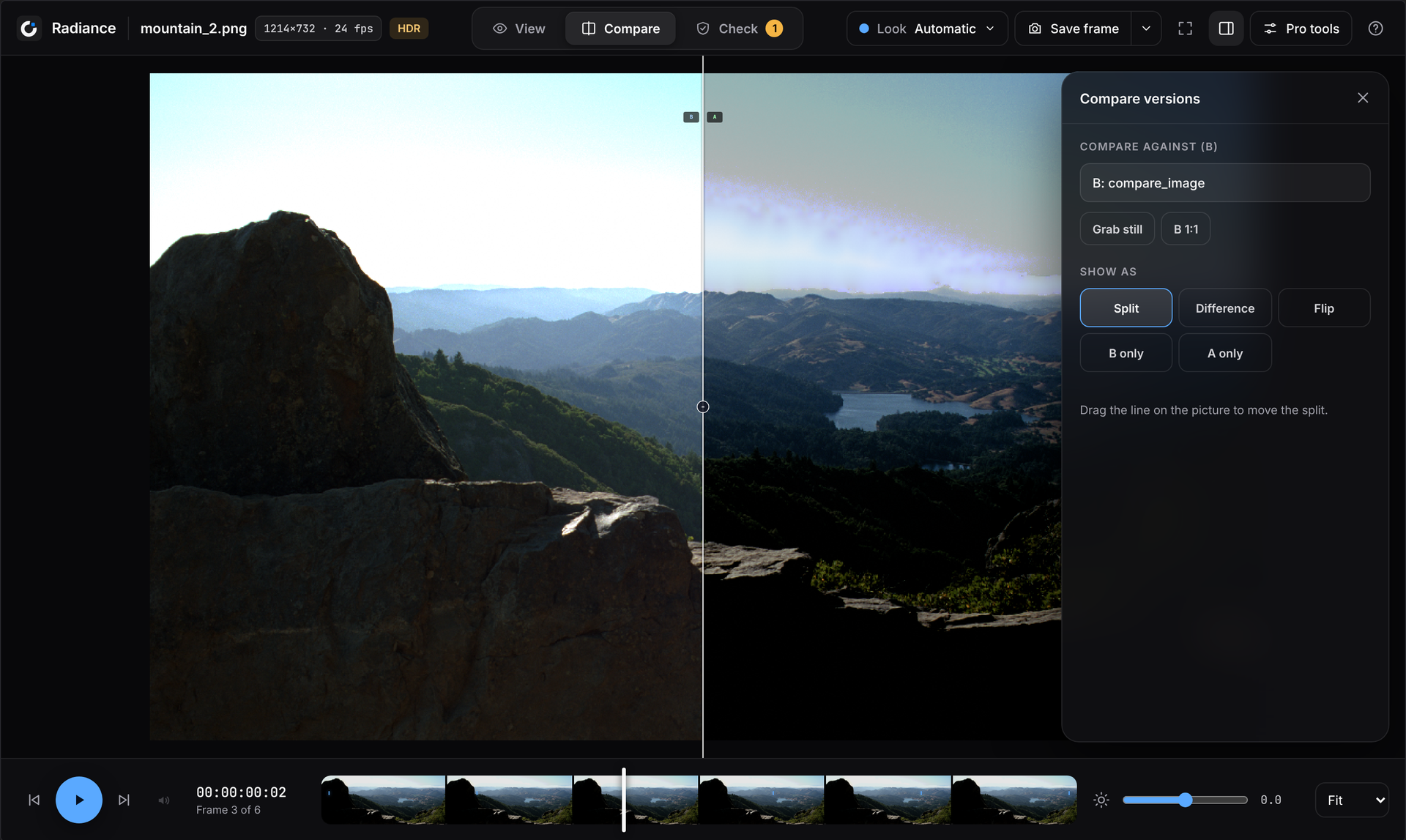
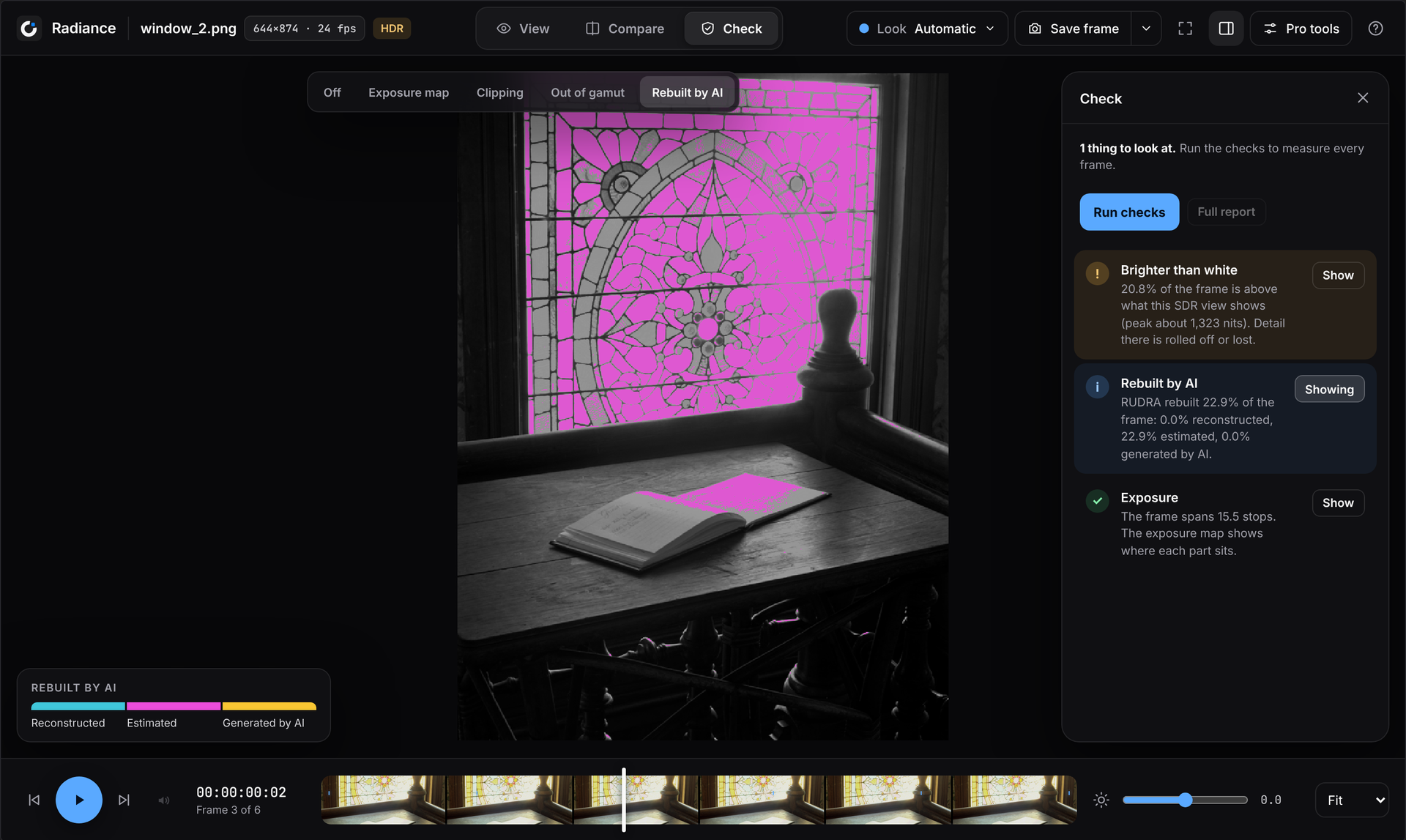
Compare: an SDR photo against its HDR master, sky recovered. Check: Rebuilt by AI on a clipped stained-glass window.
- Look (header) sets how the picture is shown on this screen: Film (ACES 2.0), Plain, TV (Rec.709), Filmic or Custom. It changes the preview, never the file.
- Preview brightness (the sun slider under the picture) is labelled not saved on the picture while it is on.
- Grade on appears at the top left when the Viewer's own grade is not neutral, with Edit and Reset, so a darker or tinted picture always has a reason on screen.
- Rebuilt by AI: connect the
regionsoutput of SDR → HDR Analytic (RUDRA) to the Viewer'sregionsinput. Check then colours what was reconstructed (cyan), estimated (magenta) or generated (yellow), and says how much of the frame each covers. - Save frame saves the frame as a PNG; the arrow beside it has the other exports.
- In a small node the panel starts closed and the labels shrink to icons; full screen gives you the whole layout.
Handy keys (hover the Viewer first; H or ? lists them all)
| Key | Does | |---|---| | **F** | Fit the picture | | **X** | Compare on or off (opens the Compare task) | | **D** | Bookmark this frame | | **,** and **.** | Previous / next bookmark | | **T** | Write a note on this frame | | **Alt + drag** | Draw on the frame | | **Alt + 1…7** | Open a Pro tools panel (Inspector … QC) |
- Pro tools › Tools › FLUX 3 Layout Boxes draws layout boxes on the picture and sends them to the Prompt.
- Pro tools › File › Deliver Master… exports the graded result (see Delivering masters below).
- Viewer adjustments change the preview only, until you deliver or add the same processing to the workflow.
- WebGL is the default renderer. WebGPU is experimental and lists what it can't do yet.
Delivering masters
- Write saves images, sequences (EXR, PNG, TIFF, DPX) and video from the graph.
- Deliver Master (Viewer › Pro tools › File › Deliver Master…) exports with the Viewer's grade baked in: ACES, camera log, PQ (HDR10) or HLG, with CDL and AMF sidecars and automatic versioning.
- Render queue: set up a version, Add to Queue, repeat, then Start Queue. A failed job doesn't stop the rest.
- HDR: PQ and HLG need 10-bit or float, so 8-bit formats are disabled for them. H.265 10-bit carries HDR10 metadata with the mastering display you choose; scene-linear 1.0 sits at 203 nits (BT.2408).
- Checks before writing: frames with NaN or infinite pixels are refused, and HDR QC reports the peak and how much clips.