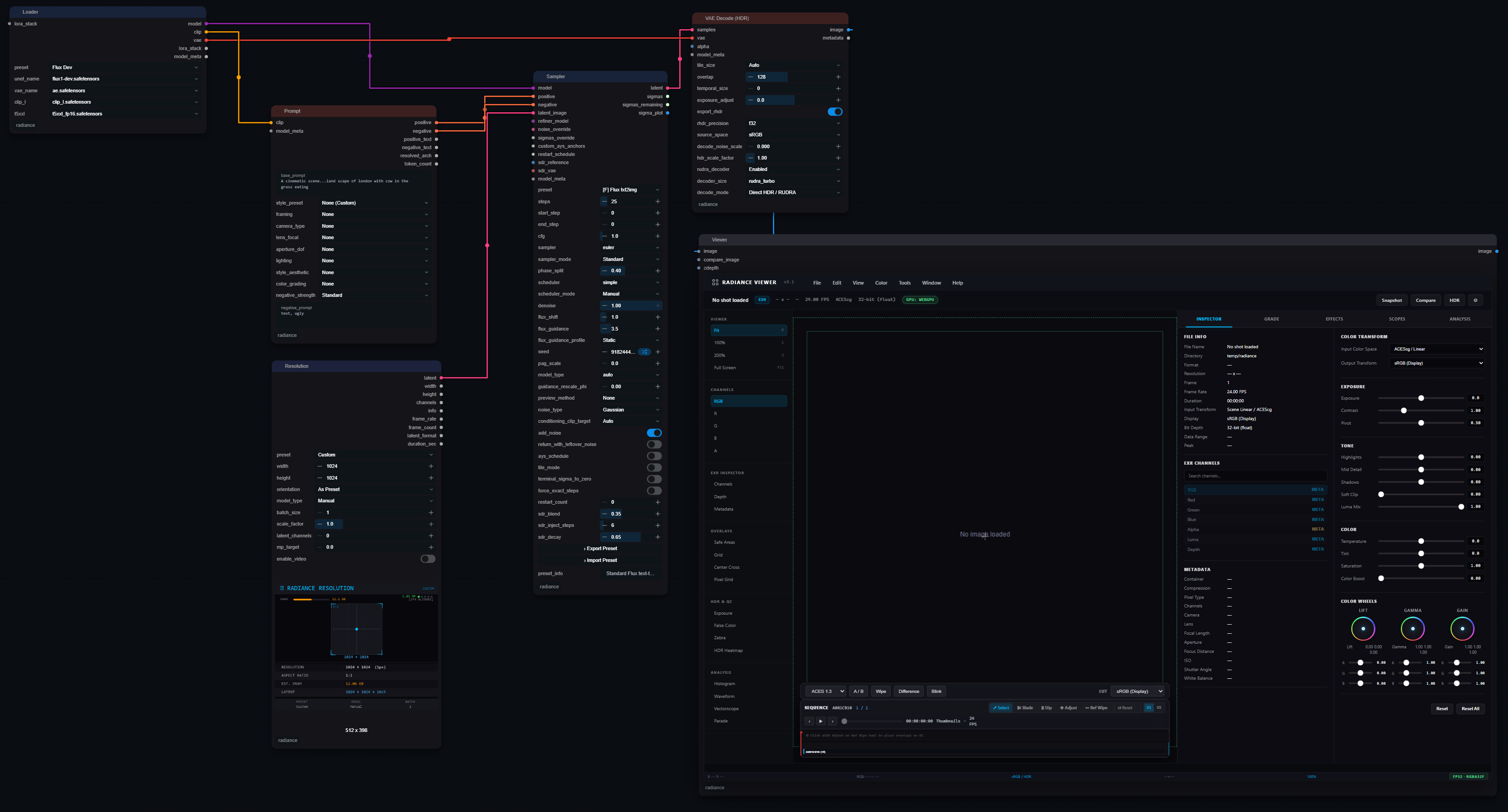
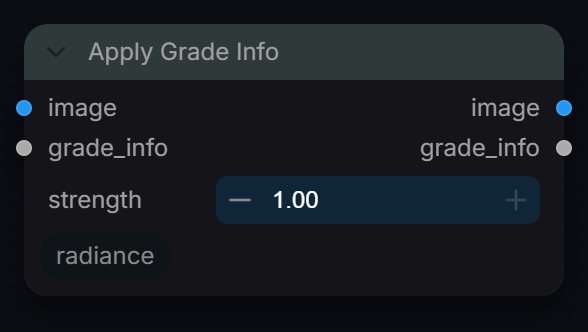
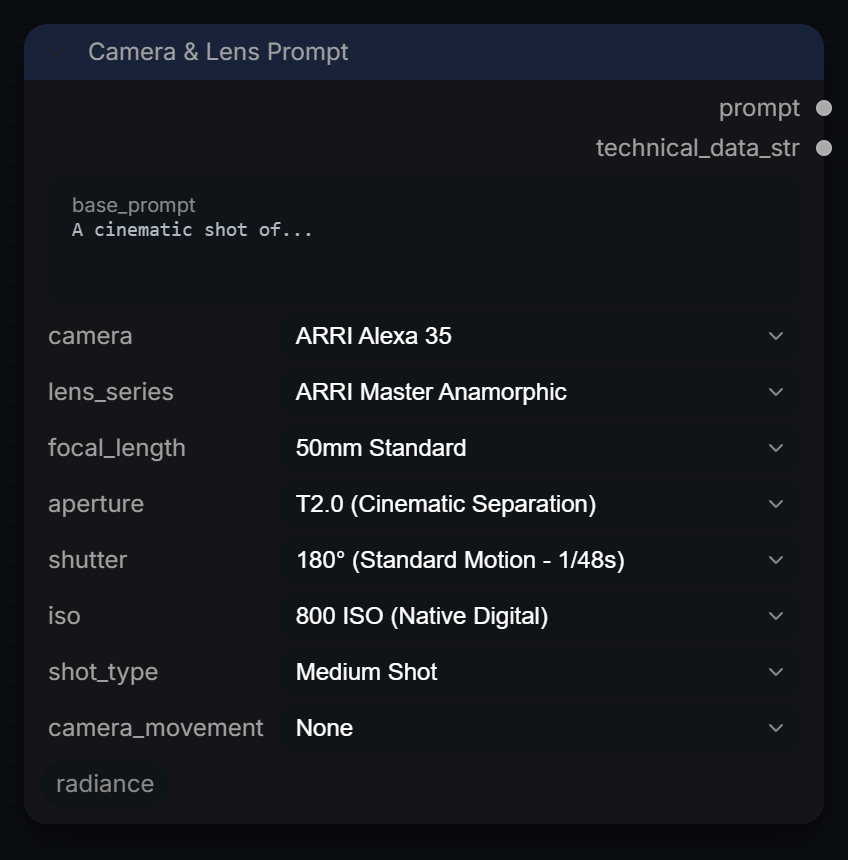
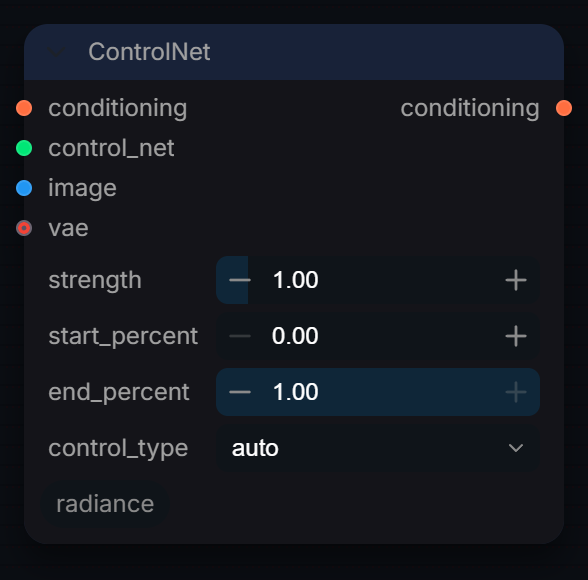
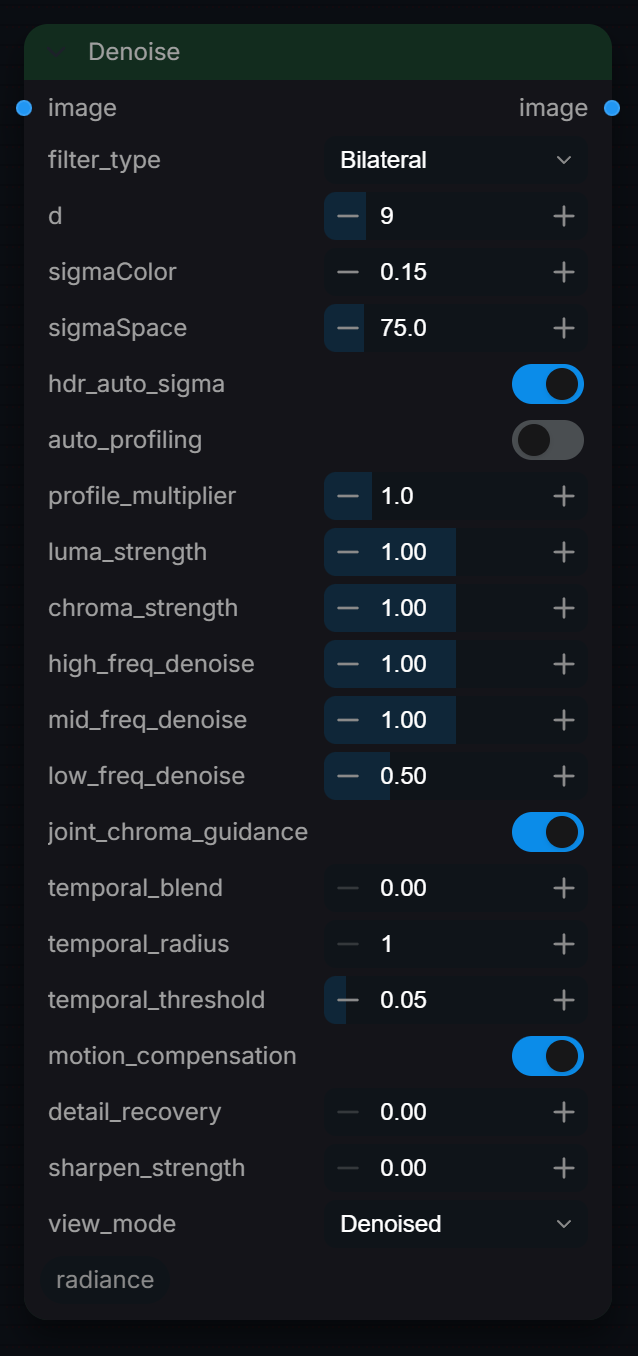
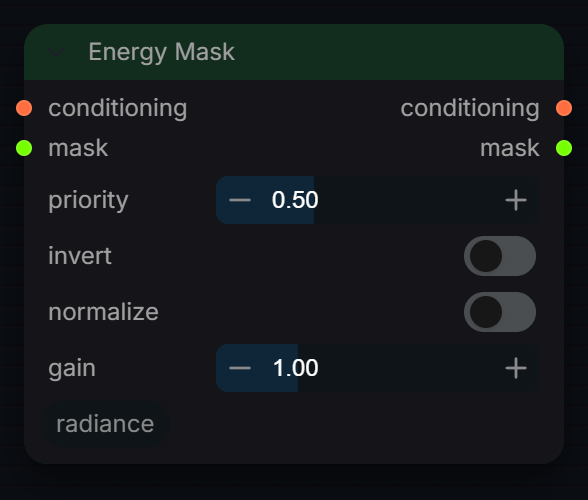
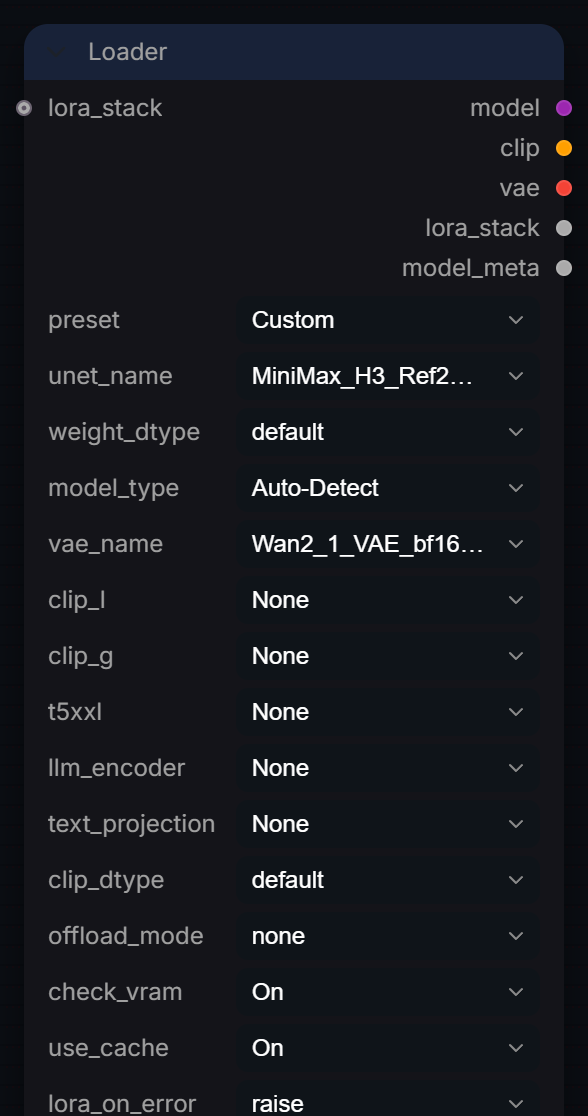
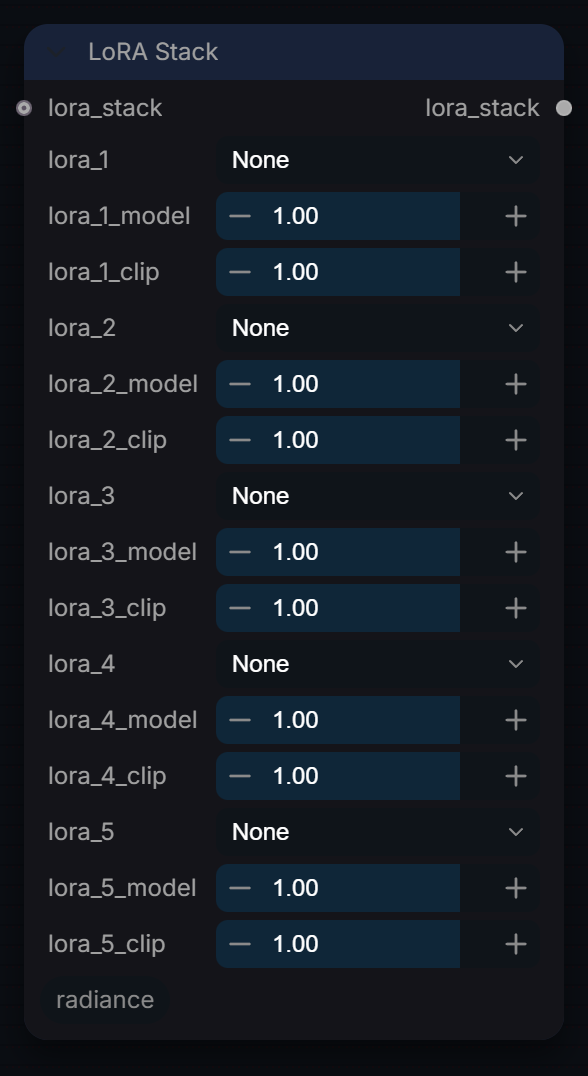
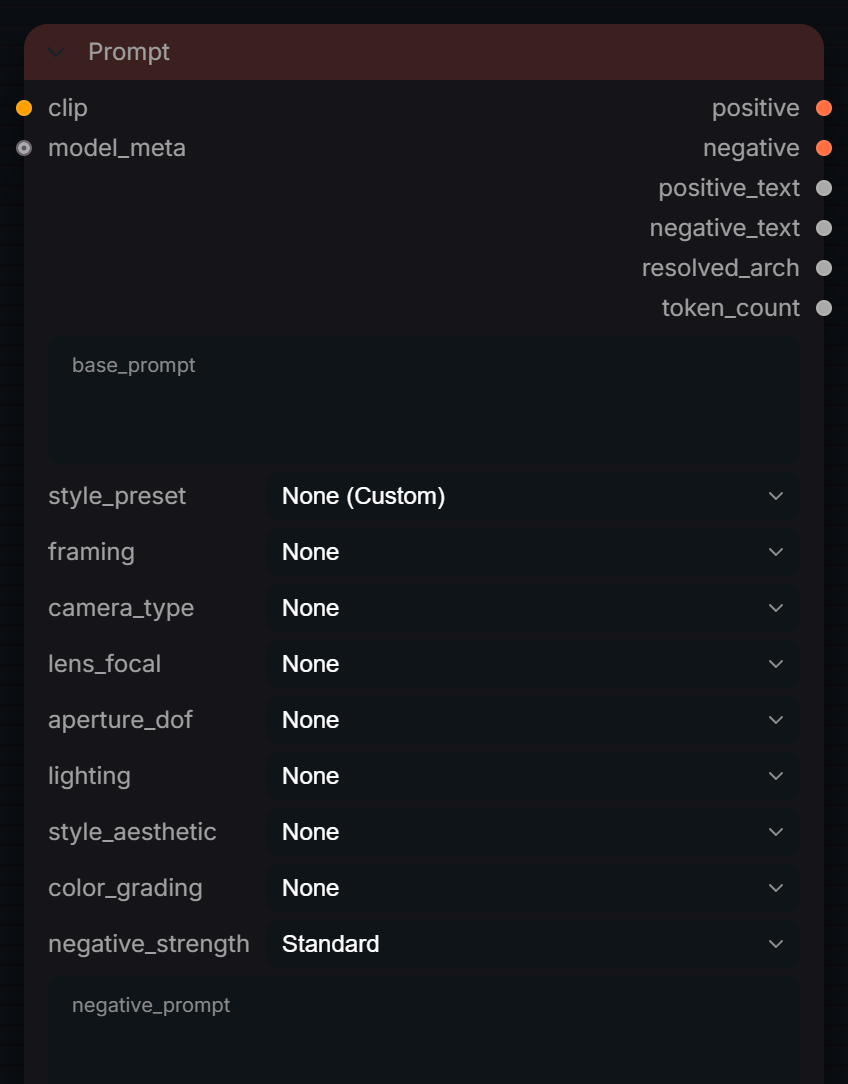
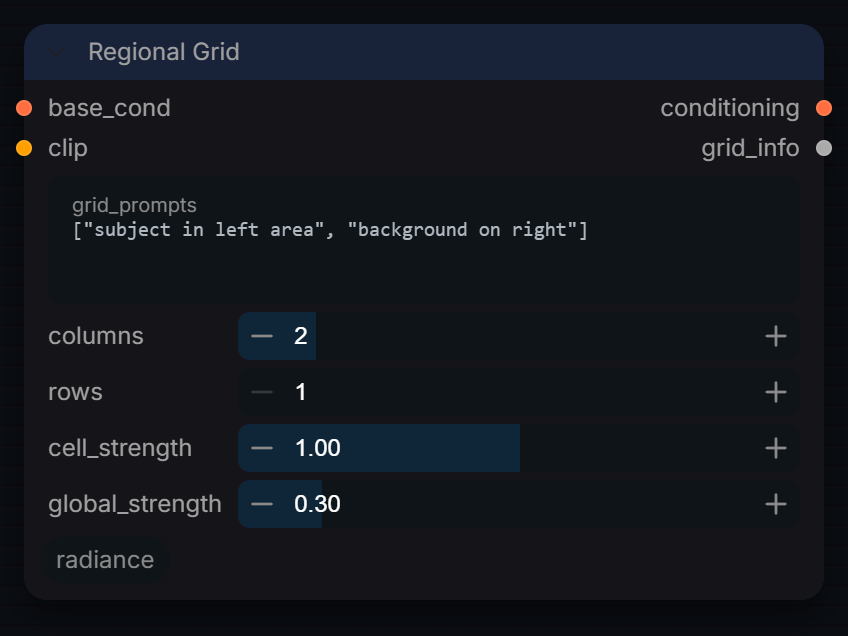
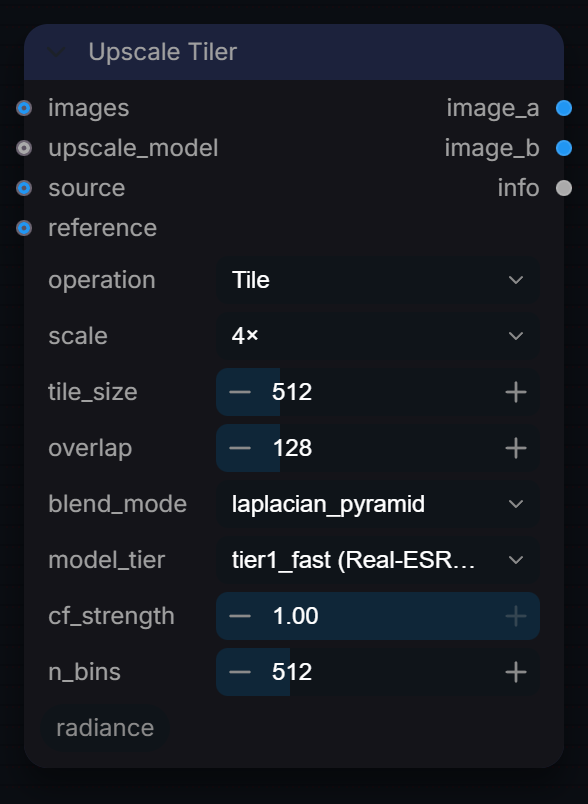
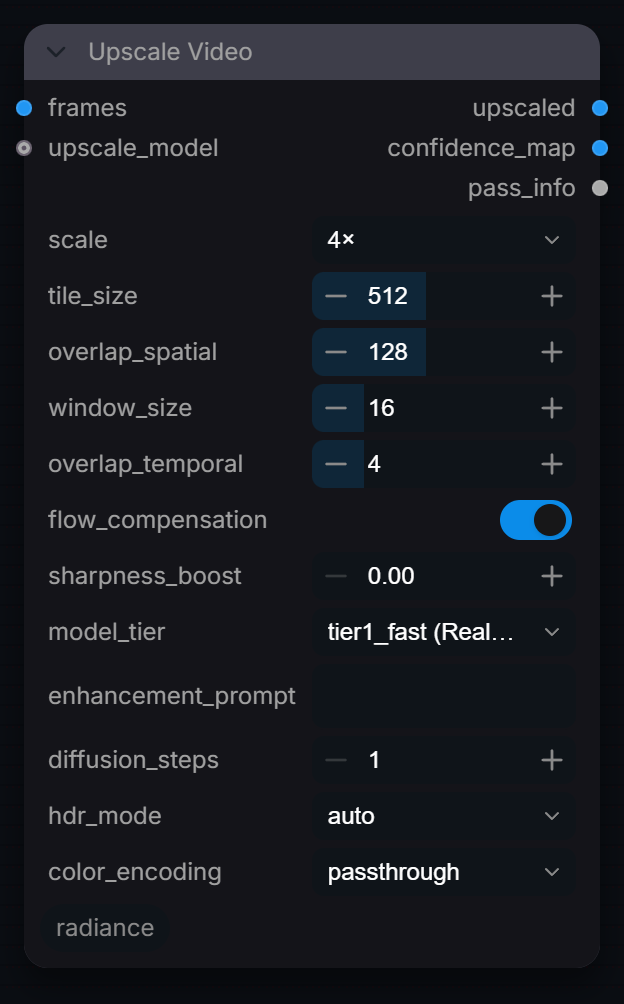
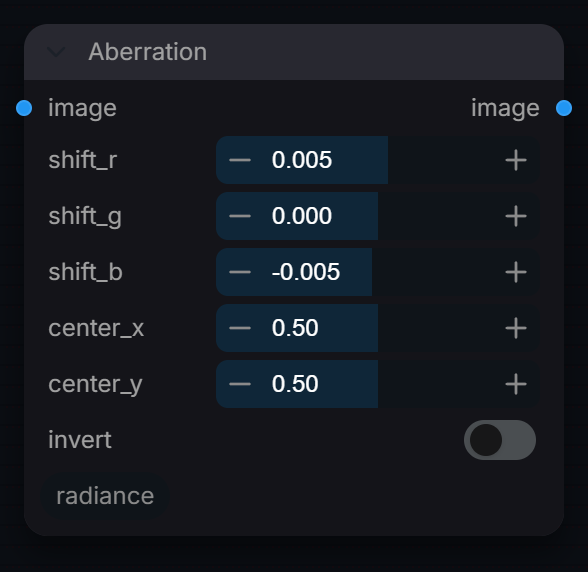
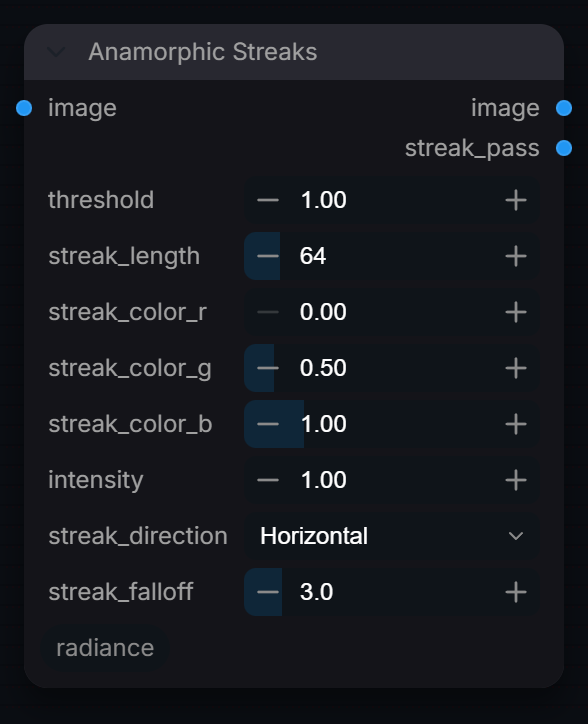
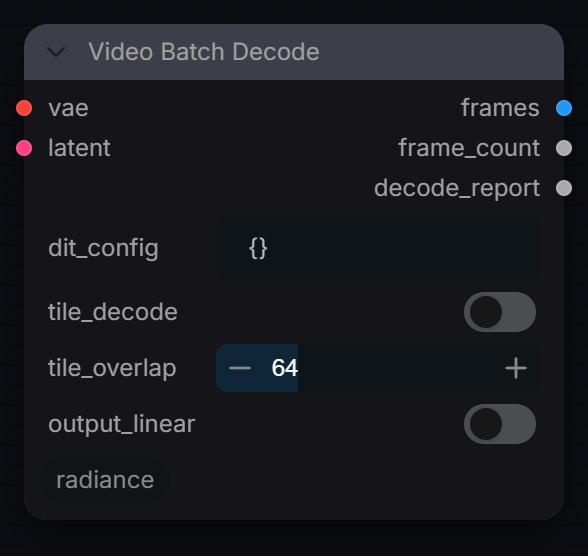
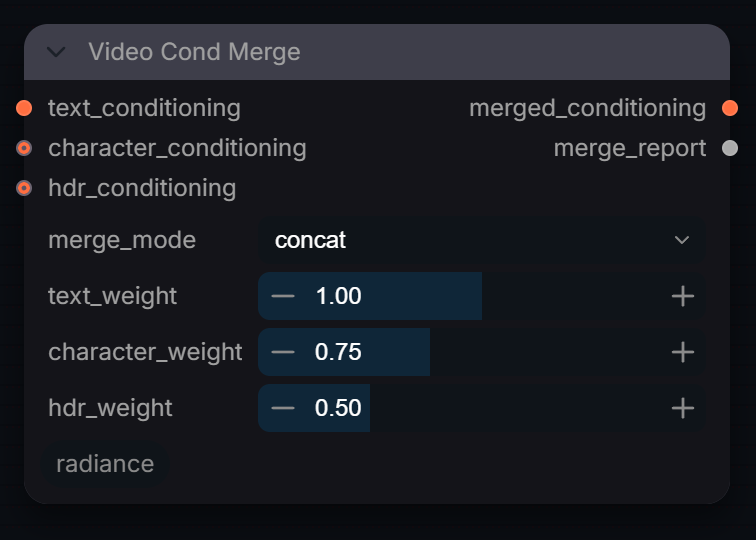
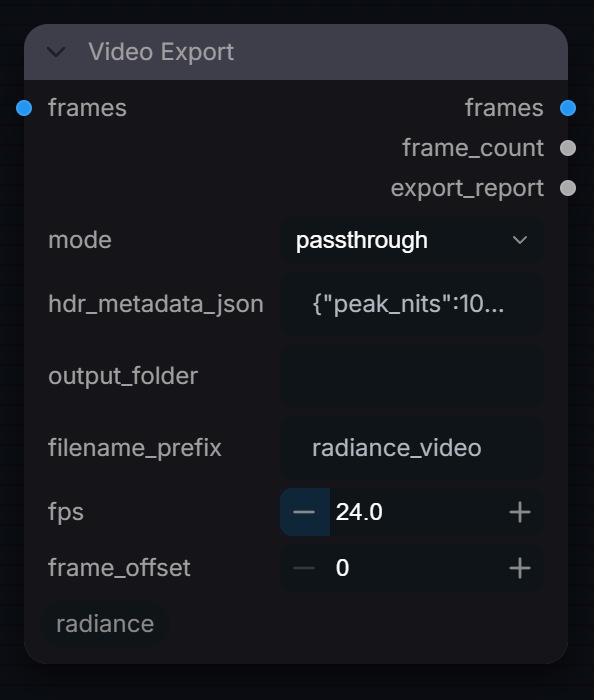
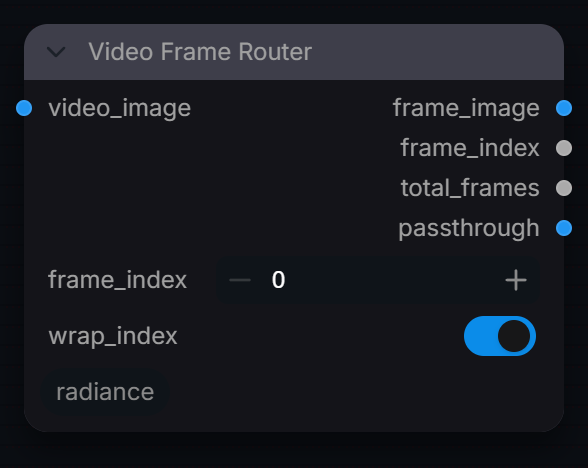
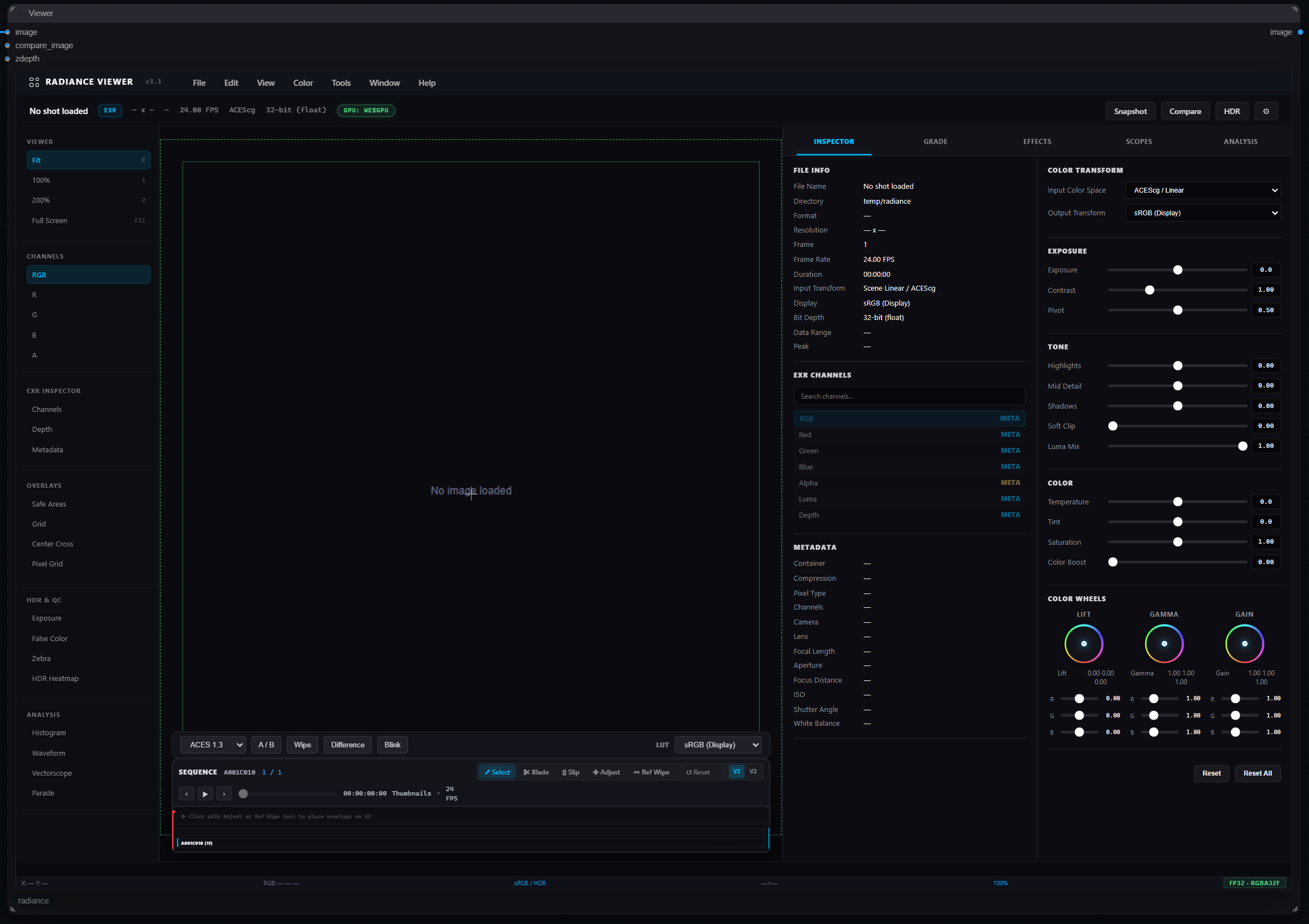
Screenshots of all 147 current menu nodes, captured from the installed Radiance 3.5.0 interface on 27 September 2026.
Each node was captured in its default, unconnected state. Open any screenshot for lossless full resolution. The overview workflow and result images remain illustrative examples.
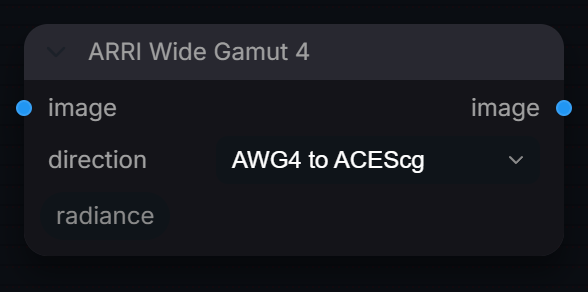
Captured from Radiance 3.5.0 · Default interface · Select to open the full-resolution screenshot. Controls can change with presets and connections.Settings and usage →
ARRI Wide Gamut 4
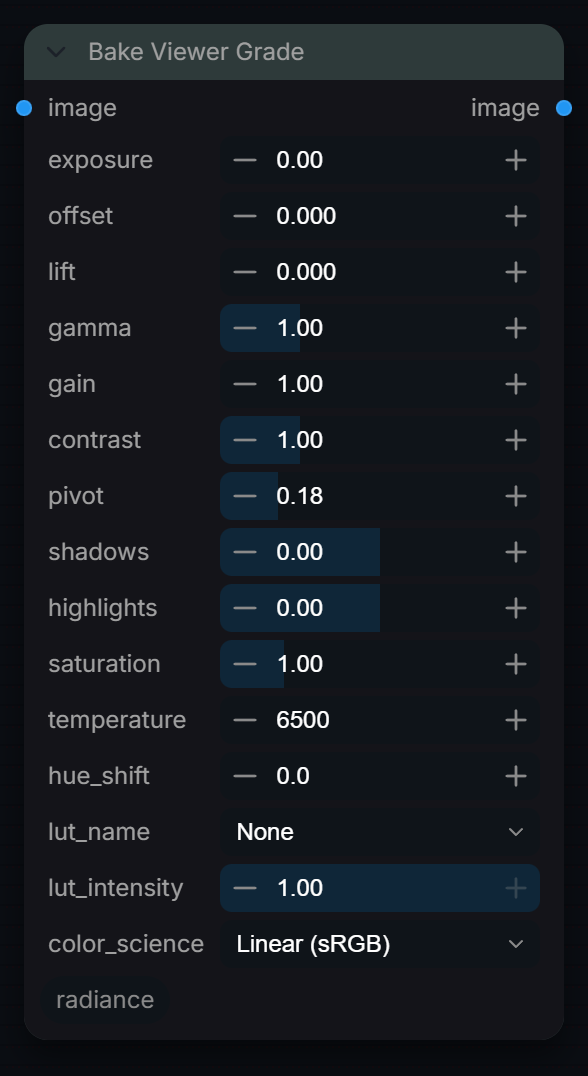
Captured from Radiance 3.5.0 · Default interface · Select to open the full-resolution screenshot. Controls can change with presets and connections.Settings and usage →
Bake Viewer Grade
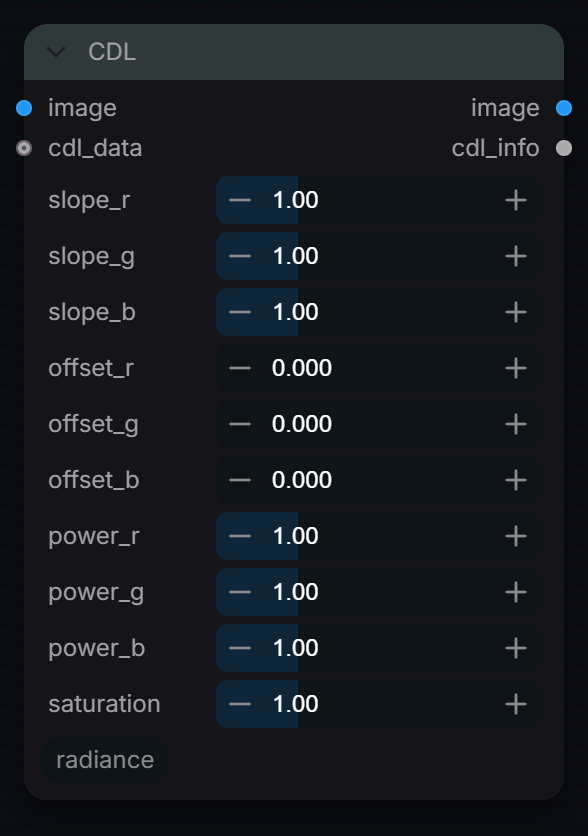
Captured from Radiance 3.5.0 · Default interface · Select to open the full-resolution screenshot. Controls can change with presets and connections.Settings and usage →
CDL
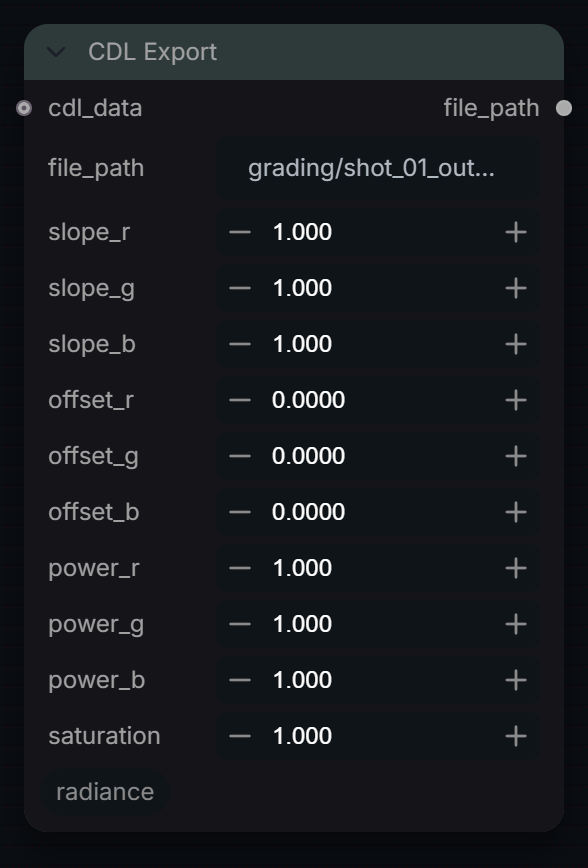
Captured from Radiance 3.5.0 · Default interface · Select to open the full-resolution screenshot. Controls can change with presets and connections.Settings and usage →
CDL Export
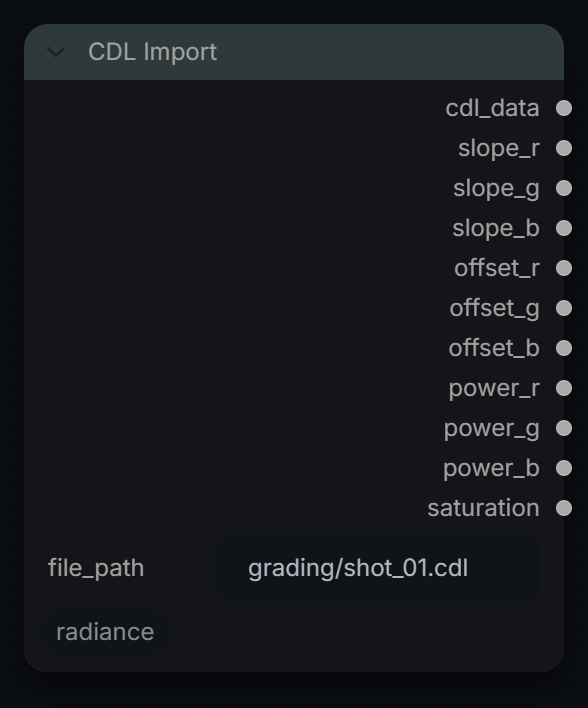
Captured from Radiance 3.5.0 · Default interface · Select to open the full-resolution screenshot. Controls can change with presets and connections.Settings and usage →
CDL Import
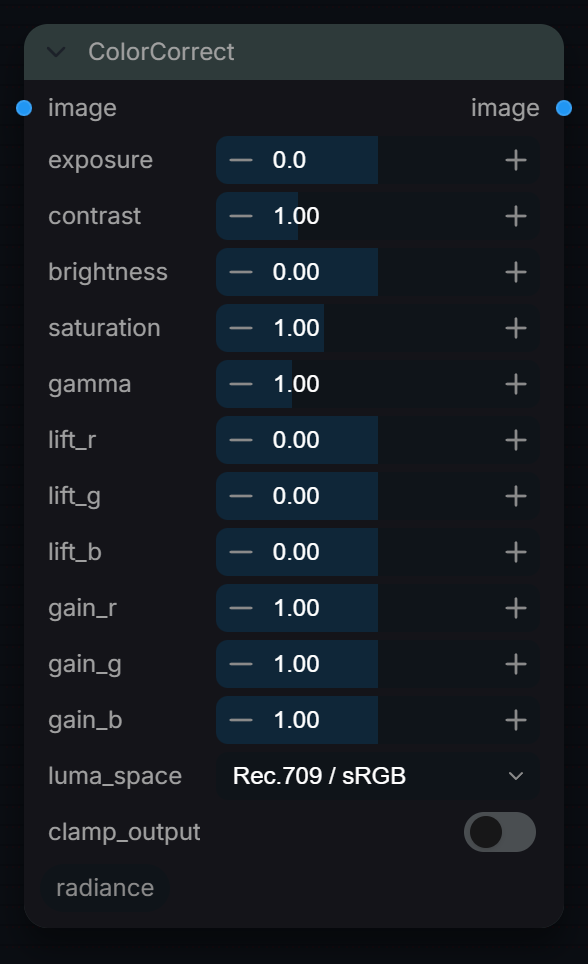
Captured from Radiance 3.5.0 · Default interface · Select to open the full-resolution screenshot. Controls can change with presets and connections.Settings and usage →
ColorCorrect
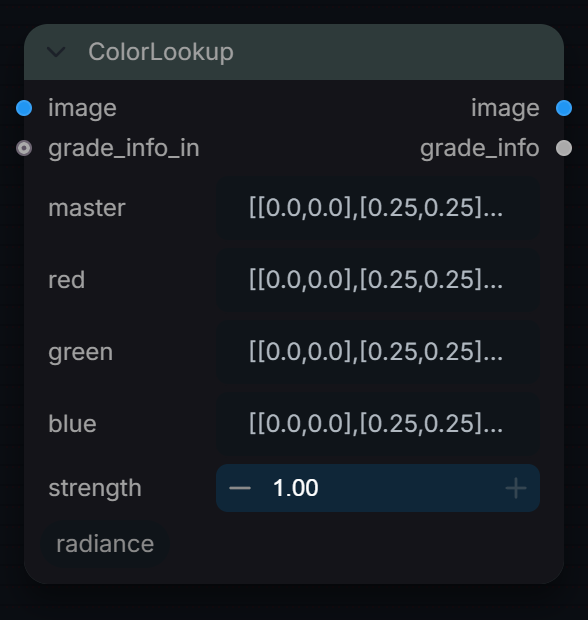
Captured from Radiance 3.5.0 · Default interface · Select to open the full-resolution screenshot. Controls can change with presets and connections.Settings and usage →
ColorLookup
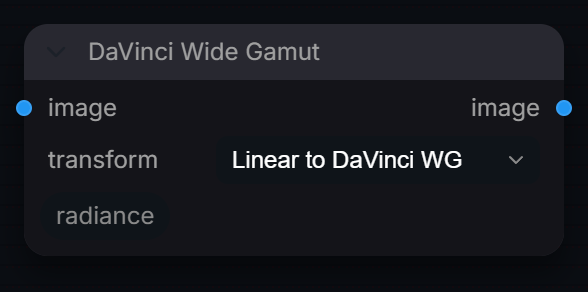
Captured from Radiance 3.5.0 · Default interface · Select to open the full-resolution screenshot. Controls can change with presets and connections.Settings and usage →
DaVinci Wide Gamut
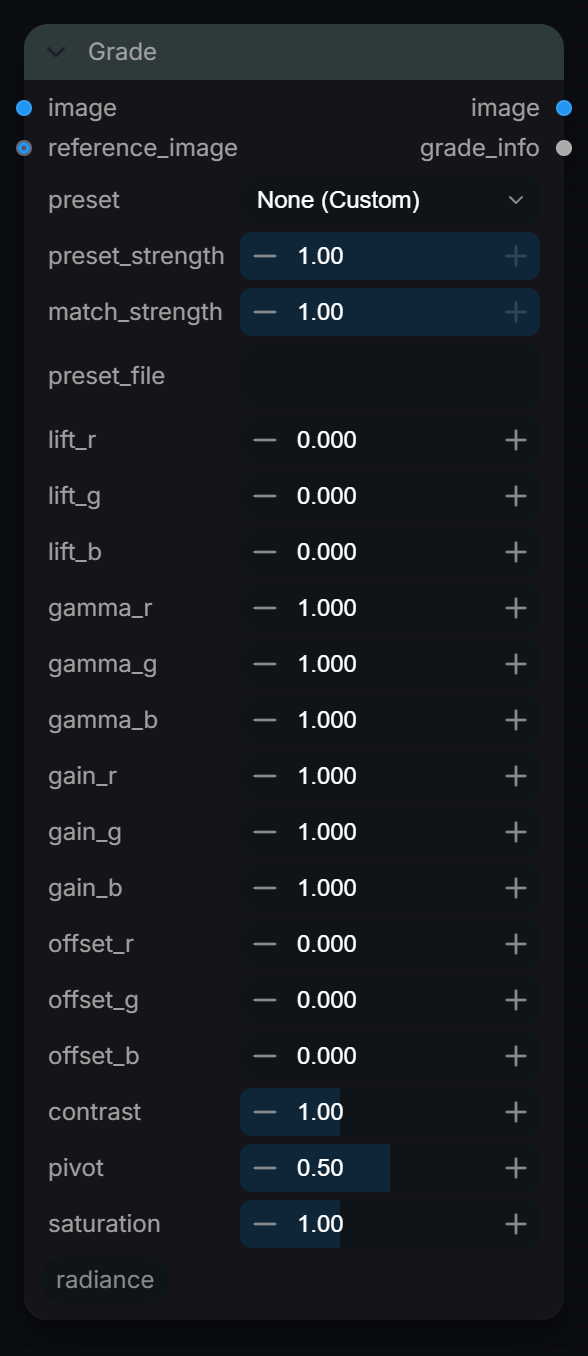
Captured from Radiance 3.5.0 · Default interface · Select to open the full-resolution screenshot. Controls can change with presets and connections.Settings and usage →
Grade
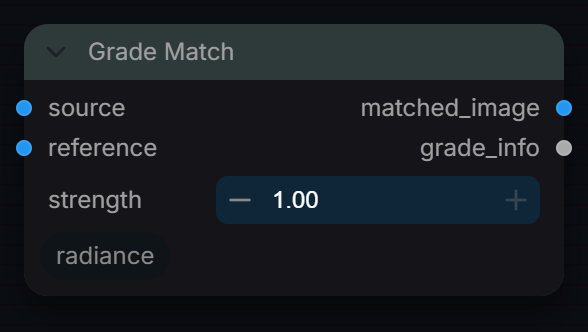
Captured from Radiance 3.5.0 · Default interface · Select to open the full-resolution screenshot. Controls can change with presets and connections.Settings and usage →
Grade Match
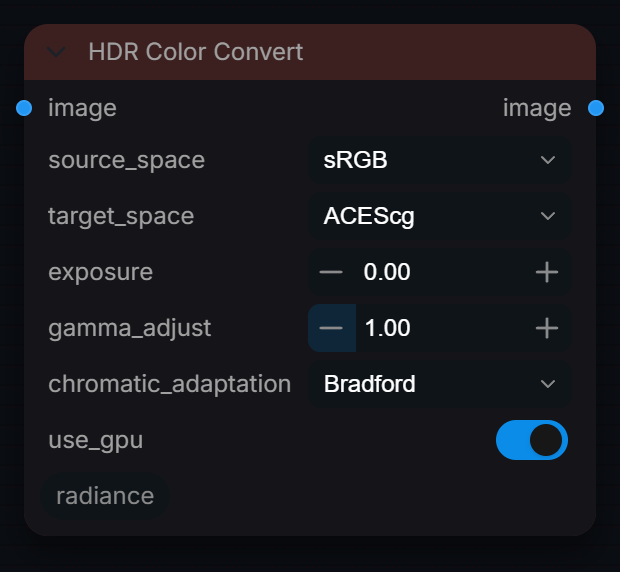
Captured from Radiance 3.5.0 · Default interface · Select to open the full-resolution screenshot. Controls can change with presets and connections.Settings and usage →
HDR Color Convert
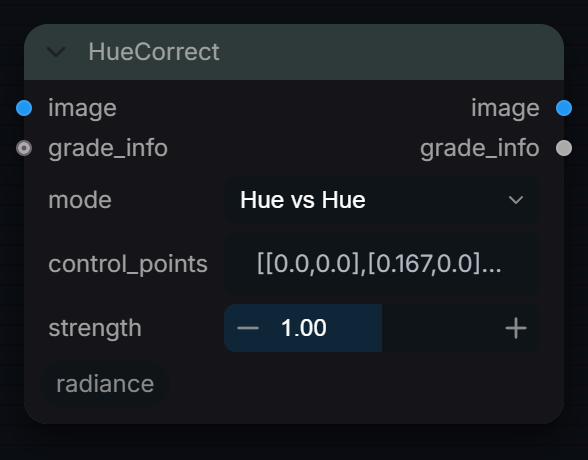
Captured from Radiance 3.5.0 · Default interface · Select to open the full-resolution screenshot. Controls can change with presets and connections.Settings and usage →
HueCorrect
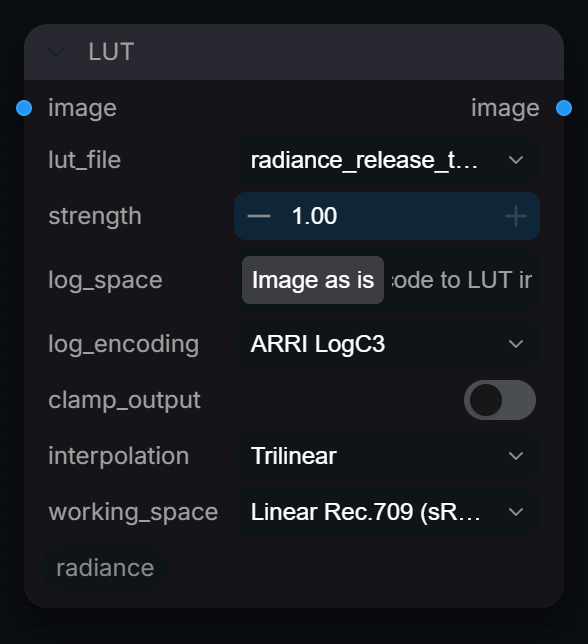
Captured from Radiance 3.5.0 · Default interface · Select to open the full-resolution screenshot. Controls can change with presets and connections.Settings and usage →
LUT
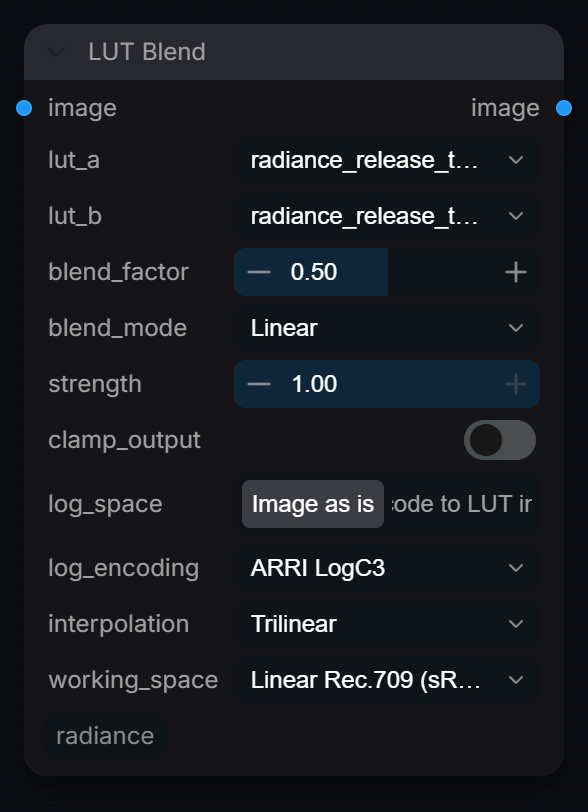
Captured from Radiance 3.5.0 · Default interface · Select to open the full-resolution screenshot. Controls can change with presets and connections.Settings and usage →
LUT Blend
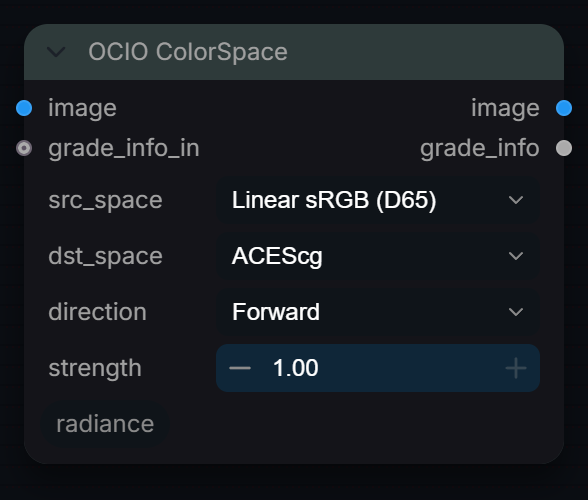
Captured from Radiance 3.5.0 · Default interface · Select to open the full-resolution screenshot. Controls can change with presets and connections.Settings and usage →
OCIO ColorSpace
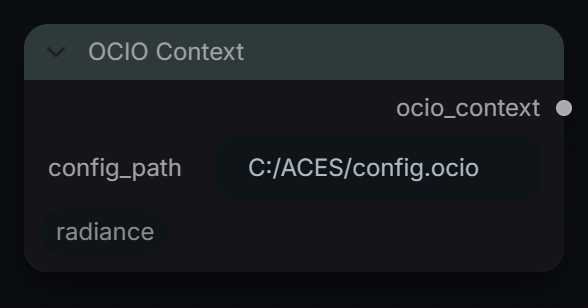
Captured from Radiance 3.5.0 · Default interface · Select to open the full-resolution screenshot. Controls can change with presets and connections.Settings and usage →
OCIO Context
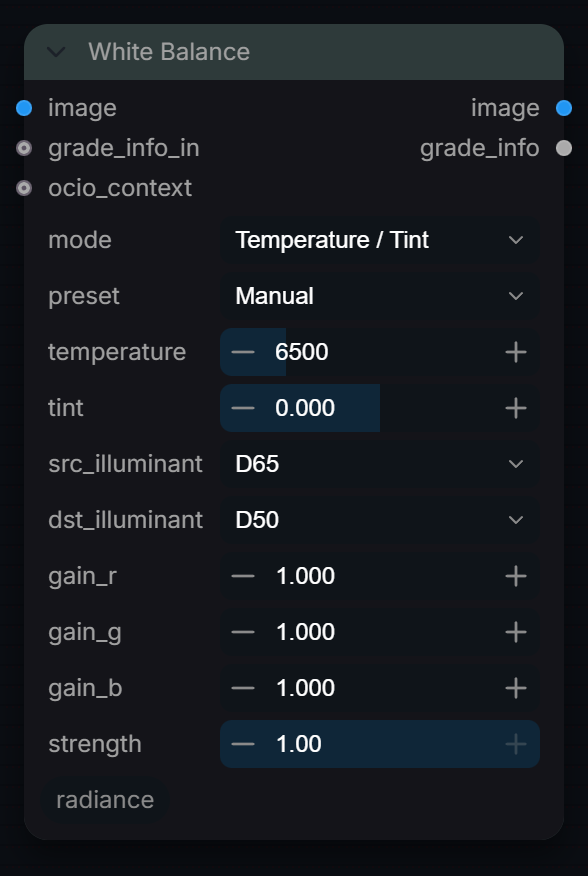
Captured from Radiance 3.5.0 · Default interface · Select to open the full-resolution screenshot. Controls can change with presets and connections.Settings and usage →
White Balance
Captured from Radiance 3.5.0 · Default interface · Select to open the full-resolution screenshot. Controls can change with presets and connections.Settings and usage →
Core
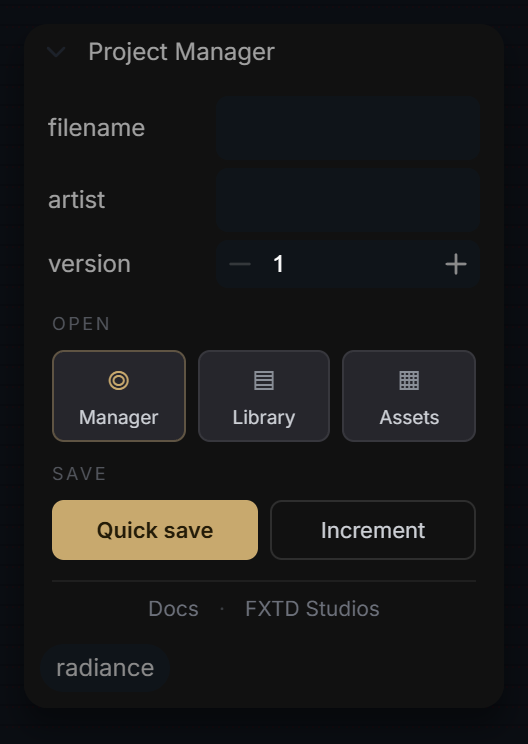
Project Manager
Captured from Radiance 3.5.0 · Default interface · Select to open the full-resolution screenshot. Controls can change with presets and connections.Settings and usage →
Generate
Camera & Lens Prompt
Captured from Radiance 3.5.0 · Default interface · Select to open the full-resolution screenshot. Controls can change with presets and connections.Settings and usage →
ControlNet
Captured from Radiance 3.5.0 · Default interface · Select to open the full-resolution screenshot. Controls can change with presets and connections.Settings and usage →
Denoise
Captured from Radiance 3.5.0 · Default interface · Select to open the full-resolution screenshot. Controls can change with presets and connections.Settings and usage →
Energy Mask
Captured from Radiance 3.5.0 · Default interface · Select to open the full-resolution screenshot. Controls can change with presets and connections.Settings and usage →
Loader
Captured from Radiance 3.5.0 · Default interface · Select to open the full-resolution screenshot. Controls can change with presets and connections.Settings and usage →
LoRA Stack
Captured from Radiance 3.5.0 · Default interface · Select to open the full-resolution screenshot. Controls can change with presets and connections.Settings and usage →
Prompt
Captured from Radiance 3.5.0 · Default interface · Select to open the full-resolution screenshot. Controls can change with presets and connections.Settings and usage →
Regional Grid
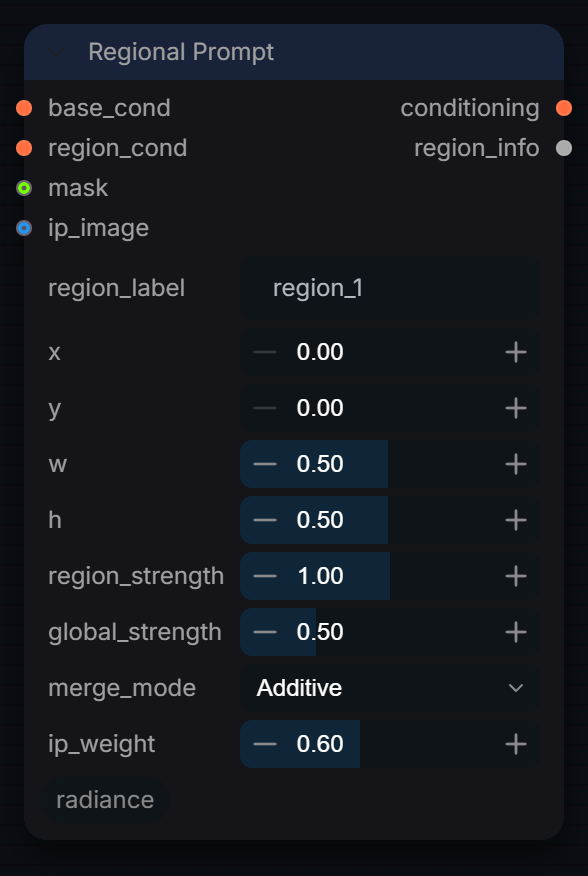
Captured from Radiance 3.5.0 · Default interface · Select to open the full-resolution screenshot. Controls can change with presets and connections.Settings and usage →
Regional Prompt
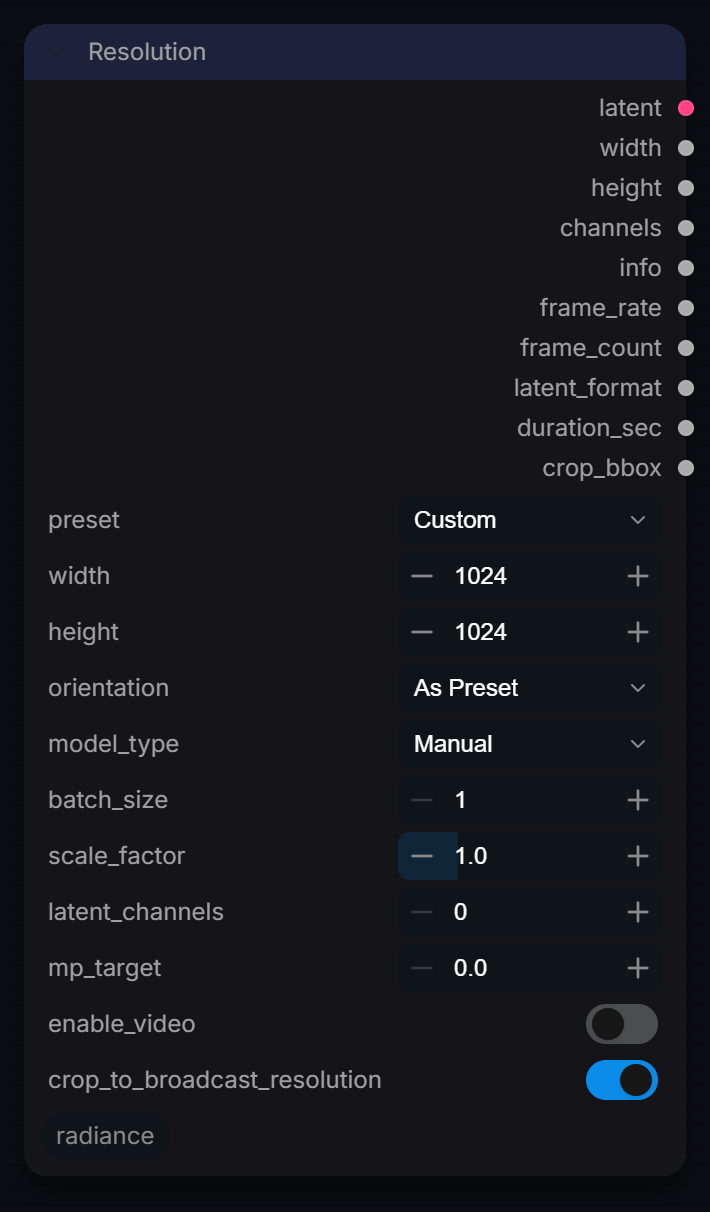
Captured from Radiance 3.5.0 · Default interface · Select to open the full-resolution screenshot. Controls can change with presets and connections.Settings and usage →
Resolution
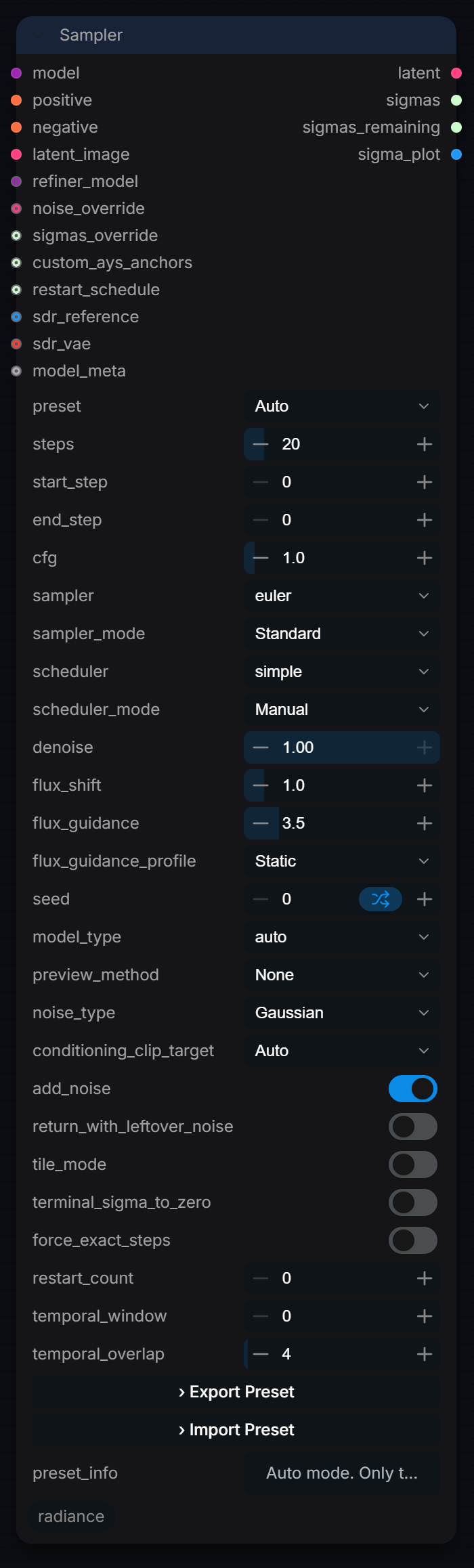
Captured from Radiance 3.5.0 · Default interface · Select to open the full-resolution screenshot. Controls can change with presets and connections.Settings and usage →
Sampler
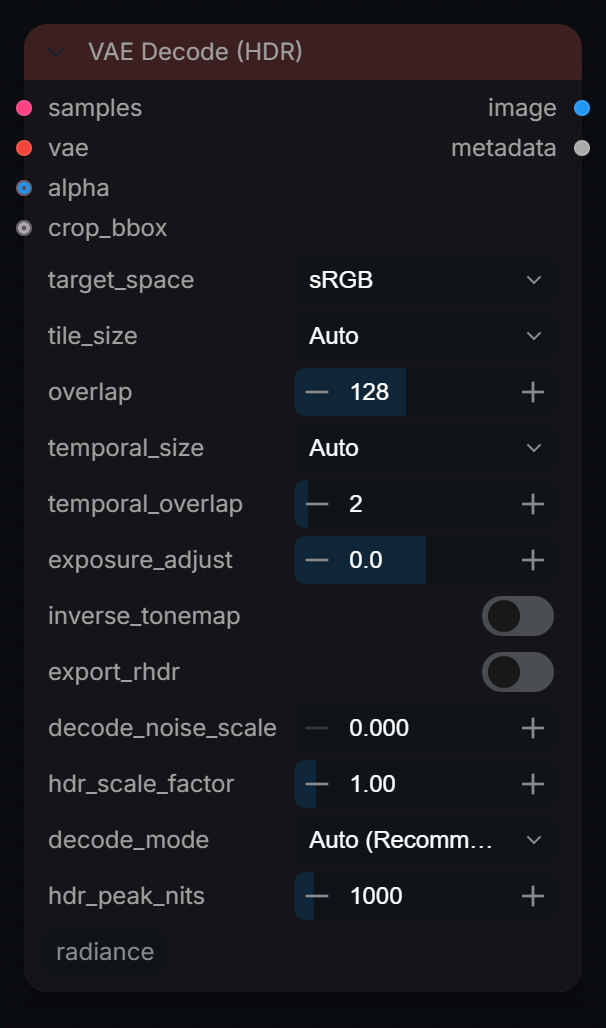
Captured from Radiance 3.5.0 · Default interface · Select to open the full-resolution screenshot. Controls can change with presets and connections.Settings and usage →
VAE Decode (HDR)
Captured from Radiance 3.5.0 · Default interface · Select to open the full-resolution screenshot. Controls can change with presets and connections.Settings and usage →
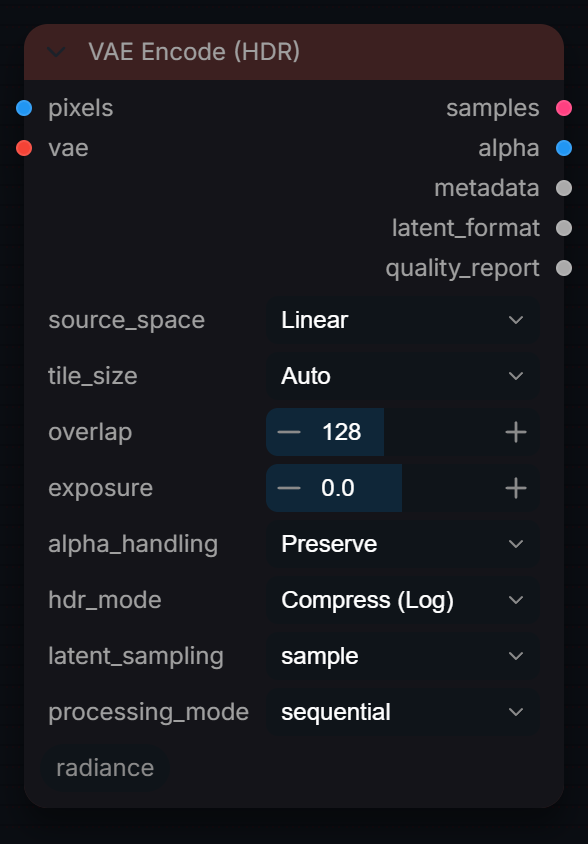
VAE Encode (HDR)
Captured from Radiance 3.5.0 · Default interface · Select to open the full-resolution screenshot. Controls can change with presets and connections.Settings and usage →
Hdr
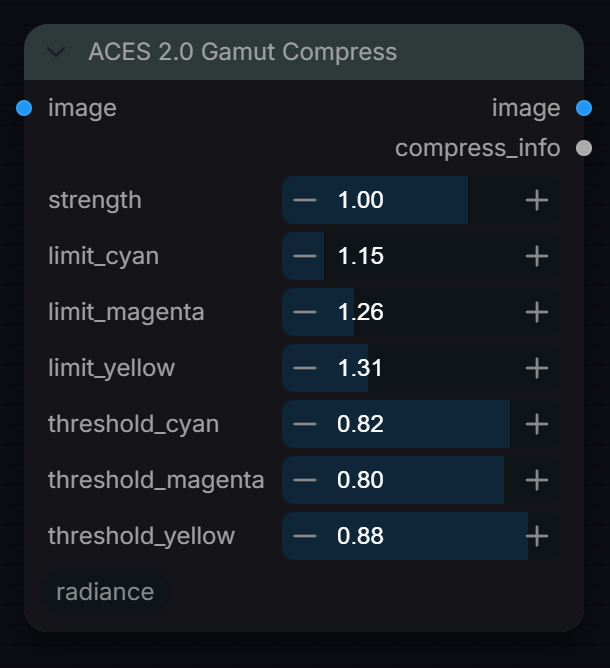
ACES 2.0 Gamut Compress
Captured from Radiance 3.5.0 · Default interface · Select to open the full-resolution screenshot. Controls can change with presets and connections.Settings and usage →
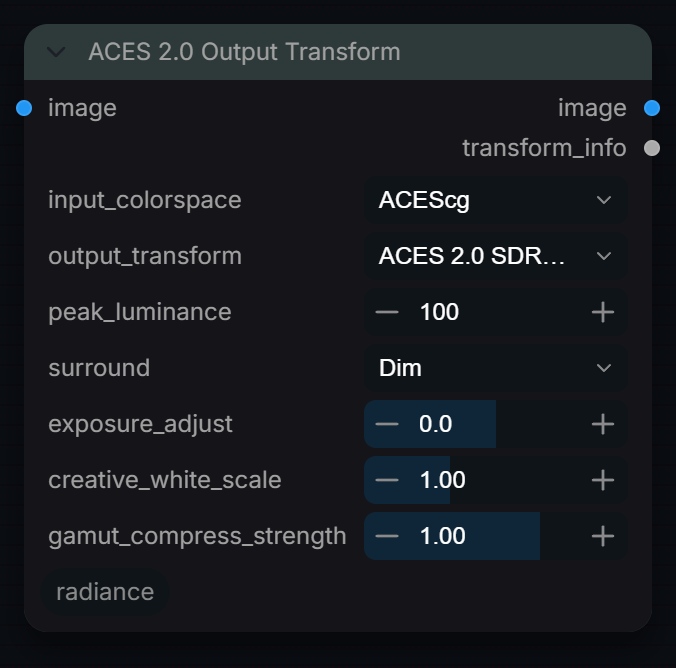
ACES 2.0 Output Transform
Captured from Radiance 3.5.0 · Default interface · Select to open the full-resolution screenshot. Controls can change with presets and connections.Settings and usage →
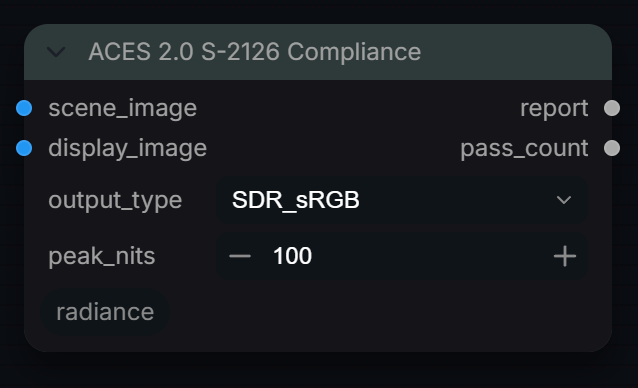
ACES 2.0 S-2126 Compliance
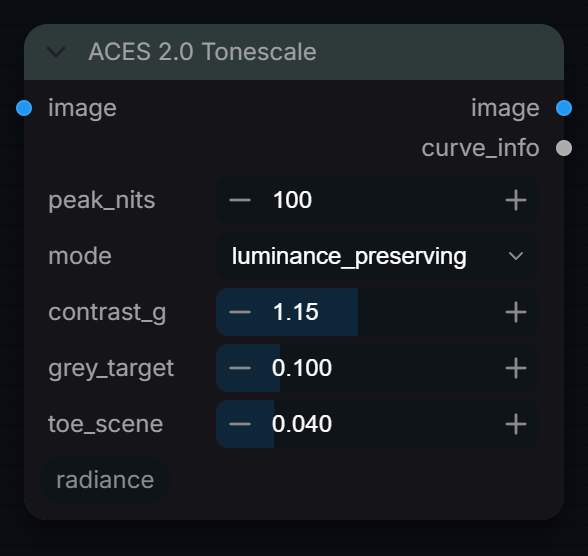
Captured from Radiance 3.5.0 · Default interface · Select to open the full-resolution screenshot. Controls can change with presets and connections.Settings and usage →
ACES 2.0 Tonescale
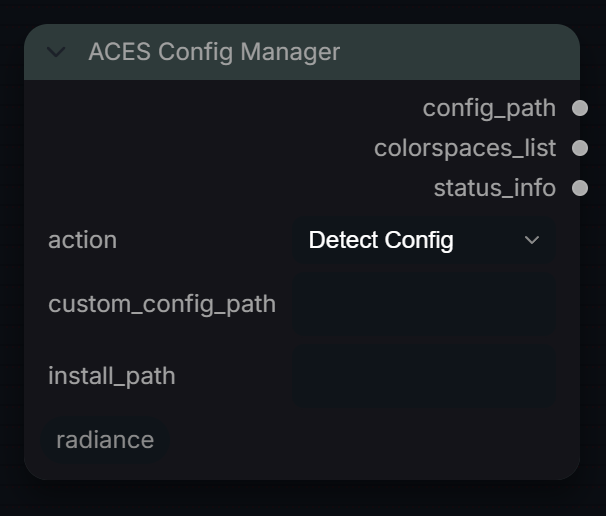
Captured from Radiance 3.5.0 · Default interface · Select to open the full-resolution screenshot. Controls can change with presets and connections.Settings and usage →
ACES Config Manager
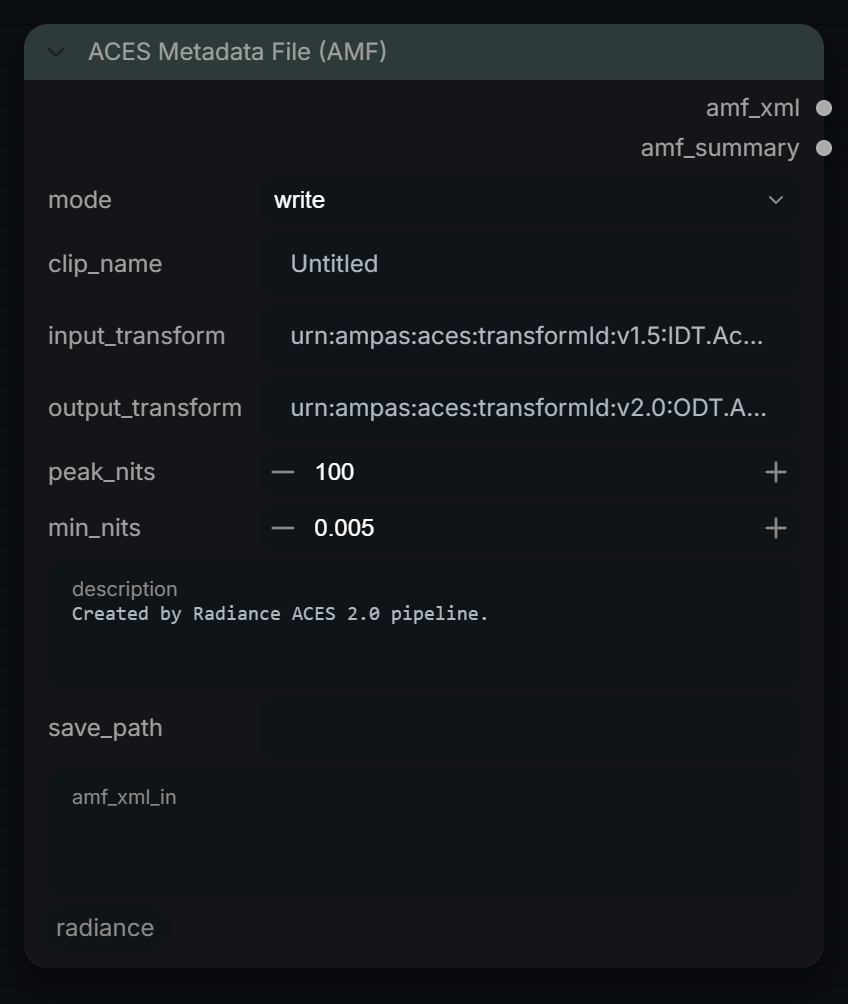
Captured from Radiance 3.5.0 · Default interface · Select to open the full-resolution screenshot. Controls can change with presets and connections.Settings and usage →
ACES Metadata File (AMF)
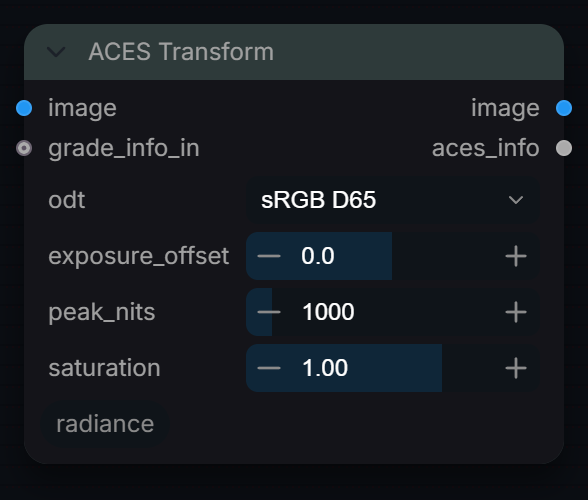
Captured from Radiance 3.5.0 · Default interface · Select to open the full-resolution screenshot. Controls can change with presets and connections.Settings and usage →
ACES Transform
Captured from Radiance 3.5.0 · Default interface · Select to open the full-resolution screenshot. Controls can change with presets and connections.Settings and usage →
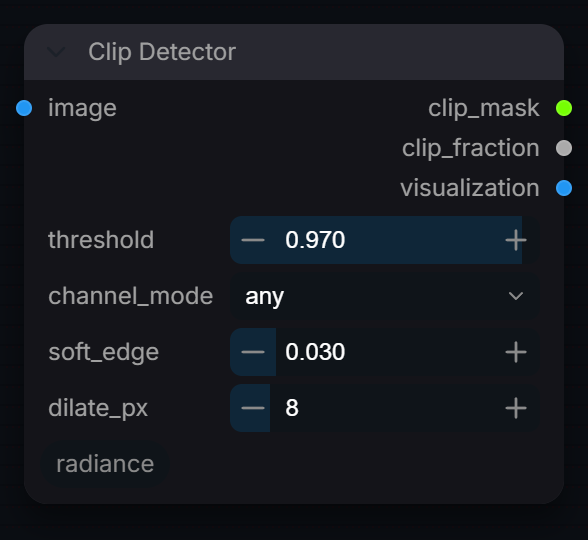
Clip Detector
Captured from Radiance 3.5.0 · Default interface · Select to open the full-resolution screenshot. Controls can change with presets and connections.Settings and usage →
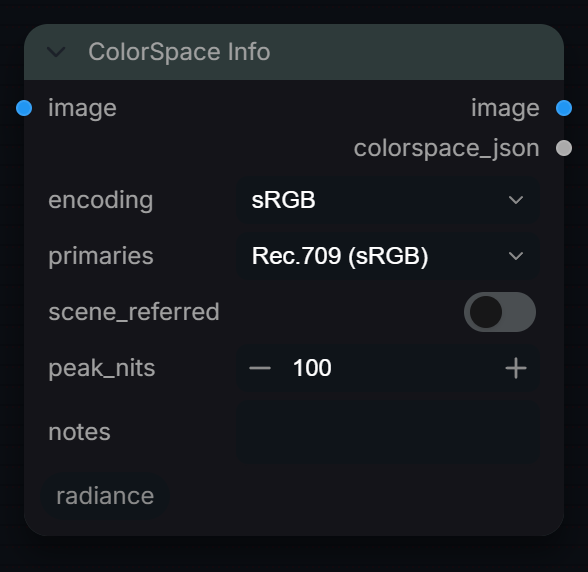
ColorSpace Info
Captured from Radiance 3.5.0 · Default interface · Select to open the full-resolution screenshot. Controls can change with presets and connections.Settings and usage →
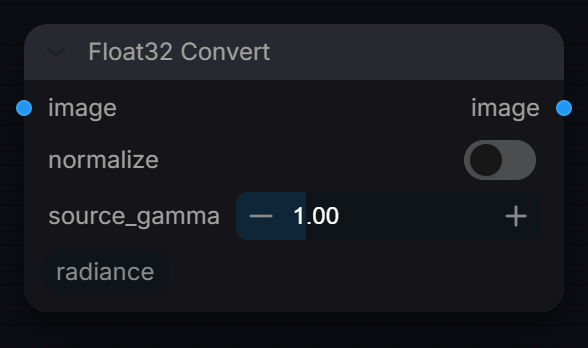
Float32 Convert
Captured from Radiance 3.5.0 · Default interface · Select to open the full-resolution screenshot. Controls can change with presets and connections.Settings and usage →
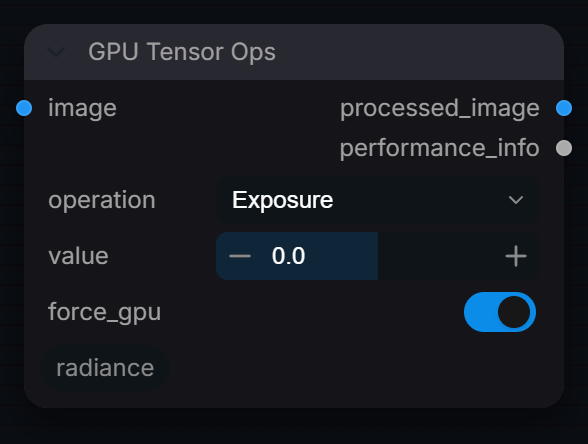
GPU Tensor Ops
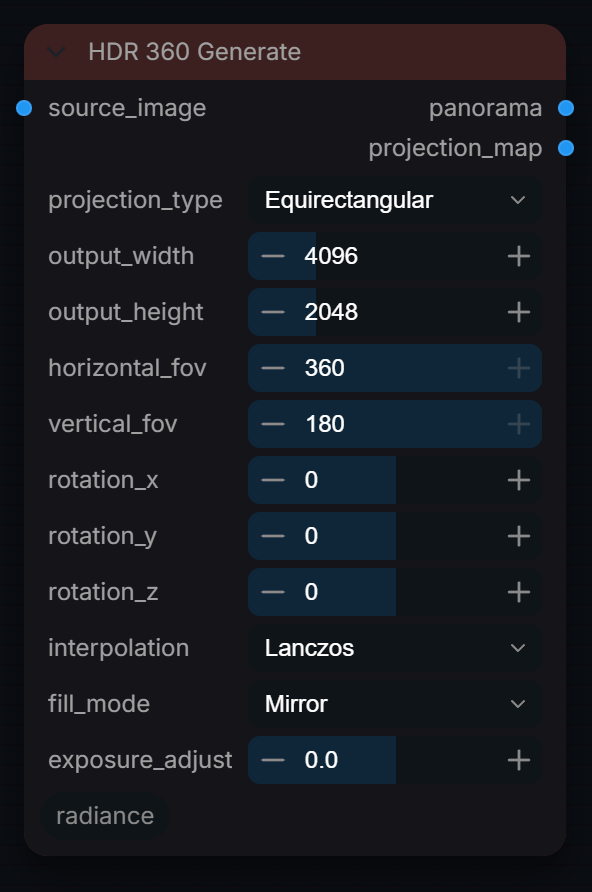
Captured from Radiance 3.5.0 · Default interface · Select to open the full-resolution screenshot. Controls can change with presets and connections.Settings and usage →
HDR 360 Generate
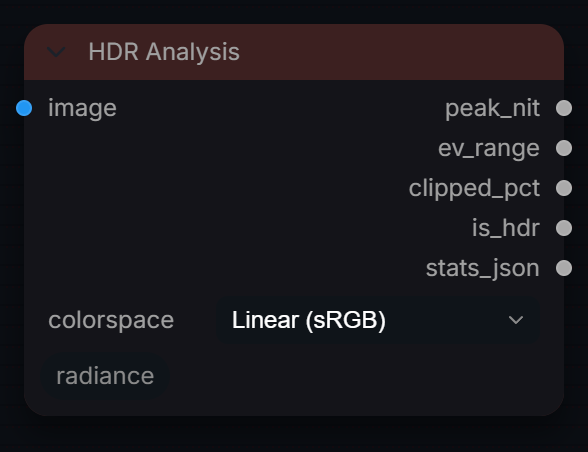
Captured from Radiance 3.5.0 · Default interface · Select to open the full-resolution screenshot. Controls can change with presets and connections.Settings and usage →
HDR Analysis
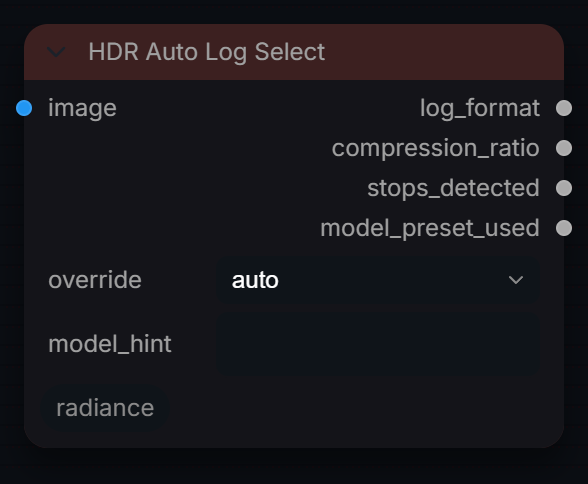
Captured from Radiance 3.5.0 · Default interface · Select to open the full-resolution screenshot. Controls can change with presets and connections.Settings and usage →
HDR Auto Log Select
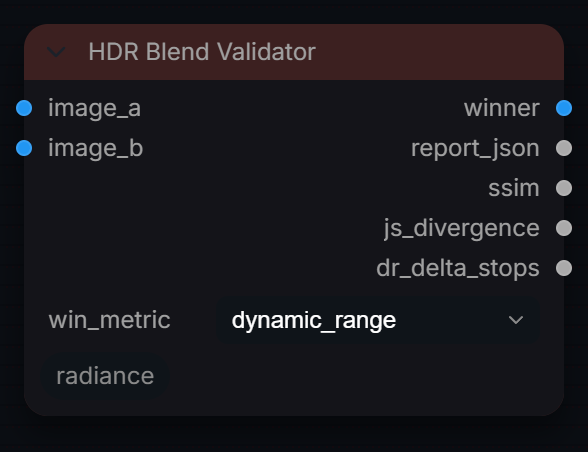
Captured from Radiance 3.5.0 · Default interface · Select to open the full-resolution screenshot. Controls can change with presets and connections.Settings and usage →
HDR Blend Validator
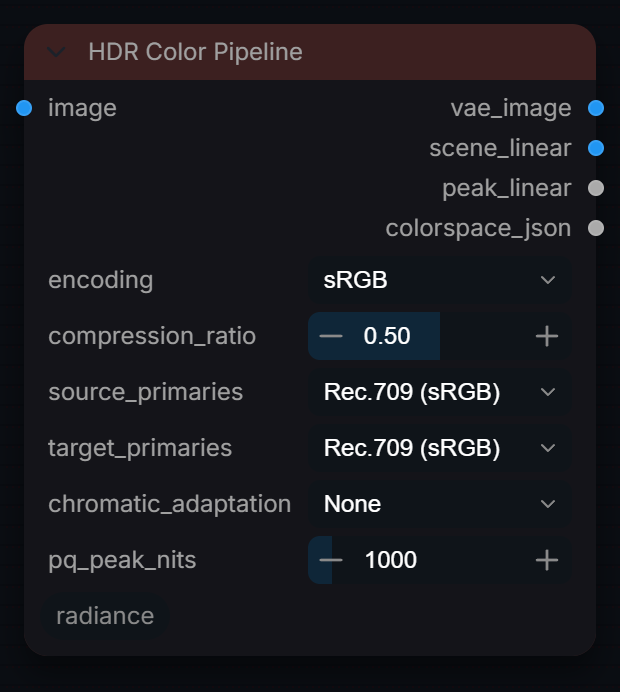
Captured from Radiance 3.5.0 · Default interface · Select to open the full-resolution screenshot. Controls can change with presets and connections.Settings and usage →
HDR Color Pipeline
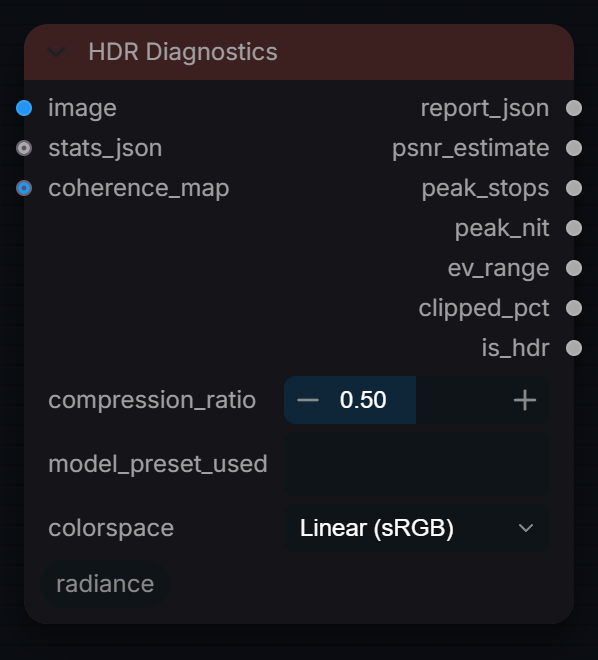
Captured from Radiance 3.5.0 · Default interface · Select to open the full-resolution screenshot. Controls can change with presets and connections.Settings and usage →
HDR Diagnostics
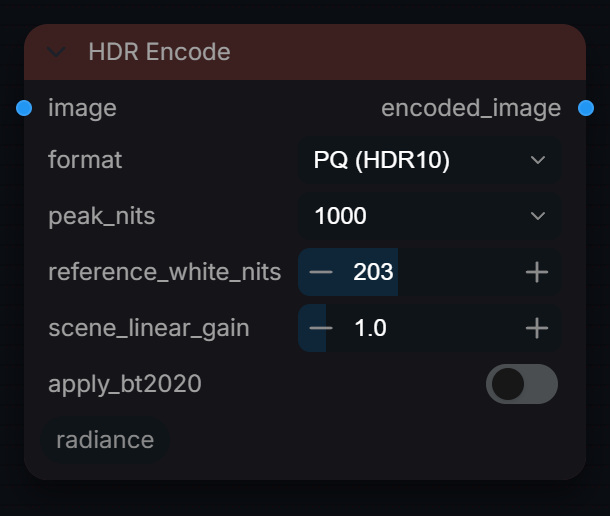
Captured from Radiance 3.5.0 · Default interface · Select to open the full-resolution screenshot. Controls can change with presets and connections.Settings and usage →
HDR Encode
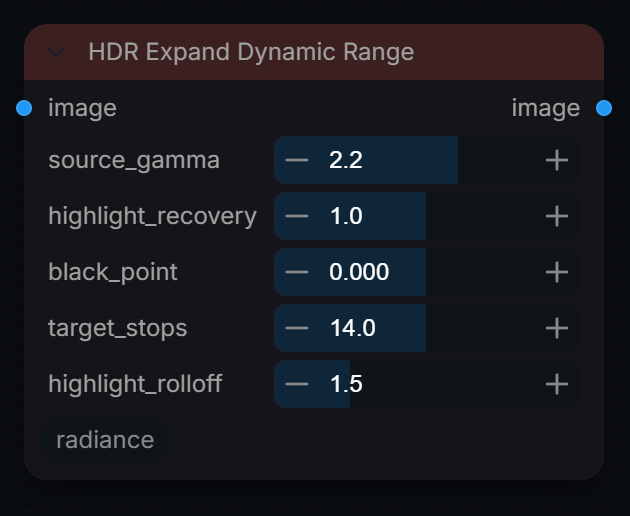
Captured from Radiance 3.5.0 · Default interface · Select to open the full-resolution screenshot. Controls can change with presets and connections.Settings and usage →
HDR Expand Dynamic Range
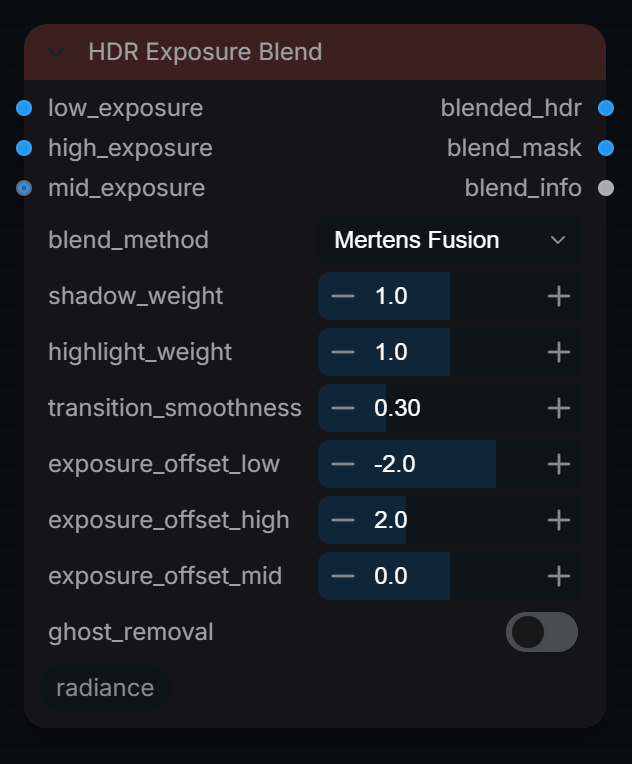
Captured from Radiance 3.5.0 · Default interface · Select to open the full-resolution screenshot. Controls can change with presets and connections.Settings and usage →
HDR Exposure Blend
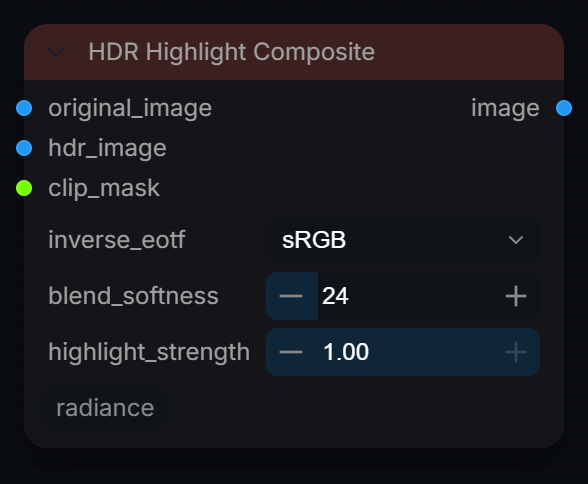
Captured from Radiance 3.5.0 · Default interface · Select to open the full-resolution screenshot. Controls can change with presets and connections.Settings and usage →
HDR Highlight Composite
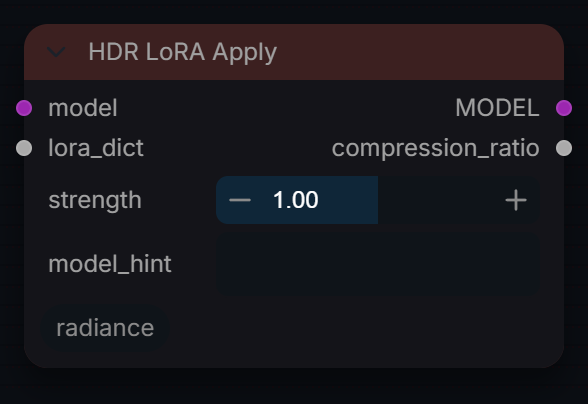
Captured from Radiance 3.5.0 · Default interface · Select to open the full-resolution screenshot. Controls can change with presets and connections.Settings and usage →
HDR LoRA Apply
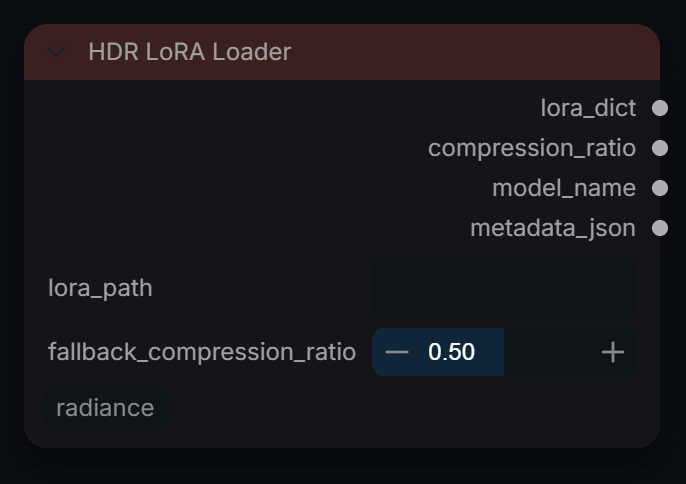
Captured from Radiance 3.5.0 · Default interface · Select to open the full-resolution screenshot. Controls can change with presets and connections.Settings and usage →
HDR LoRA Loader
Captured from Radiance 3.5.0 · Default interface · Select to open the full-resolution screenshot. Controls can change with presets and connections.Settings and usage →
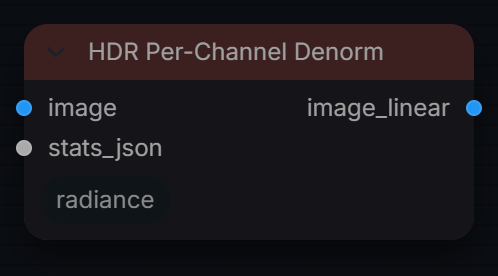
HDR Per-Channel Denorm
Captured from Radiance 3.5.0 · Default interface · Select to open the full-resolution screenshot. Controls can change with presets and connections.Settings and usage →
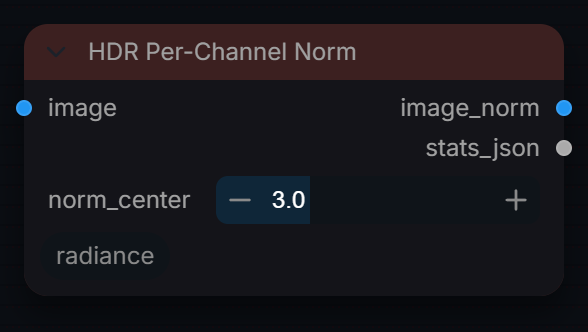
HDR Per-Channel Norm
Captured from Radiance 3.5.0 · Default interface · Select to open the full-resolution screenshot. Controls can change with presets and connections.Settings and usage →
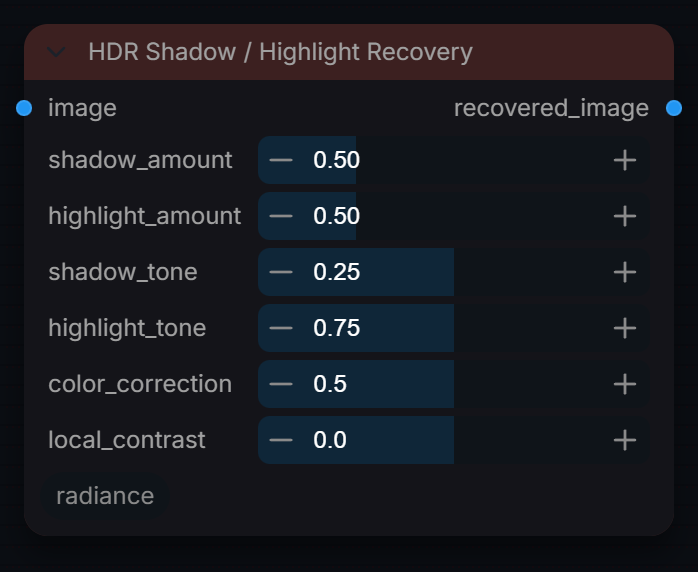
HDR Shadow / Highlight Recovery
Captured from Radiance 3.5.0 · Default interface · Select to open the full-resolution screenshot. Controls can change with presets and connections.Settings and usage →
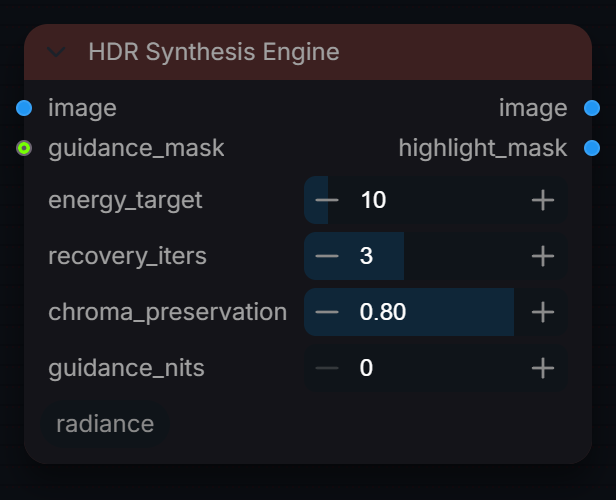
HDR Synthesis Engine
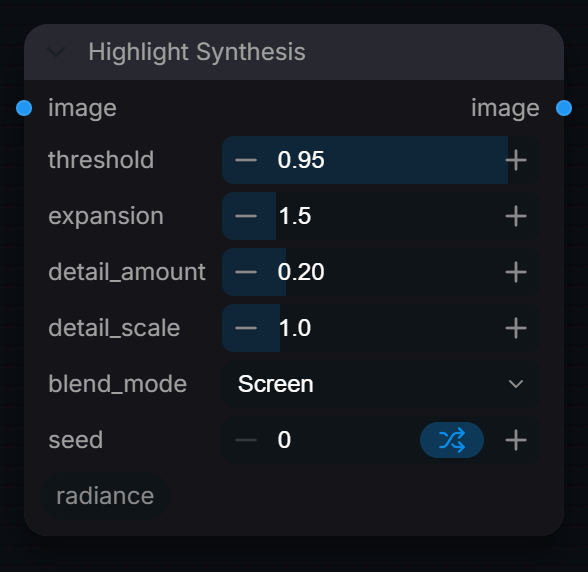
Captured from Radiance 3.5.0 · Default interface · Select to open the full-resolution screenshot. Controls can change with presets and connections.Settings and usage →
Highlight Synthesis
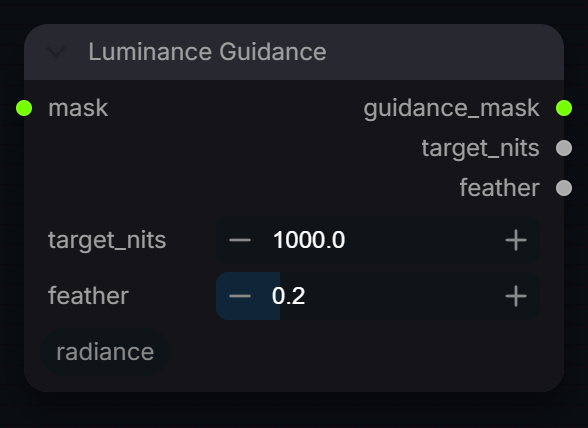
Captured from Radiance 3.5.0 · Default interface · Select to open the full-resolution screenshot. Controls can change with presets and connections.Settings and usage →
Luminance Guidance
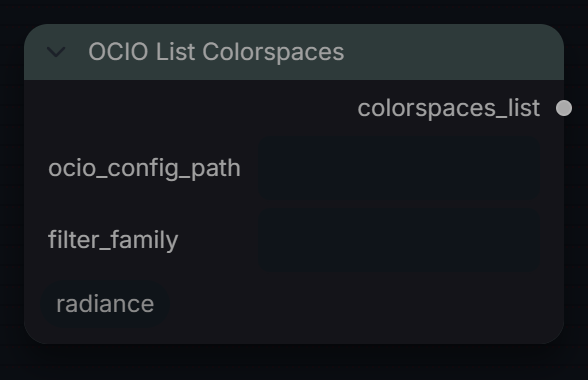
Captured from Radiance 3.5.0 · Default interface · Select to open the full-resolution screenshot. Controls can change with presets and connections.Settings and usage →
OCIO List Colorspaces
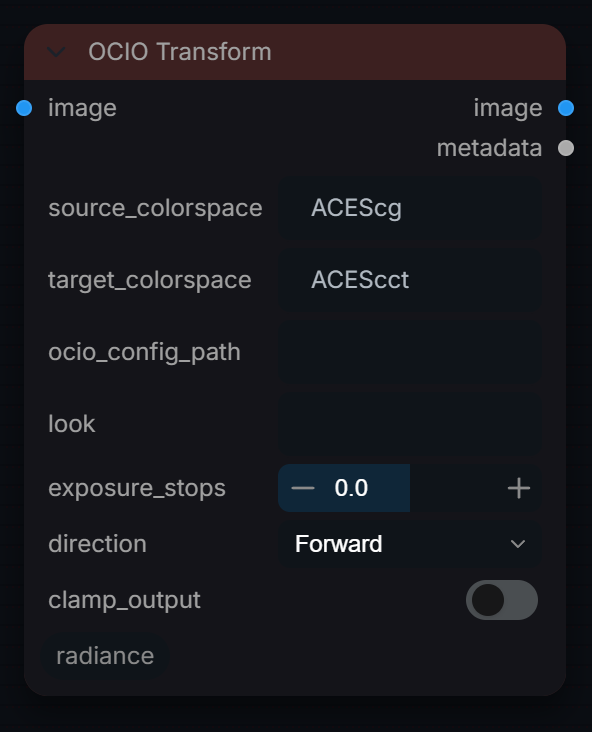
Captured from Radiance 3.5.0 · Default interface · Select to open the full-resolution screenshot. Controls can change with presets and connections.Settings and usage →
OCIO Transform
Captured from Radiance 3.5.0 · Default interface · Select to open the full-resolution screenshot. Controls can change with presets and connections.Settings and usage →
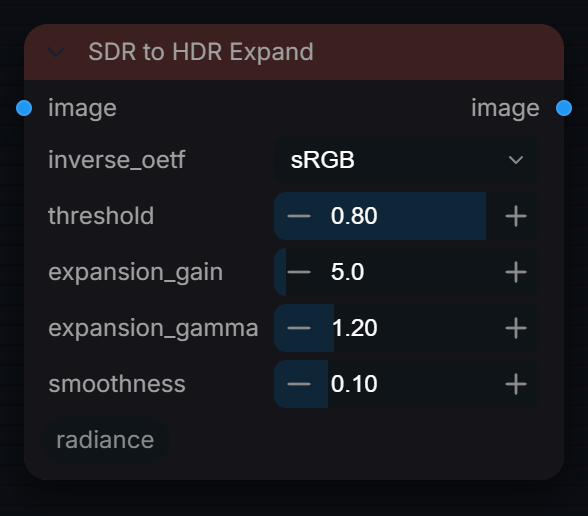
SDR to HDR Expand
Captured from Radiance 3.5.0 · Default interface · Select to open the full-resolution screenshot. Controls can change with presets and connections.Settings and usage →
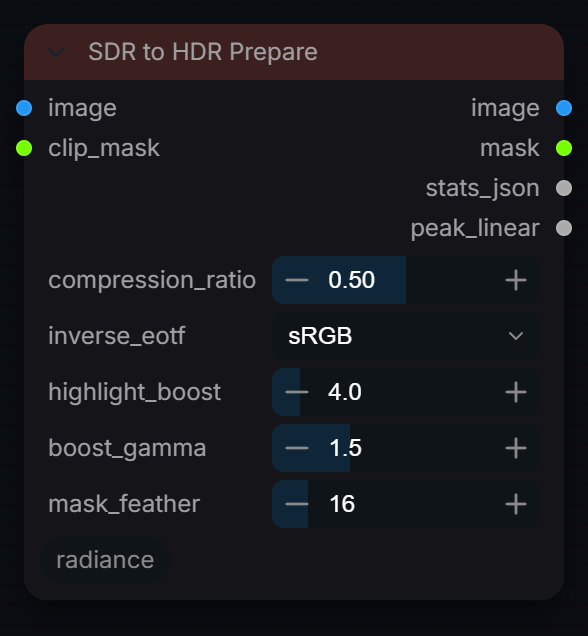
SDR to HDR Prepare
Captured from Radiance 3.5.0 · Default interface · Select to open the full-resolution screenshot. Controls can change with presets and connections.Settings and usage →
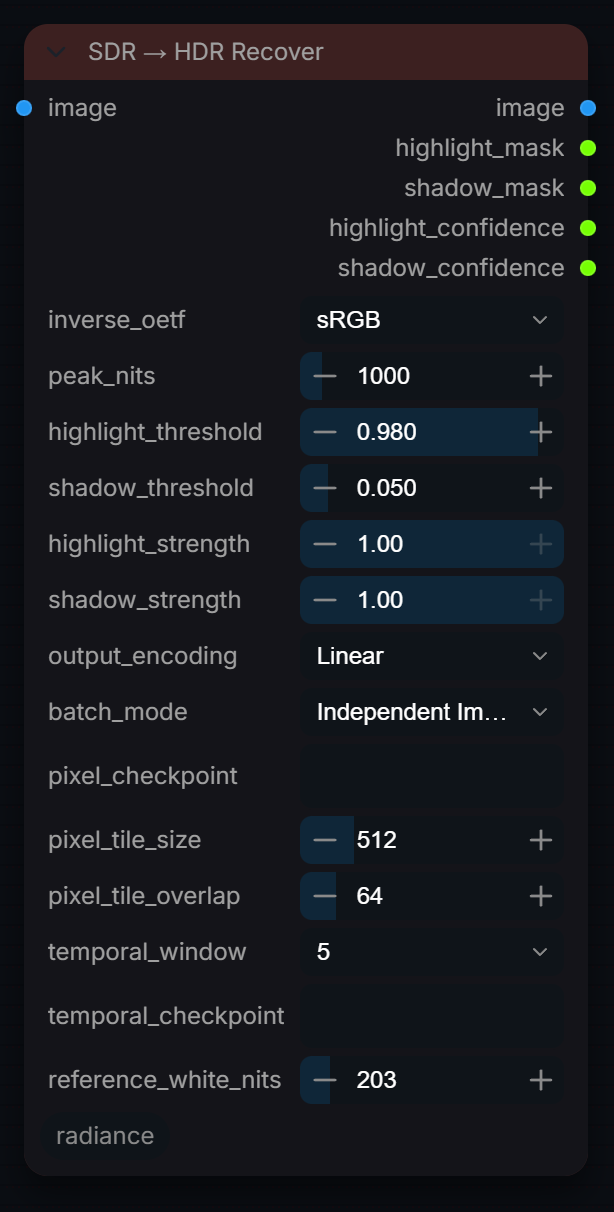
SDR → HDR Recover
Captured from Radiance 3.5.0 · Default interface · Select to open the full-resolution screenshot. Controls can change with presets and connections.Settings and usage →
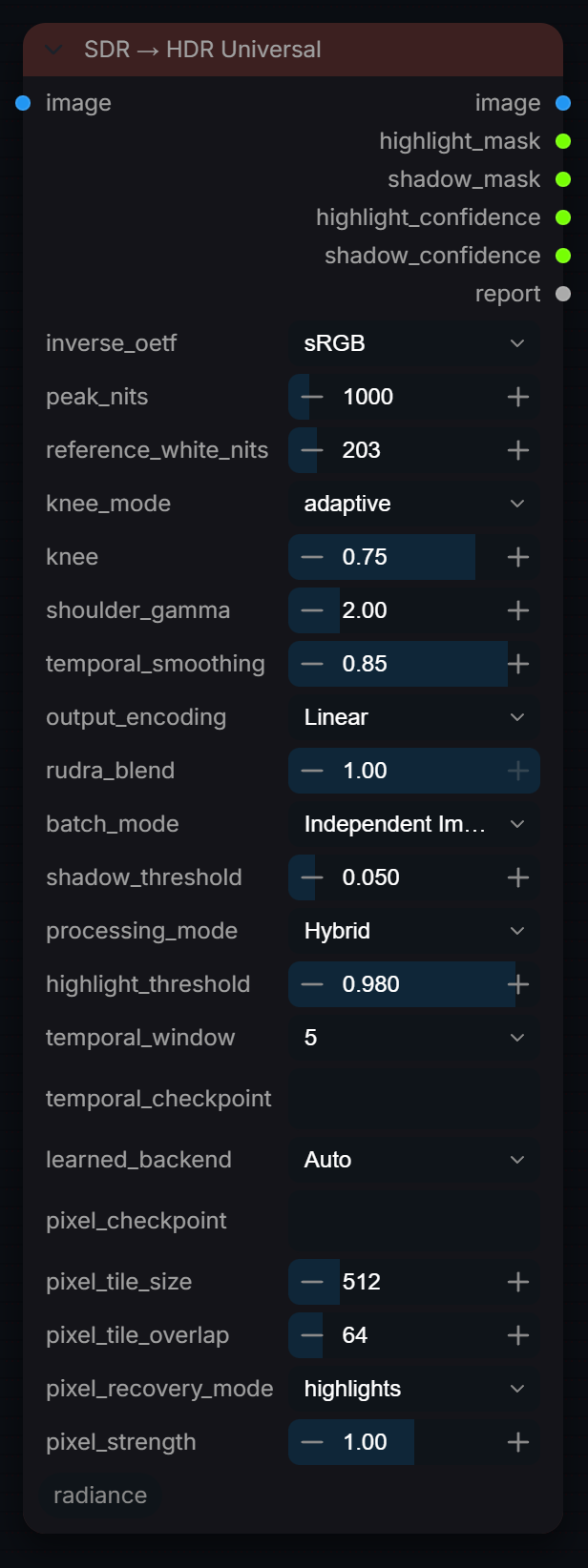
SDR → HDR Universal
Captured from Radiance 3.5.0 · Default interface · Select to open the full-resolution screenshot. Controls can change with presets and connections.Settings and usage →
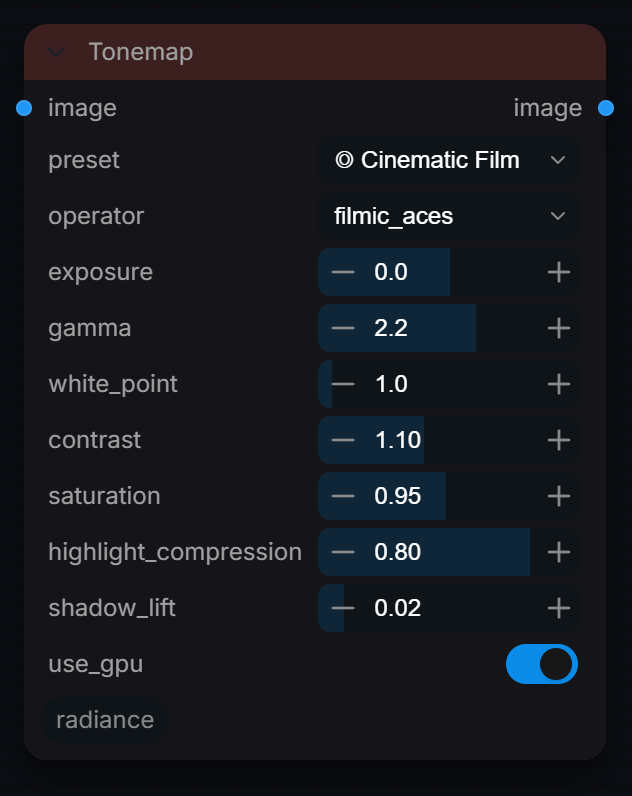
Tonemap
Captured from Radiance 3.5.0 · Default interface · Select to open the full-resolution screenshot. Controls can change with presets and connections.Settings and usage →
Load Save
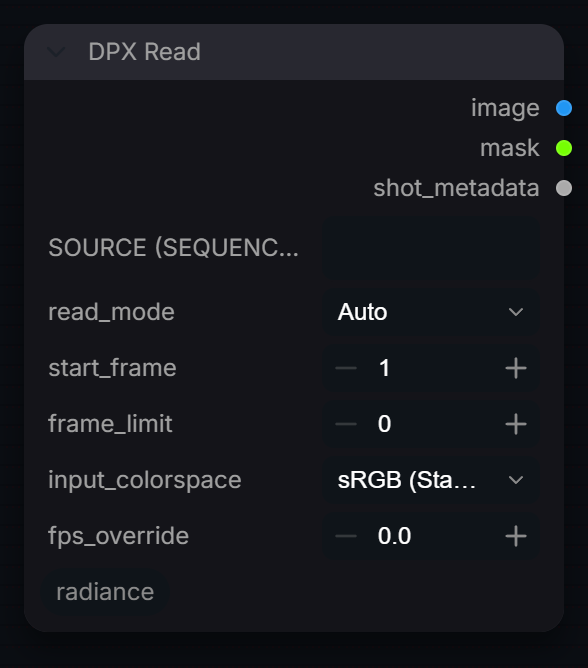
DPX Read
Captured from Radiance 3.5.0 · Default interface · Select to open the full-resolution screenshot. Controls can change with presets and connections.Settings and usage →
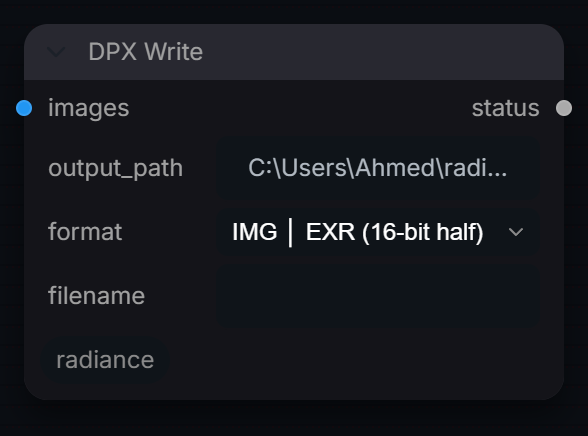
DPX Write
Captured from Radiance 3.5.0 · Default interface · Select to open the full-resolution screenshot. Controls can change with presets and connections.Settings and usage →
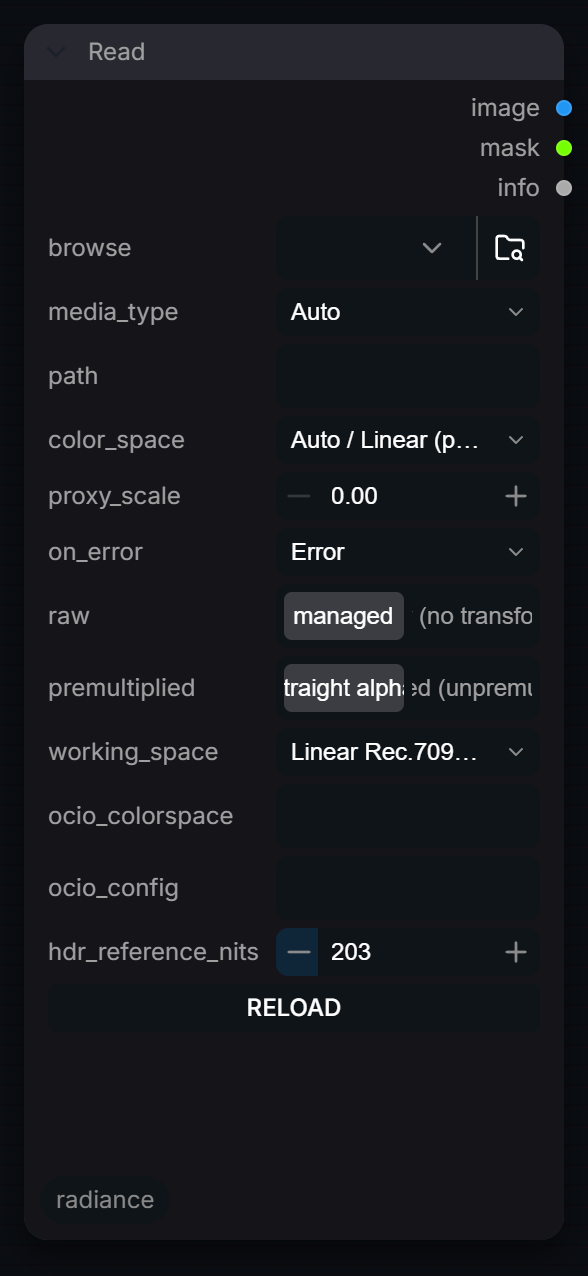
Read
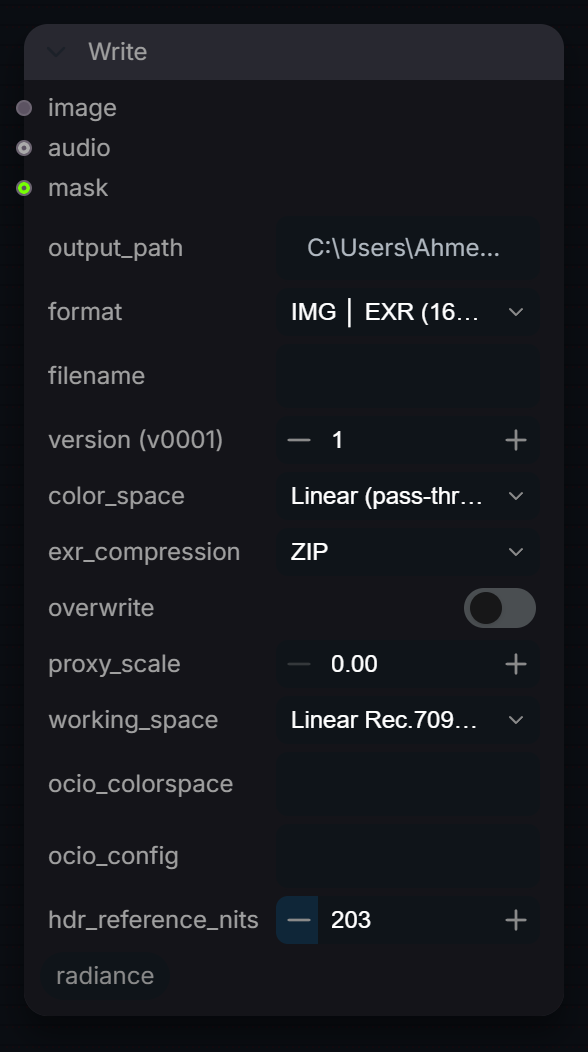
Captured from Radiance 3.5.0 · Default interface · Select to open the full-resolution screenshot. Controls can change with presets and connections.Settings and usage →
Write
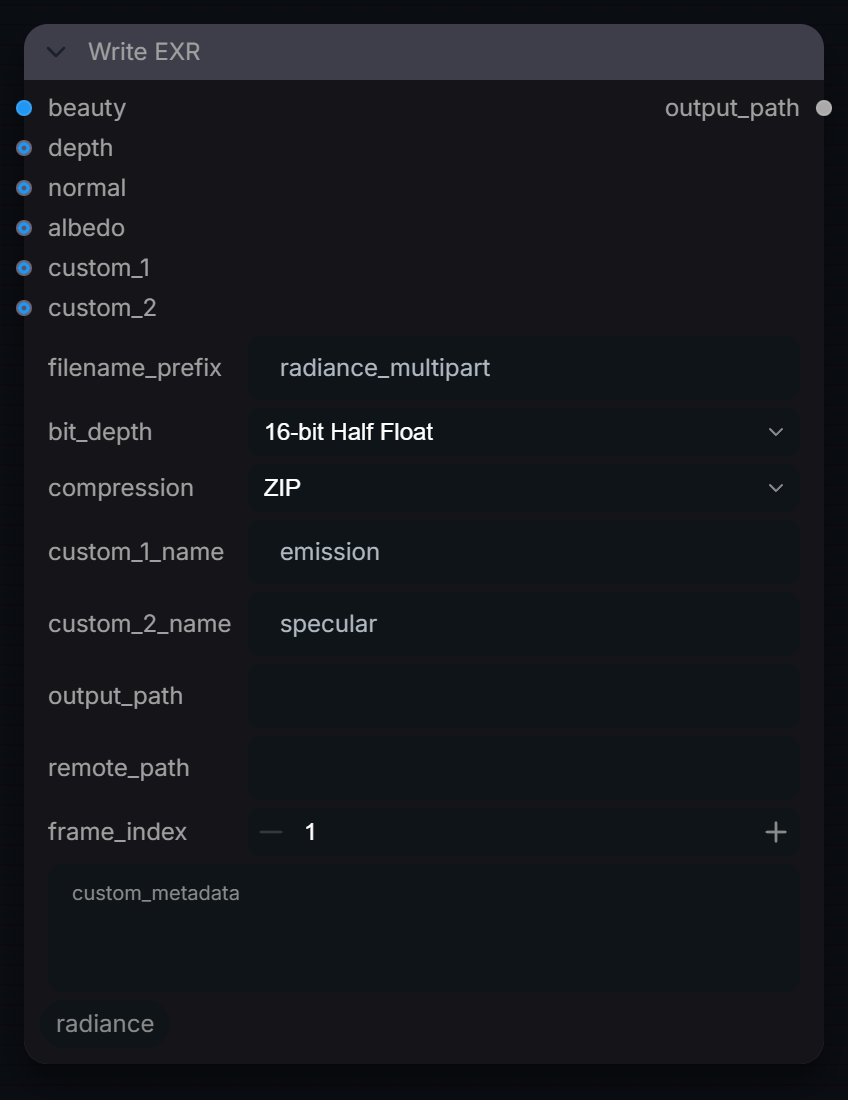
Captured from Radiance 3.5.0 · Default interface · Select to open the full-resolution screenshot. Controls can change with presets and connections.Settings and usage →
Write EXR
Captured from Radiance 3.5.0 · Default interface · Select to open the full-resolution screenshot. Controls can change with presets and connections.Settings and usage →
Pipeline
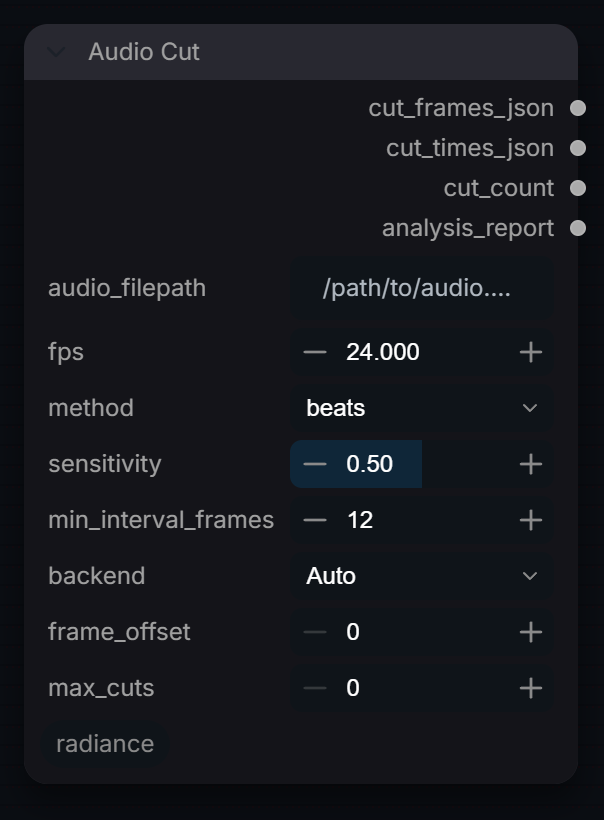
Audio Cut
Captured from Radiance 3.5.0 · Default interface · Select to open the full-resolution screenshot. Controls can change with presets and connections.Settings and usage →
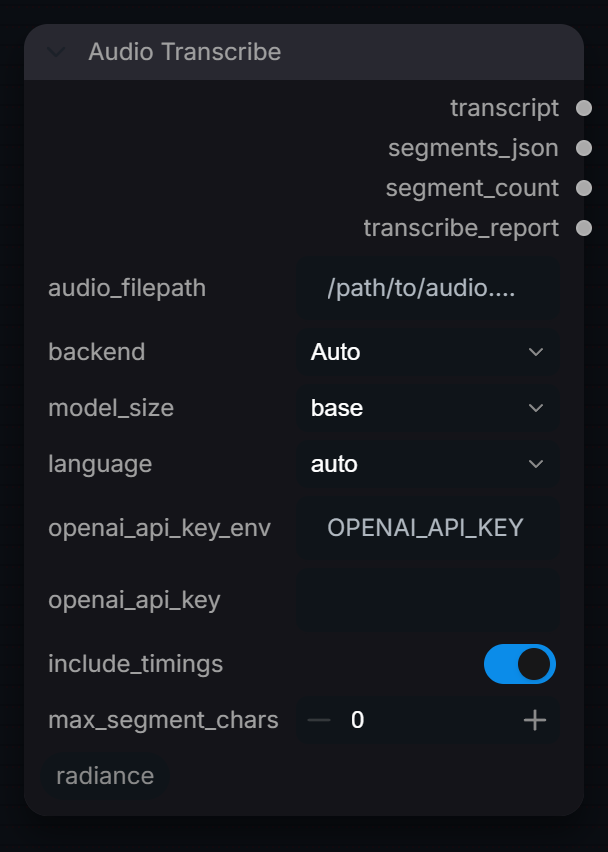
Audio Transcribe
Captured from Radiance 3.5.0 · Default interface · Select to open the full-resolution screenshot. Controls can change with presets and connections.Settings and usage →
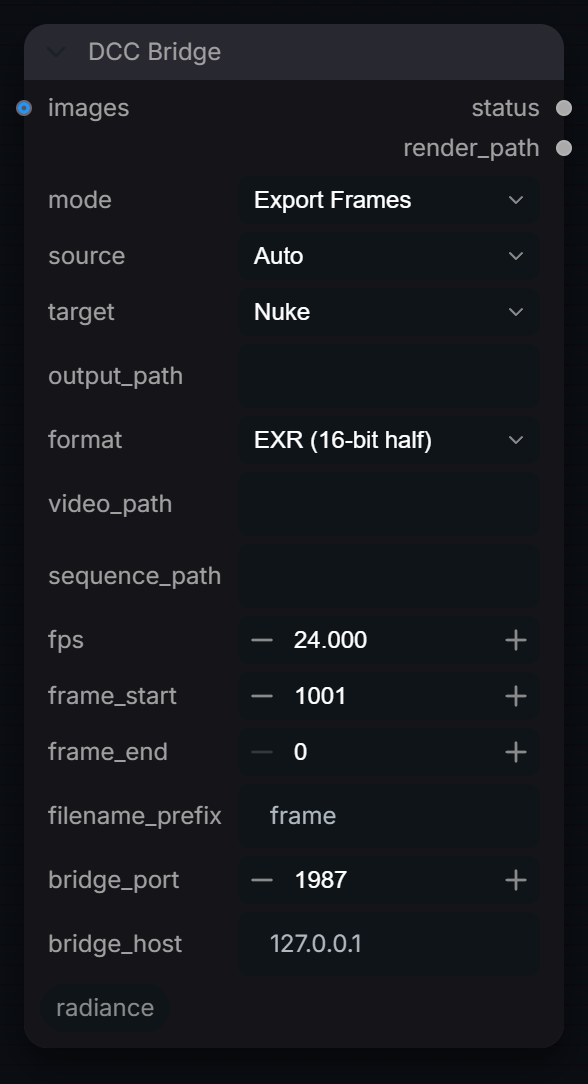
DCC Bridge
Captured from Radiance 3.5.0 · Default interface · Select to open the full-resolution screenshot. Controls can change with presets and connections.Settings and usage →
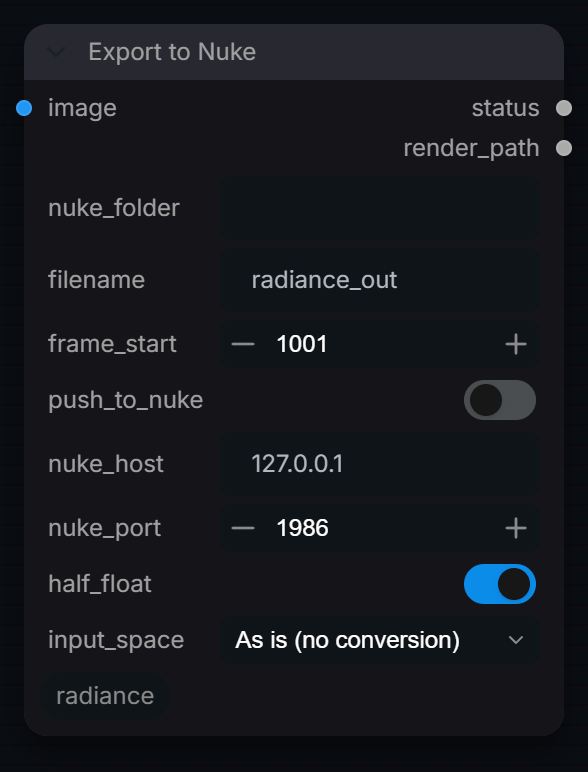
Export to Nuke
Captured from Radiance 3.5.0 · Default interface · Select to open the full-resolution screenshot. Controls can change with presets and connections.Settings and usage →
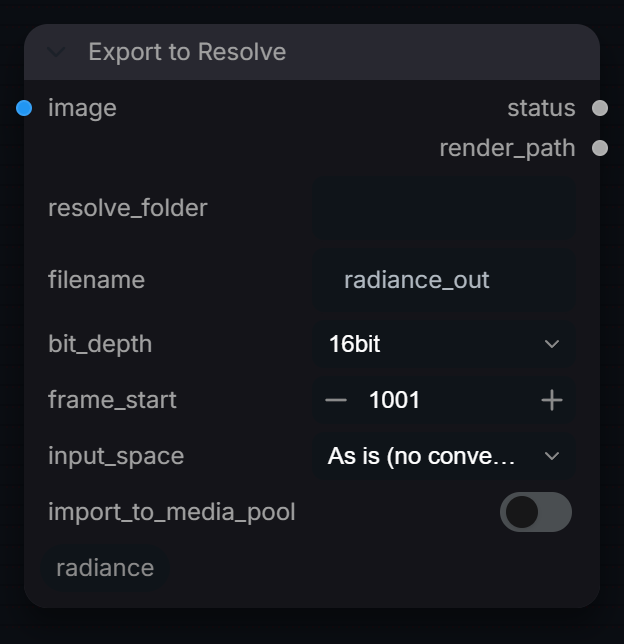
Export to Resolve
Captured from Radiance 3.5.0 · Default interface · Select to open the full-resolution screenshot. Controls can change with presets and connections.Settings and usage →
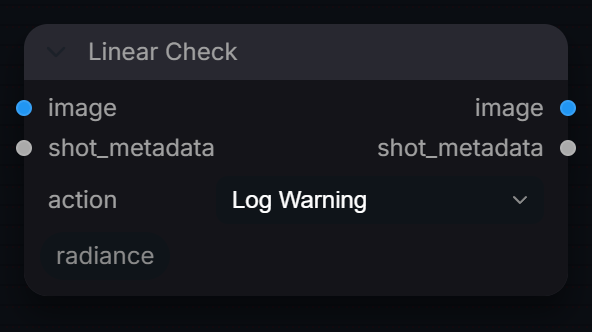
Linear Check
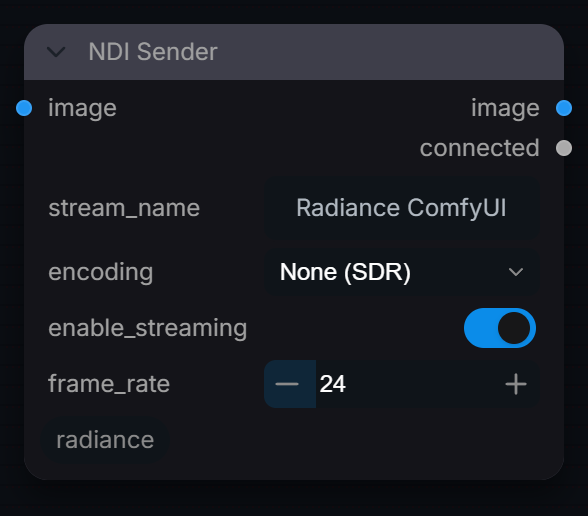
Captured from Radiance 3.5.0 · Default interface · Select to open the full-resolution screenshot. Controls can change with presets and connections.Settings and usage →
NDI Sender
Captured from Radiance 3.5.0 · Default interface · Select to open the full-resolution screenshot. Controls can change with presets and connections.Settings and usage →
Review
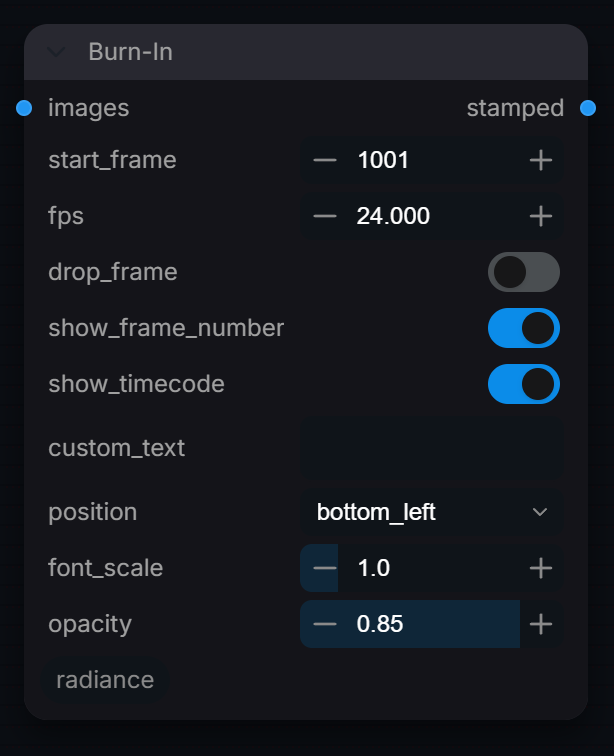
Burn-In
Captured from Radiance 3.5.0 · Default interface · Select to open the full-resolution screenshot. Controls can change with presets and connections.Settings and usage →
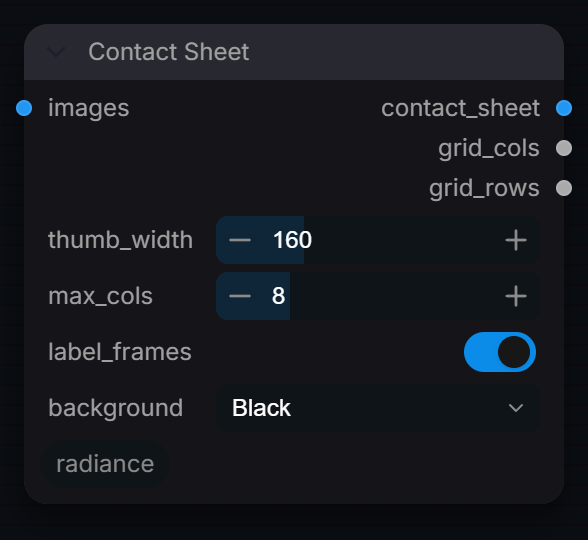
Contact Sheet
Captured from Radiance 3.5.0 · Default interface · Select to open the full-resolution screenshot. Controls can change with presets and connections.Settings and usage →
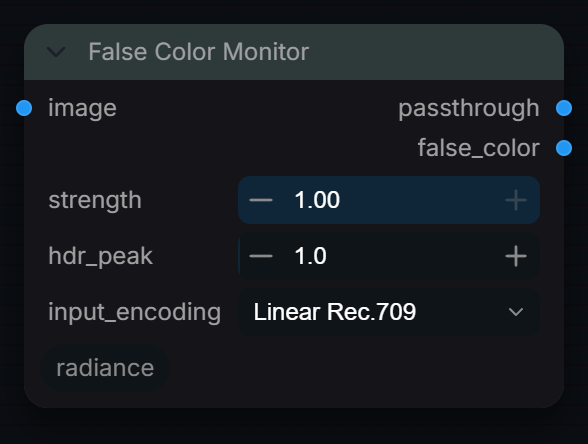
False Color Monitor
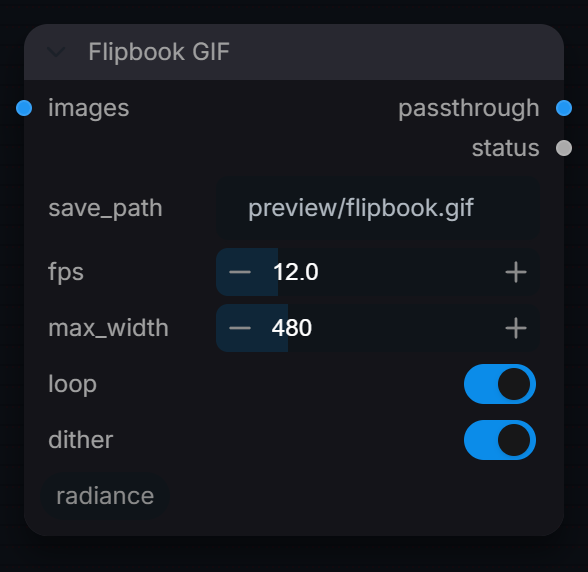
Captured from Radiance 3.5.0 · Default interface · Select to open the full-resolution screenshot. Controls can change with presets and connections.Settings and usage →
Flipbook GIF
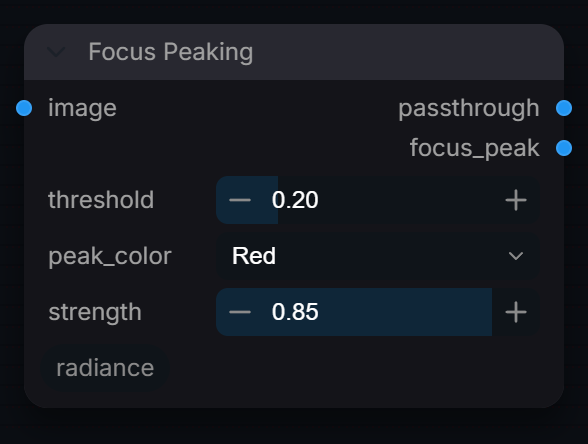
Captured from Radiance 3.5.0 · Default interface · Select to open the full-resolution screenshot. Controls can change with presets and connections.Settings and usage →
Focus Peaking
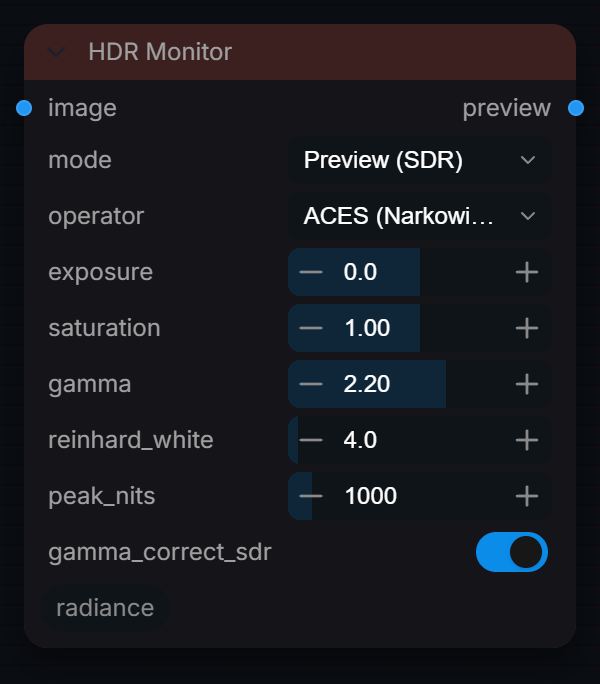
Captured from Radiance 3.5.0 · Default interface · Select to open the full-resolution screenshot. Controls can change with presets and connections.Settings and usage →
HDR Monitor
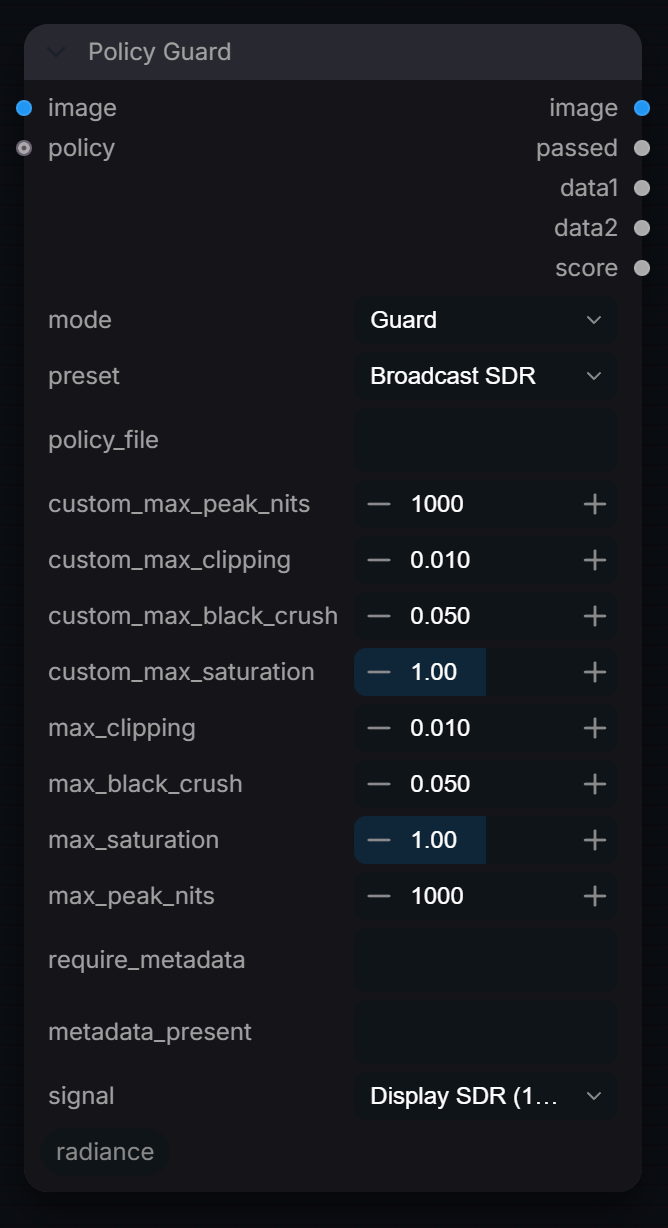
Captured from Radiance 3.5.0 · Default interface · Select to open the full-resolution screenshot. Controls can change with presets and connections.Settings and usage →
Policy Guard
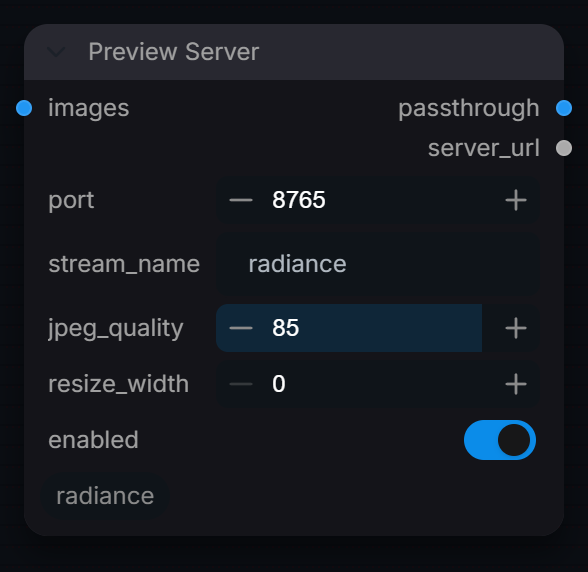
Captured from Radiance 3.5.0 · Default interface · Select to open the full-resolution screenshot. Controls can change with presets and connections.Settings and usage →
Preview Server
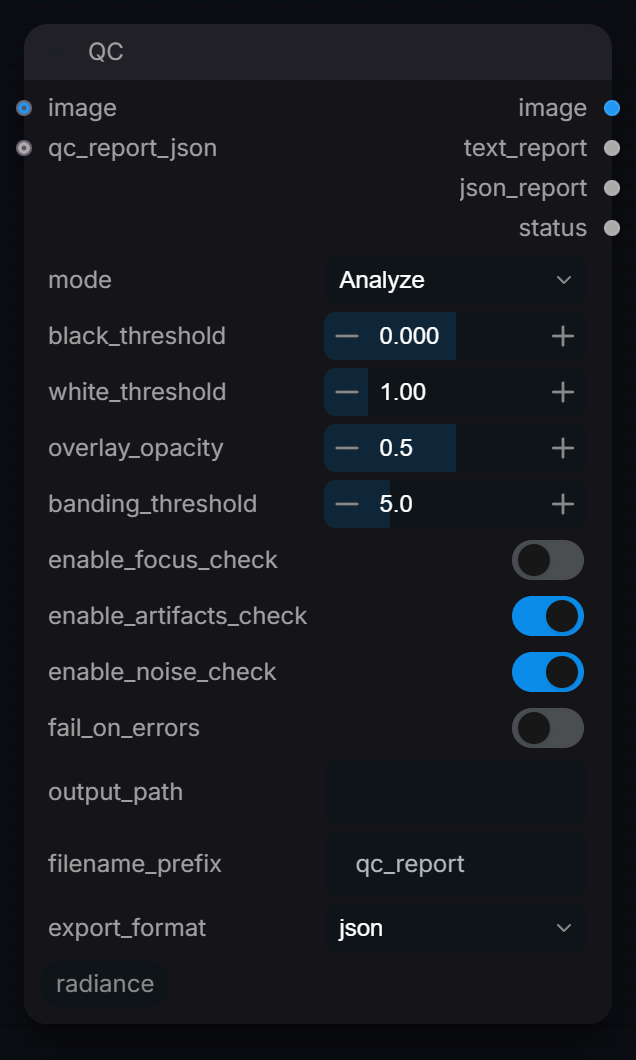
Captured from Radiance 3.5.0 · Default interface · Select to open the full-resolution screenshot. Controls can change with presets and connections.Settings and usage →
QC
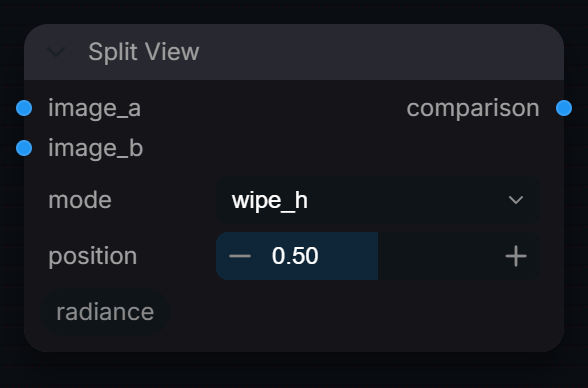
Captured from Radiance 3.5.0 · Default interface · Select to open the full-resolution screenshot. Controls can change with presets and connections.Settings and usage →
Split View
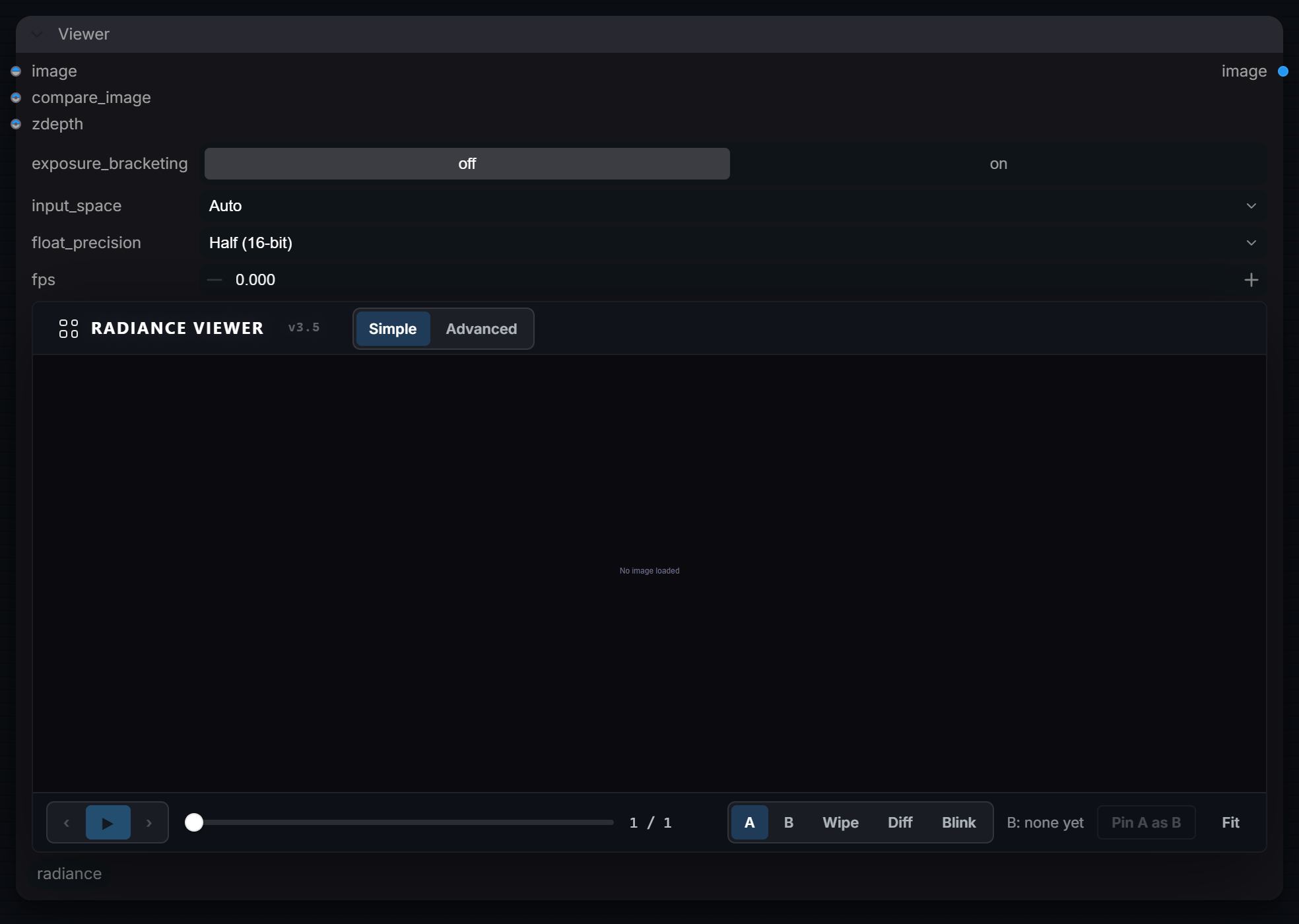
Captured from Radiance 3.5.0 · Default interface · Select to open the full-resolution screenshot. Controls can change with presets and connections.Settings and usage →
Viewer
Captured from Radiance 3.5.0 · Default interface · Select to open the full-resolution screenshot. Controls can change with presets and connections.Settings and usage →
Upscale
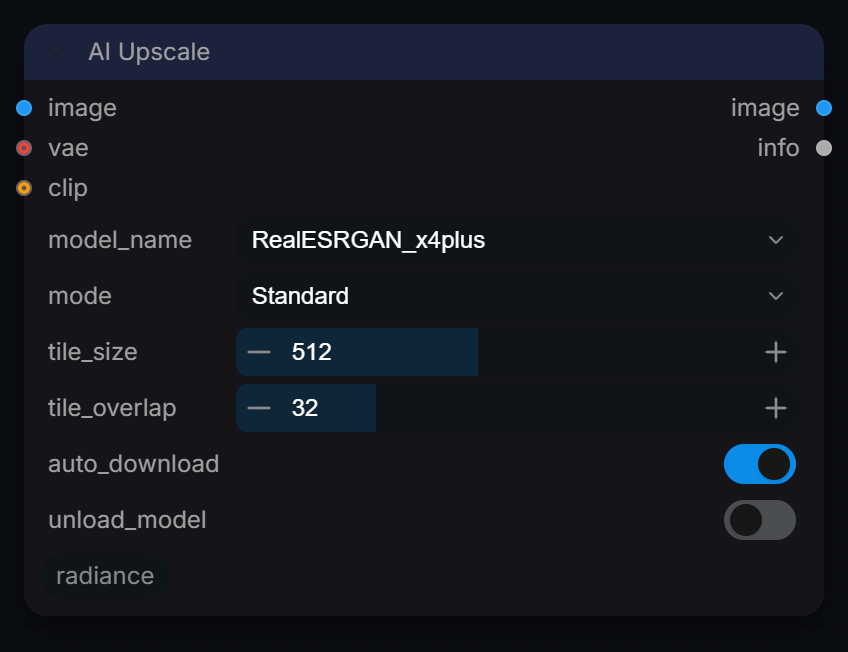
AI Upscale
Captured from Radiance 3.5.0 · Default interface · Select to open the full-resolution screenshot. Controls can change with presets and connections.Settings and usage →
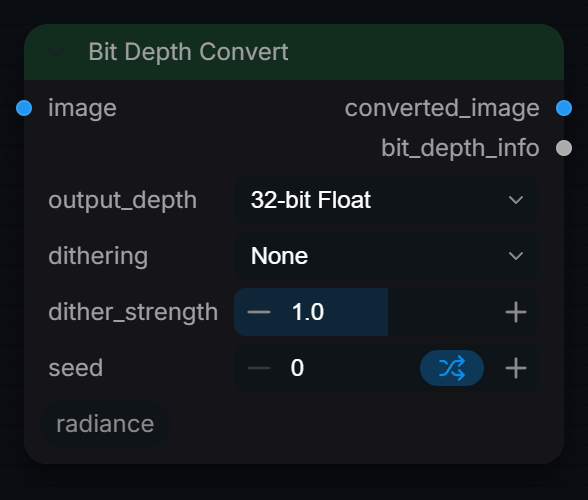
Bit Depth Convert
Captured from Radiance 3.5.0 · Default interface · Select to open the full-resolution screenshot. Controls can change with presets and connections.Settings and usage →
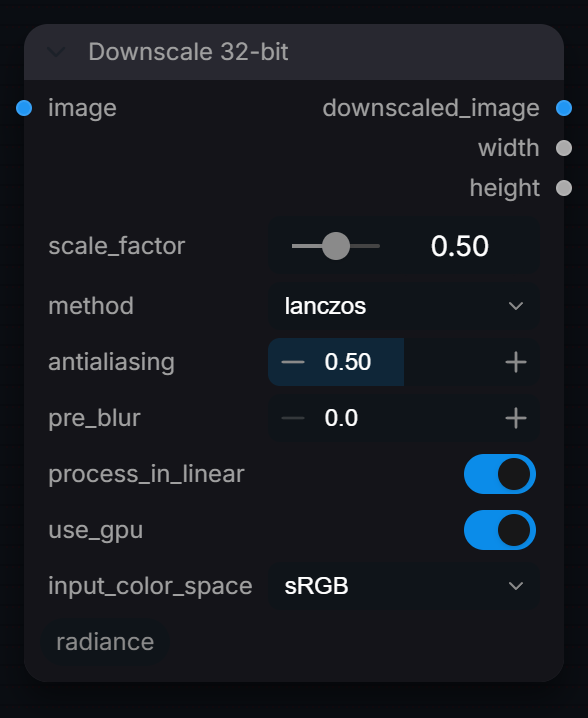
Downscale 32-bit
Captured from Radiance 3.5.0 · Default interface · Select to open the full-resolution screenshot. Controls can change with presets and connections.Settings and usage →
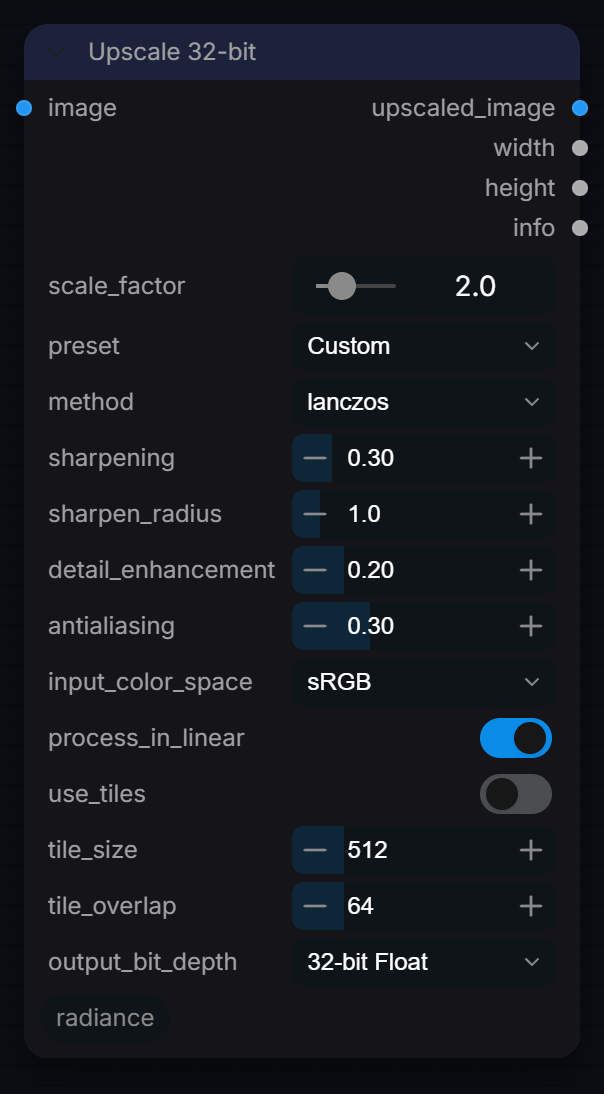
Upscale 32-bit
Captured from Radiance 3.5.0 · Default interface · Select to open the full-resolution screenshot. Controls can change with presets and connections.Settings and usage →
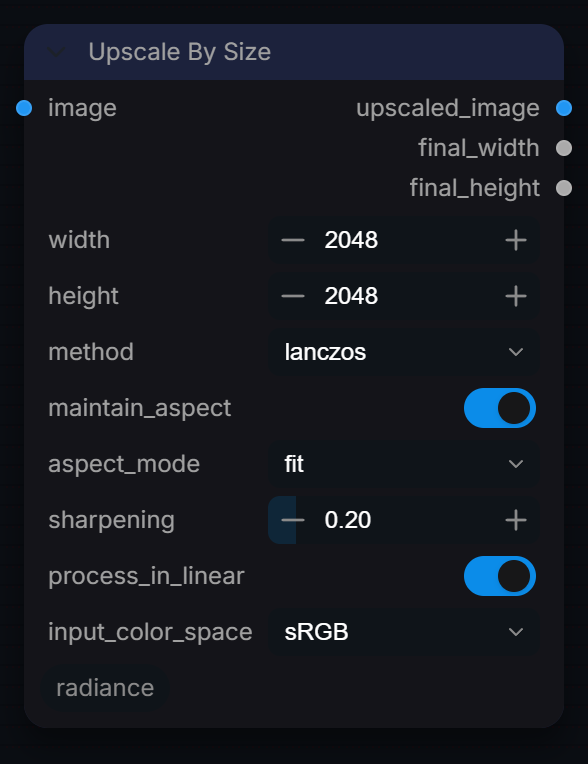
Upscale By Size
Captured from Radiance 3.5.0 · Default interface · Select to open the full-resolution screenshot. Controls can change with presets and connections.Settings and usage →
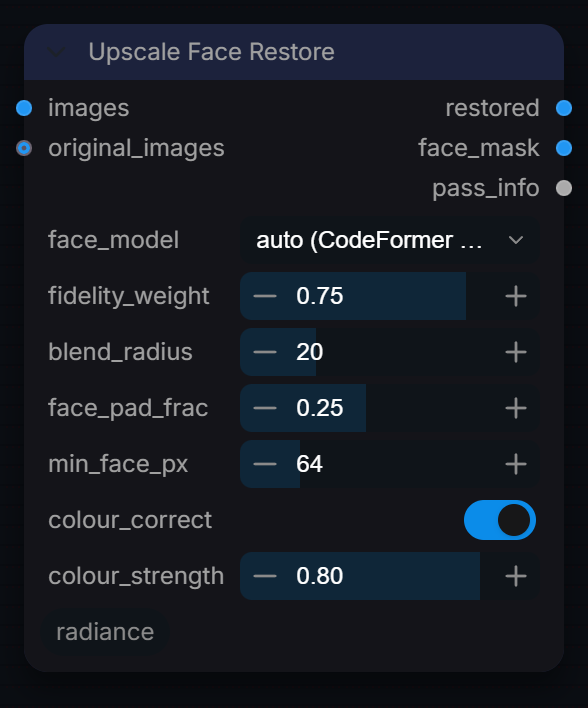
Upscale Face Restore
Captured from Radiance 3.5.0 · Default interface · Select to open the full-resolution screenshot. Controls can change with presets and connections.Settings and usage →
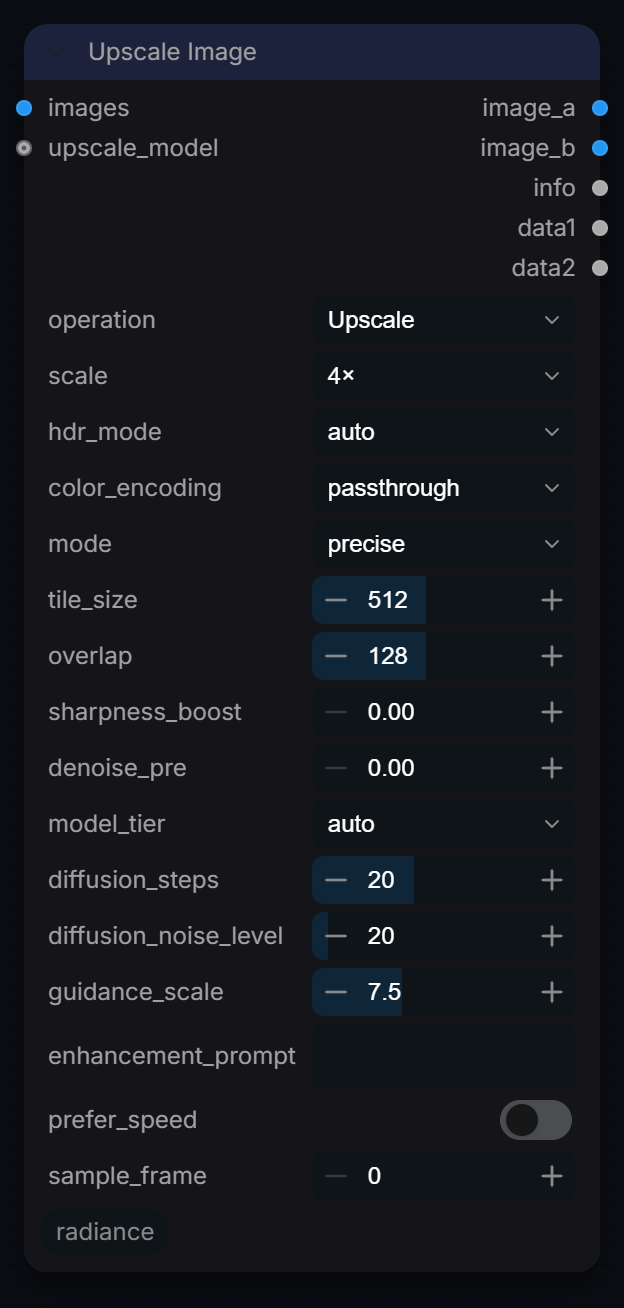
Upscale Image
Captured from Radiance 3.5.0 · Default interface · Select to open the full-resolution screenshot. Controls can change with presets and connections.Settings and usage →
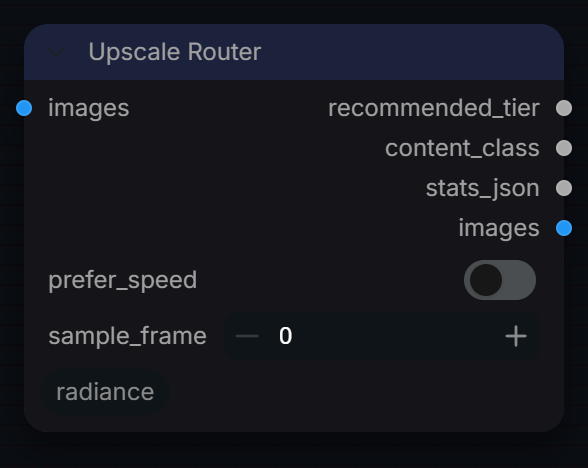
Upscale Router
Captured from Radiance 3.5.0 · Default interface · Select to open the full-resolution screenshot. Controls can change with presets and connections.Settings and usage →
Upscale Tiler
Captured from Radiance 3.5.0 · Default interface · Select to open the full-resolution screenshot. Controls can change with presets and connections.Settings and usage →
Upscale Video
Captured from Radiance 3.5.0 · Default interface · Select to open the full-resolution screenshot. Controls can change with presets and connections.Settings and usage →
Vfx
Aberration
Captured from Radiance 3.5.0 · Default interface · Select to open the full-resolution screenshot. Controls can change with presets and connections.Settings and usage →
Anamorphic Streaks
Captured from Radiance 3.5.0 · Default interface · Select to open the full-resolution screenshot. Controls can change with presets and connections.Settings and usage →
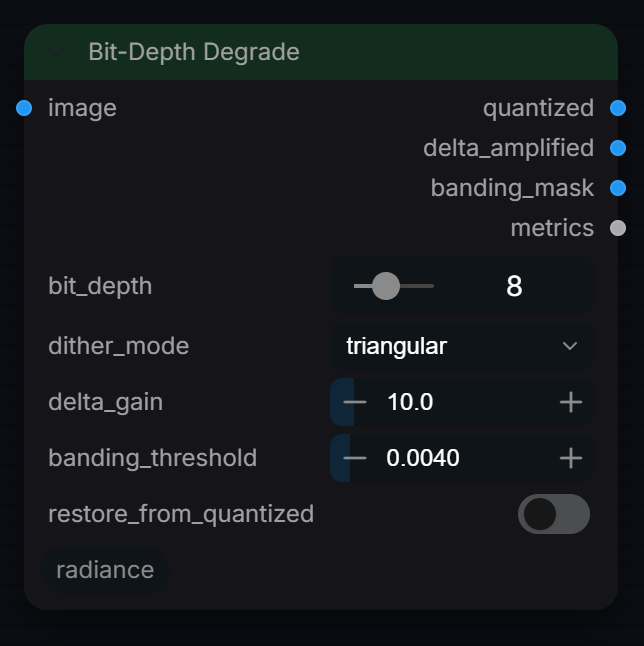
Bit-Depth Degrade
Captured from Radiance 3.5.0 · Default interface · Select to open the full-resolution screenshot. Controls can change with presets and connections.Settings and usage →
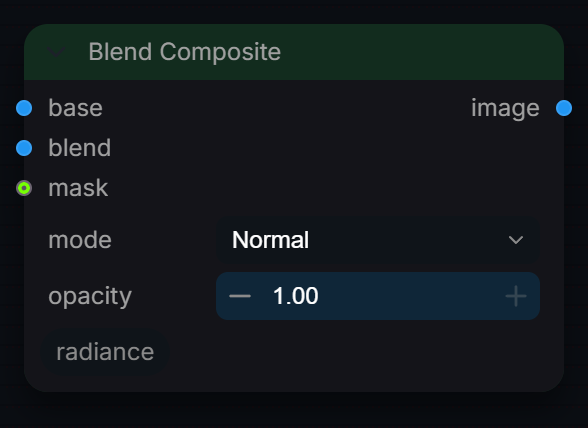
Blend Composite
Captured from Radiance 3.5.0 · Default interface · Select to open the full-resolution screenshot. Controls can change with presets and connections.Settings and usage →
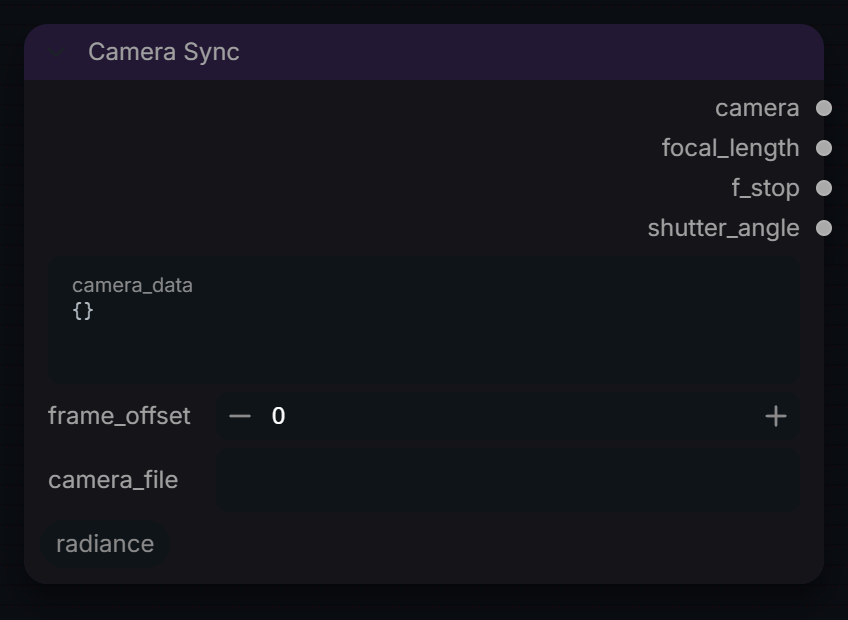
Camera Sync
Captured from Radiance 3.5.0 · Default interface · Select to open the full-resolution screenshot. Controls can change with presets and connections.Settings and usage →
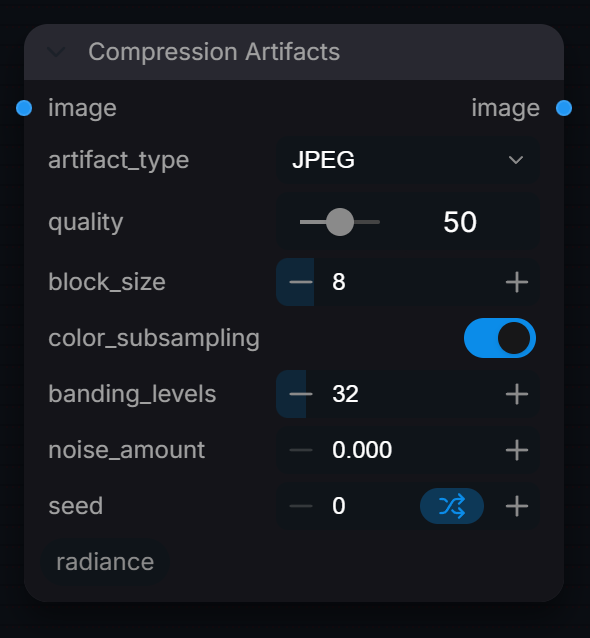
Compression Artifacts
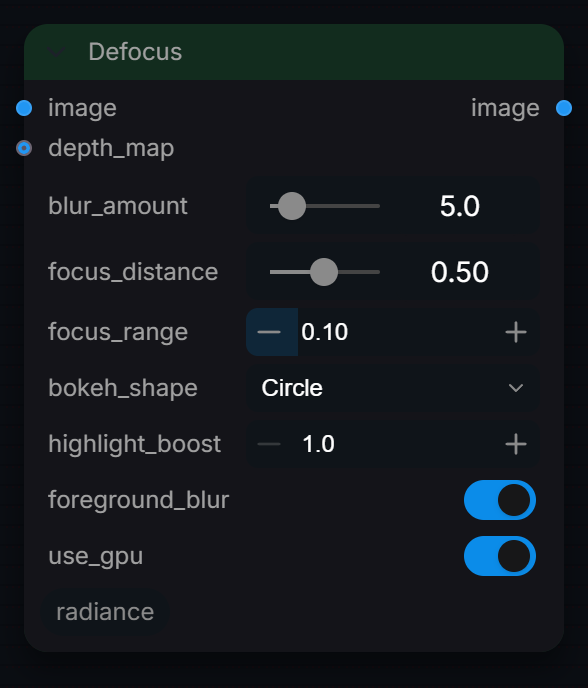
Captured from Radiance 3.5.0 · Default interface · Select to open the full-resolution screenshot. Controls can change with presets and connections.Settings and usage →
Defocus
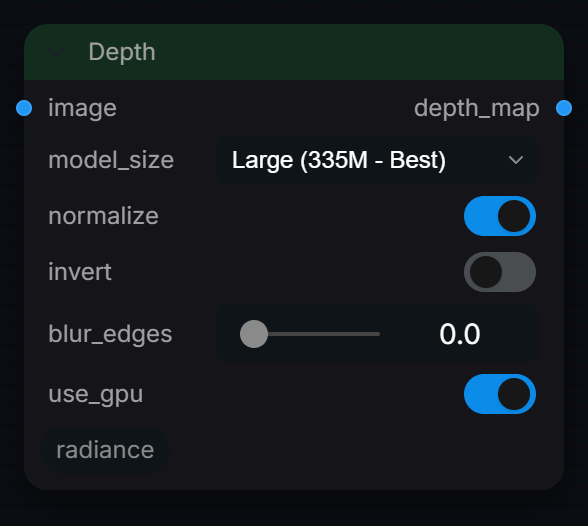
Captured from Radiance 3.5.0 · Default interface · Select to open the full-resolution screenshot. Controls can change with presets and connections.Settings and usage →
Depth
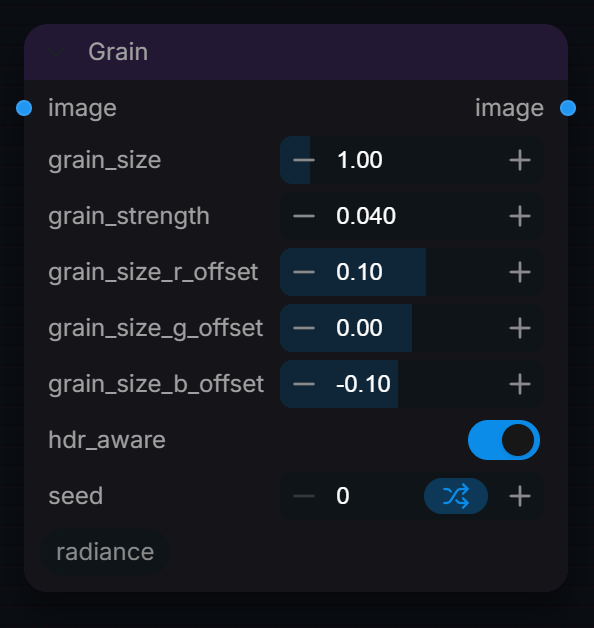
Captured from Radiance 3.5.0 · Default interface · Select to open the full-resolution screenshot. Controls can change with presets and connections.Settings and usage →
Grain
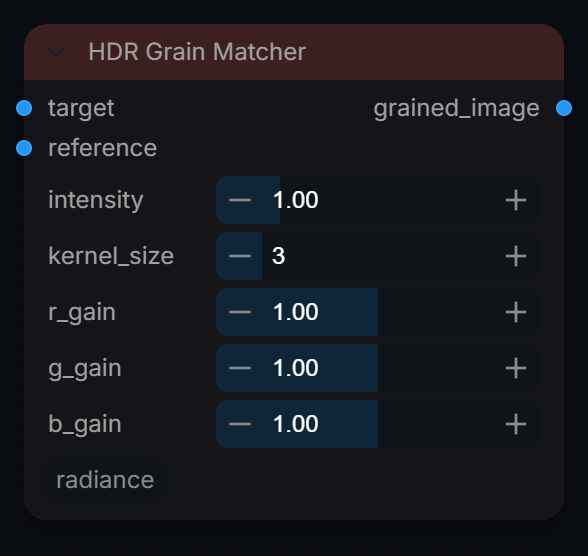
Captured from Radiance 3.5.0 · Default interface · Select to open the full-resolution screenshot. Controls can change with presets and connections.Settings and usage →
HDR Grain Matcher
Captured from Radiance 3.5.0 · Default interface · Select to open the full-resolution screenshot. Controls can change with presets and connections.Settings and usage →
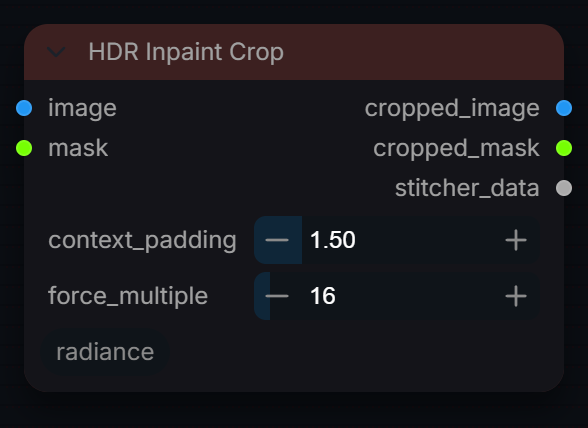
HDR Inpaint Crop
Captured from Radiance 3.5.0 · Default interface · Select to open the full-resolution screenshot. Controls can change with presets and connections.Settings and usage →
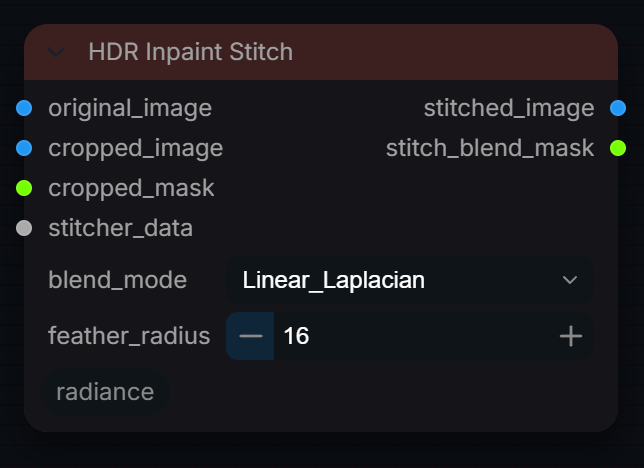
HDR Inpaint Stitch
Captured from Radiance 3.5.0 · Default interface · Select to open the full-resolution screenshot. Controls can change with presets and connections.Settings and usage →
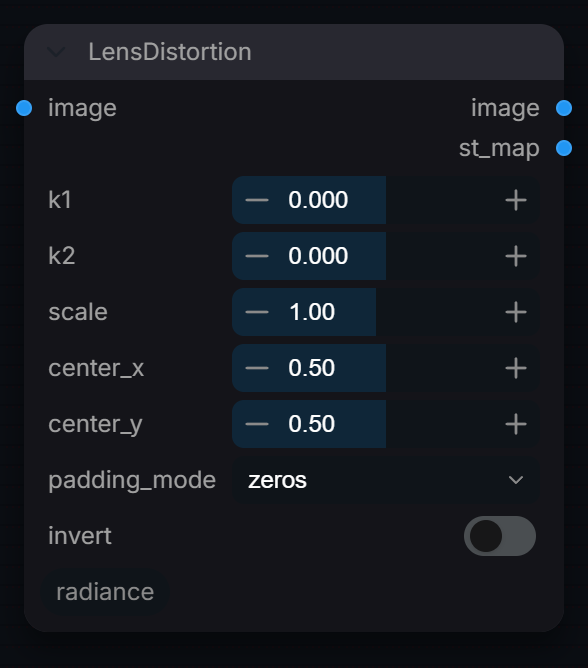
LensDistortion
Captured from Radiance 3.5.0 · Default interface · Select to open the full-resolution screenshot. Controls can change with presets and connections.Settings and usage →
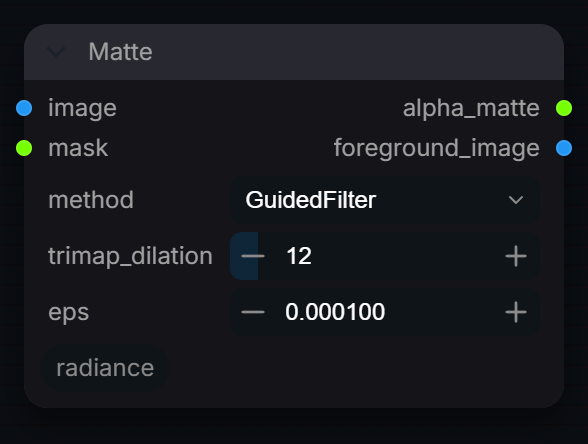
Matte
Captured from Radiance 3.5.0 · Default interface · Select to open the full-resolution screenshot. Controls can change with presets and connections.Settings and usage →
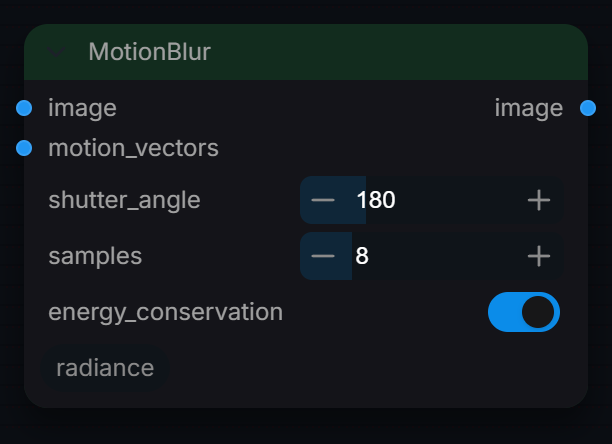
MotionBlur
Captured from Radiance 3.5.0 · Default interface · Select to open the full-resolution screenshot. Controls can change with presets and connections.Settings and usage →
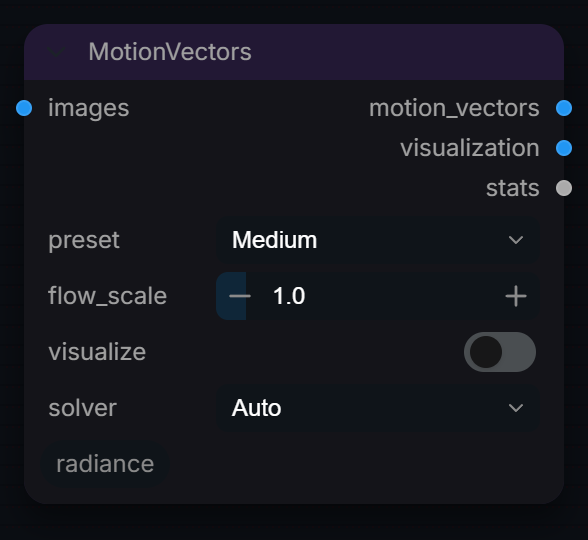
MotionVectors
Captured from Radiance 3.5.0 · Default interface · Select to open the full-resolution screenshot. Controls can change with presets and connections.Settings and usage →
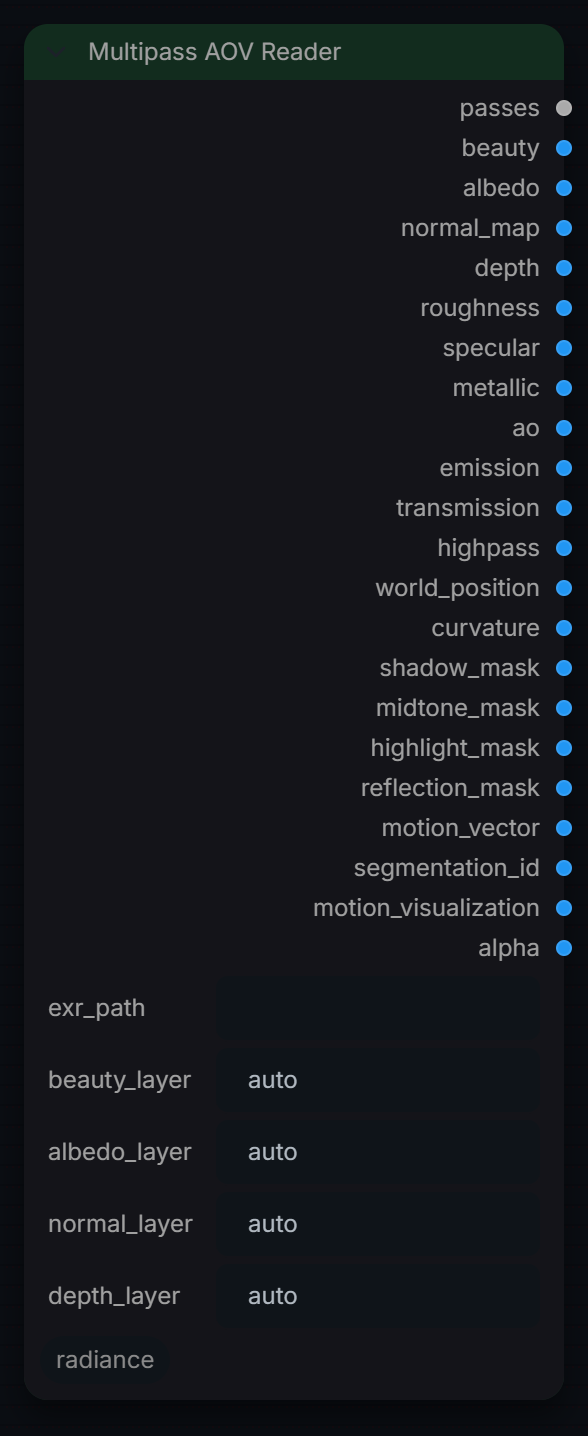
Multipass AOV Reader
Captured from Radiance 3.5.0 · Default interface · Select to open the full-resolution screenshot. Controls can change with presets and connections.Settings and usage →
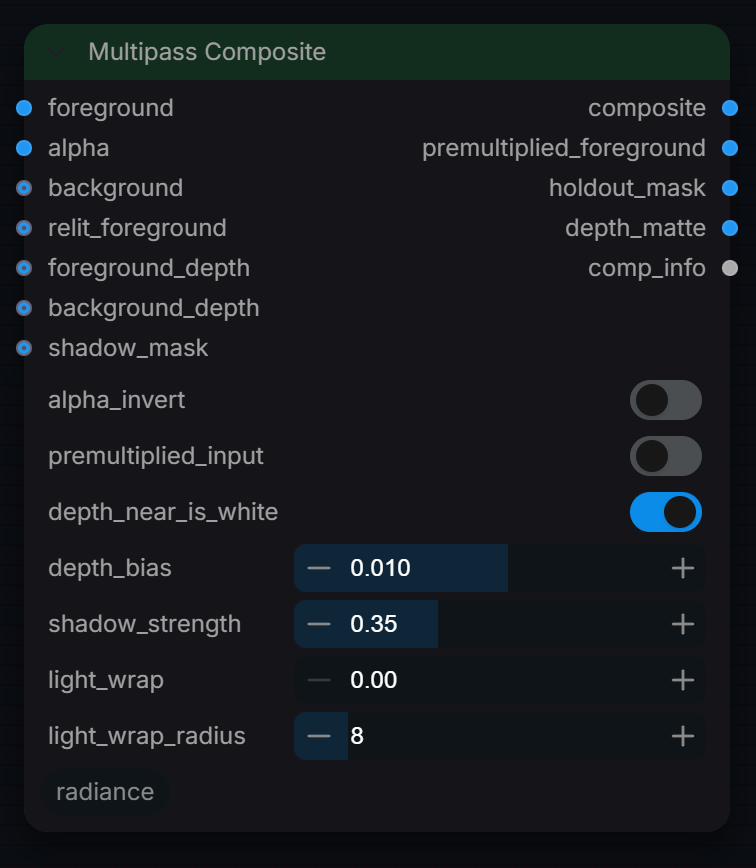
Multipass Composite
Captured from Radiance 3.5.0 · Default interface · Select to open the full-resolution screenshot. Controls can change with presets and connections.Settings and usage →
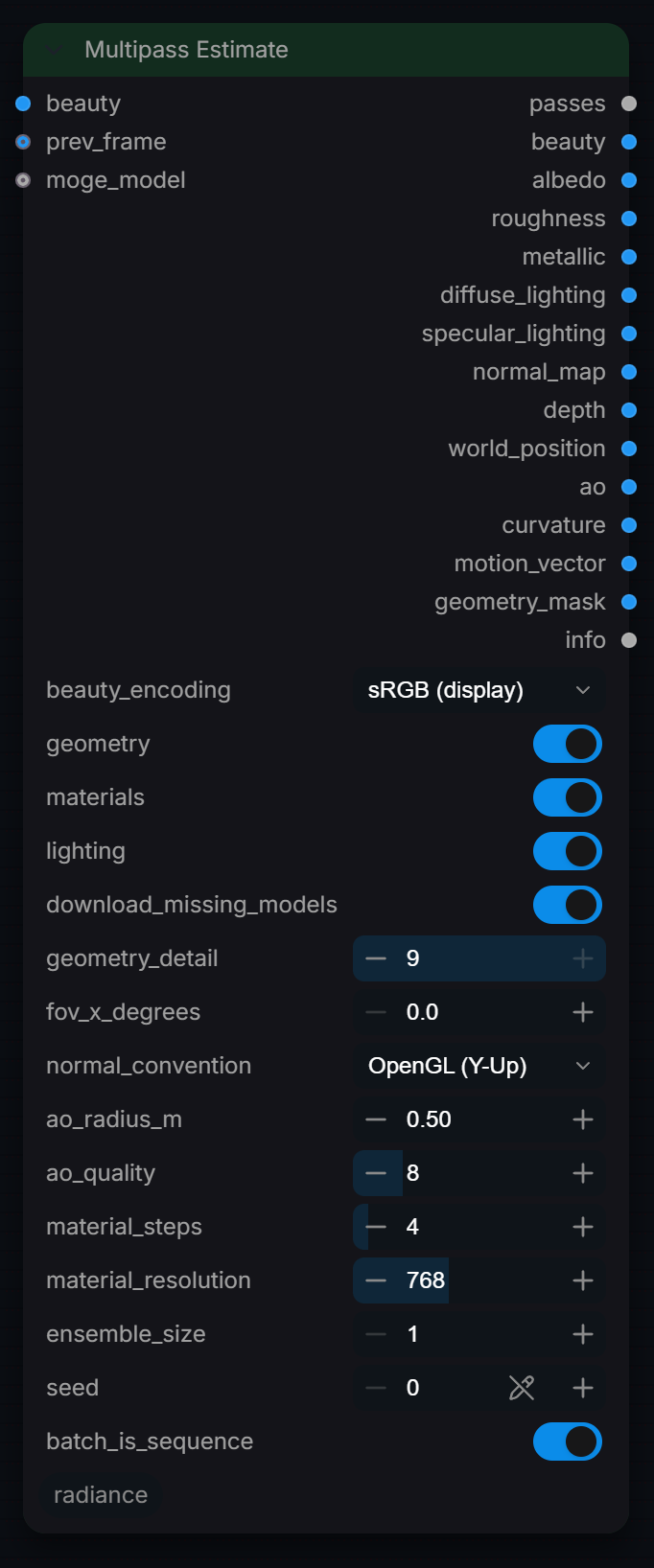
Multipass Estimate
Captured from Radiance 3.5.0 · Default interface · Select to open the full-resolution screenshot. Controls can change with presets and connections.Settings and usage →
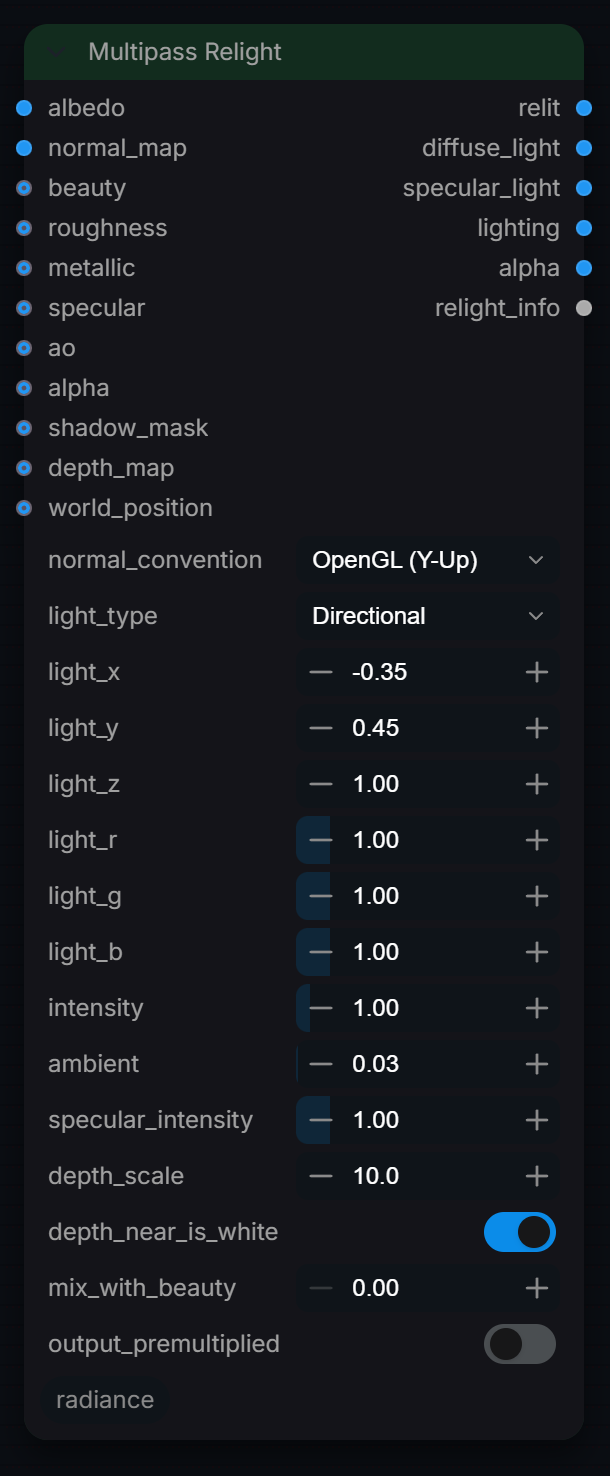
Multipass Relight
Captured from Radiance 3.5.0 · Default interface · Select to open the full-resolution screenshot. Controls can change with presets and connections.Settings and usage →
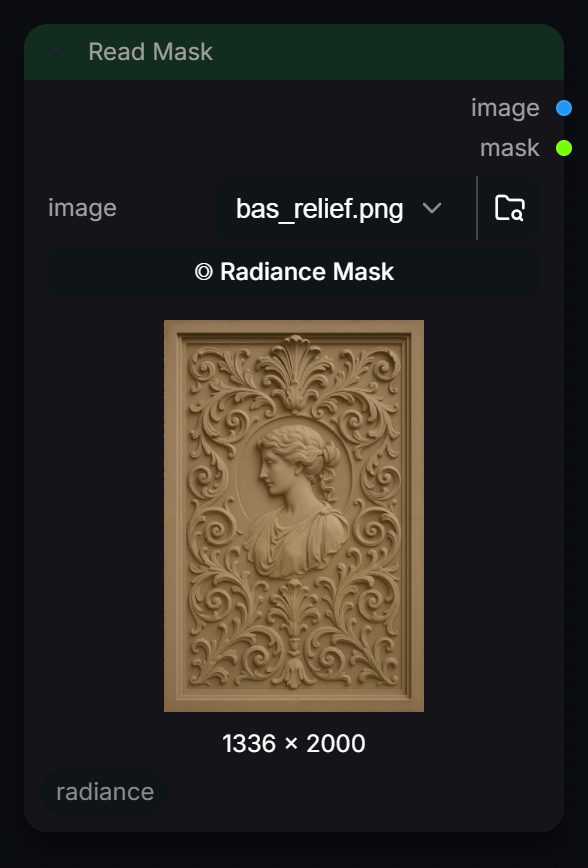
Read Mask
Captured from Radiance 3.5.0 · Default interface · Select to open the full-resolution screenshot. Controls can change with presets and connections.Settings and usage →
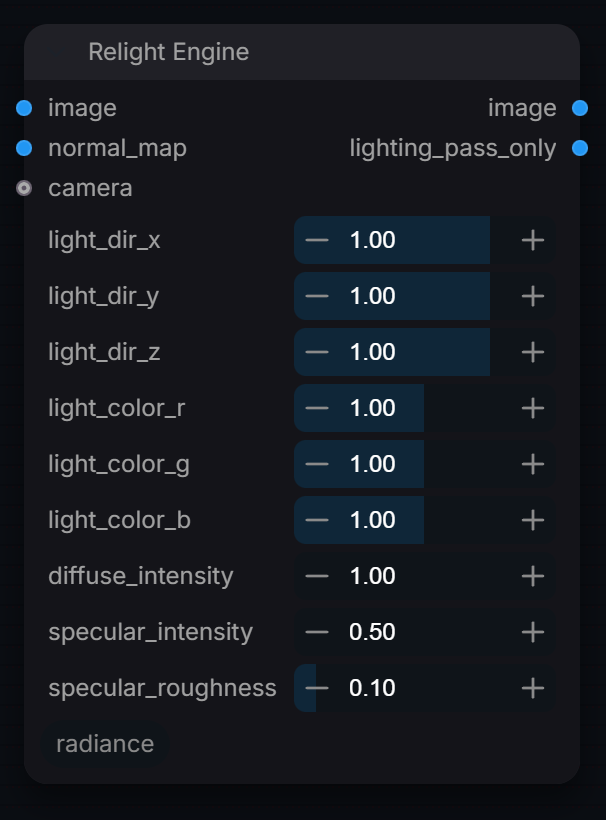
Relight Engine
Captured from Radiance 3.5.0 · Default interface · Select to open the full-resolution screenshot. Controls can change with presets and connections.Settings and usage →
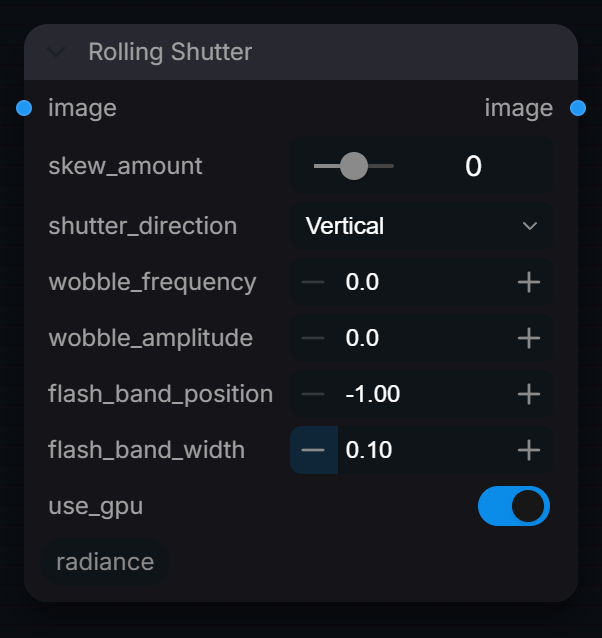
Rolling Shutter
Captured from Radiance 3.5.0 · Default interface · Select to open the full-resolution screenshot. Controls can change with presets and connections.Settings and usage →
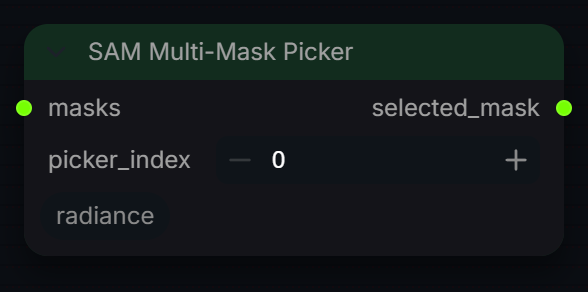
SAM Multi-Mask Picker
Captured from Radiance 3.5.0 · Default interface · Select to open the full-resolution screenshot. Controls can change with presets and connections.Settings and usage →
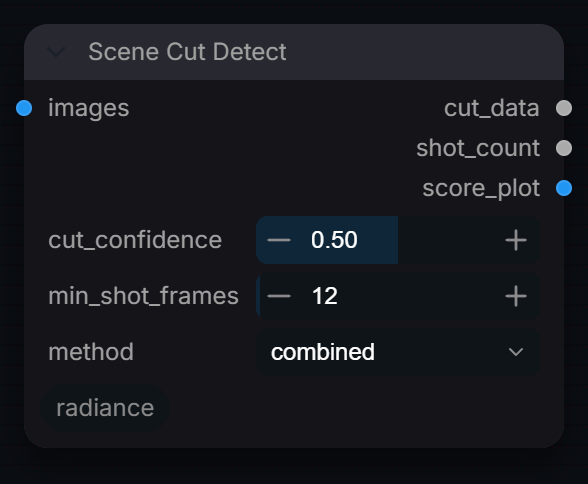
Scene Cut Detect
Captured from Radiance 3.5.0 · Default interface · Select to open the full-resolution screenshot. Controls can change with presets and connections.Settings and usage →
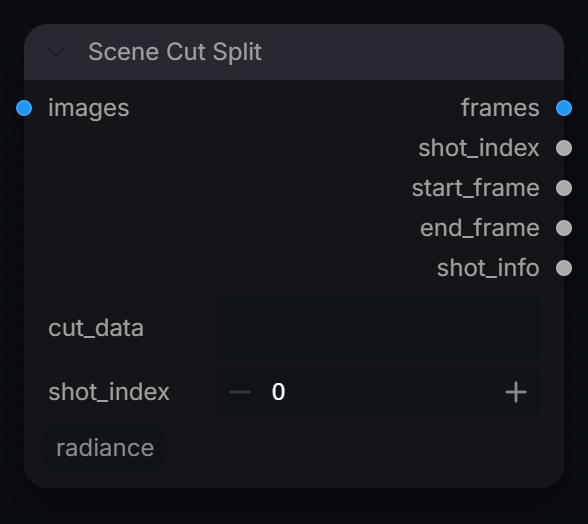
Scene Cut Split
Captured from Radiance 3.5.0 · Default interface · Select to open the full-resolution screenshot. Controls can change with presets and connections.Settings and usage →
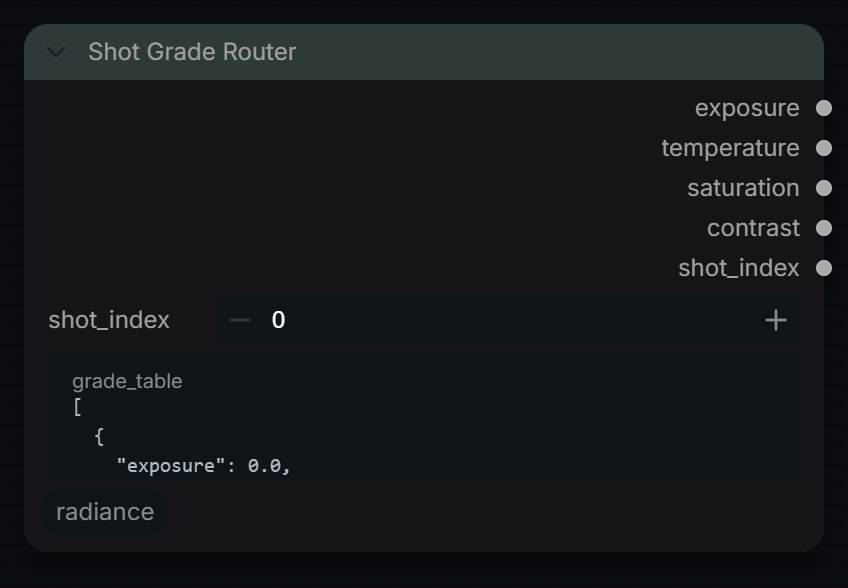
Shot Grade Router
Captured from Radiance 3.5.0 · Default interface · Select to open the full-resolution screenshot. Controls can change with presets and connections.Settings and usage →
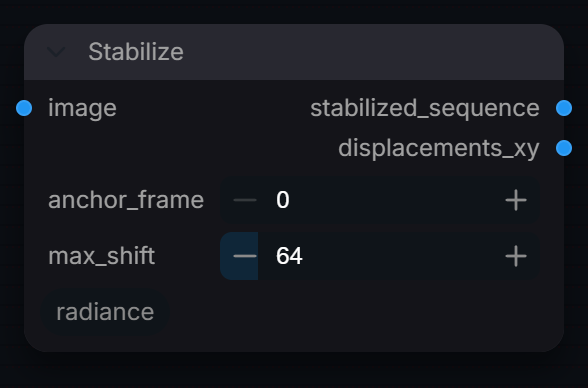
Stabilize
Captured from Radiance 3.5.0 · Default interface · Select to open the full-resolution screenshot. Controls can change with presets and connections.Settings and usage →
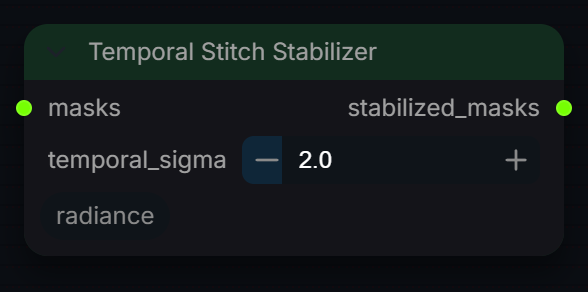
Temporal Stitch Stabilizer
Captured from Radiance 3.5.0 · Default interface · Select to open the full-resolution screenshot. Controls can change with presets and connections.Settings and usage →
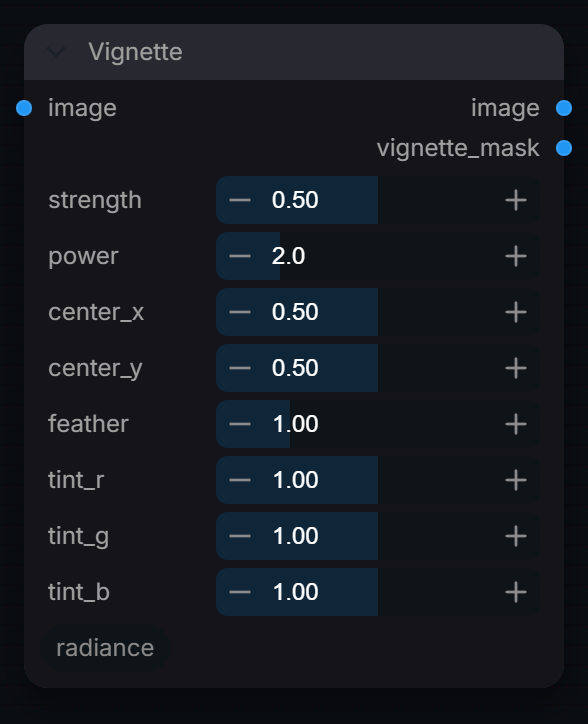
Vignette
Captured from Radiance 3.5.0 · Default interface · Select to open the full-resolution screenshot. Controls can change with presets and connections.Settings and usage →
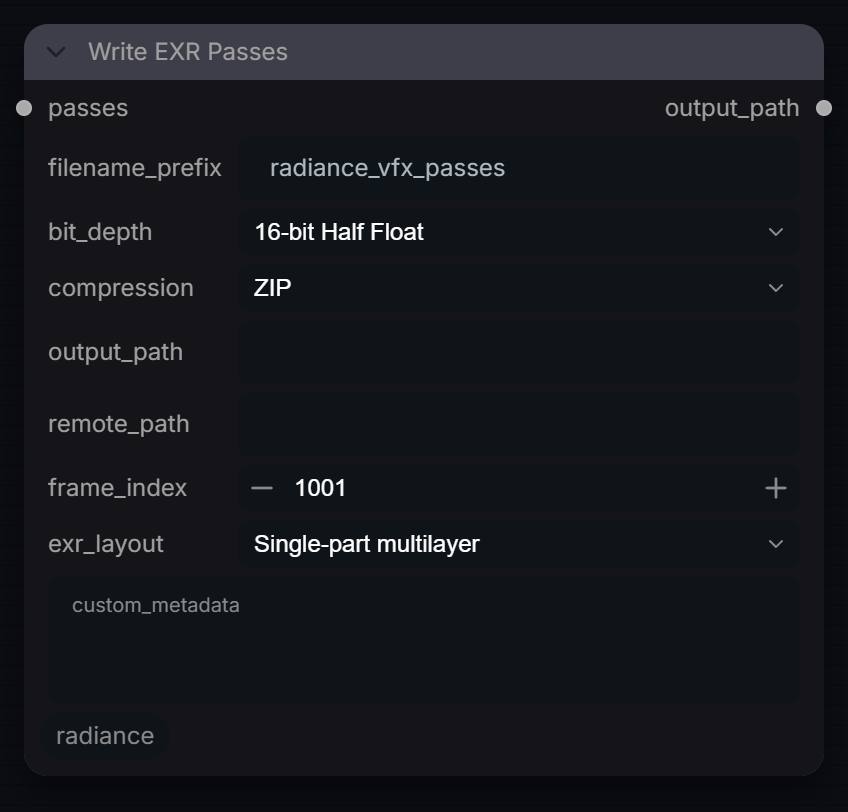
Write EXR Passes
Captured from Radiance 3.5.0 · Default interface · Select to open the full-resolution screenshot. Controls can change with presets and connections.Settings and usage →
Video
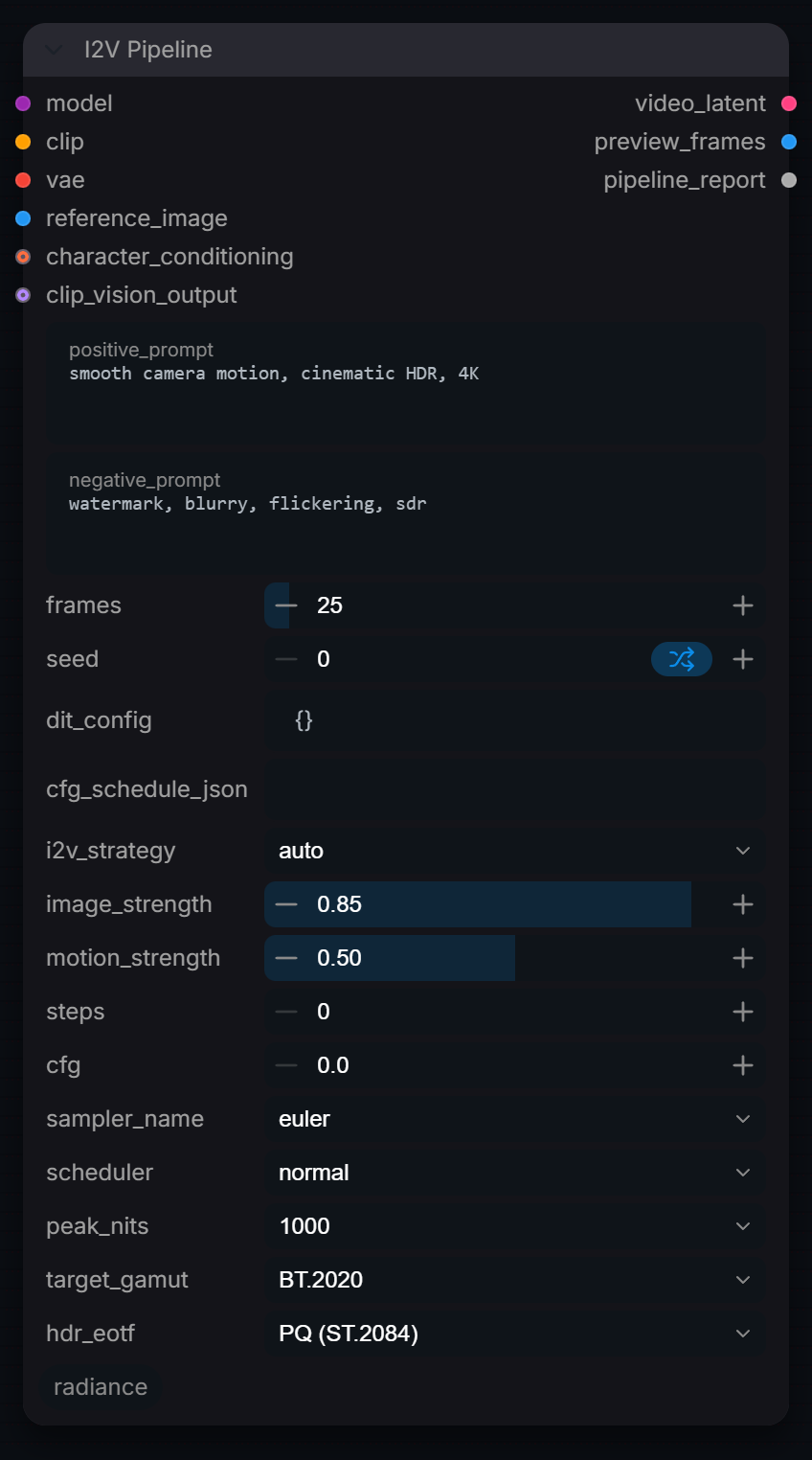
I2V Pipeline
Captured from Radiance 3.5.0 · Default interface · Select to open the full-resolution screenshot. Controls can change with presets and connections.Settings and usage →
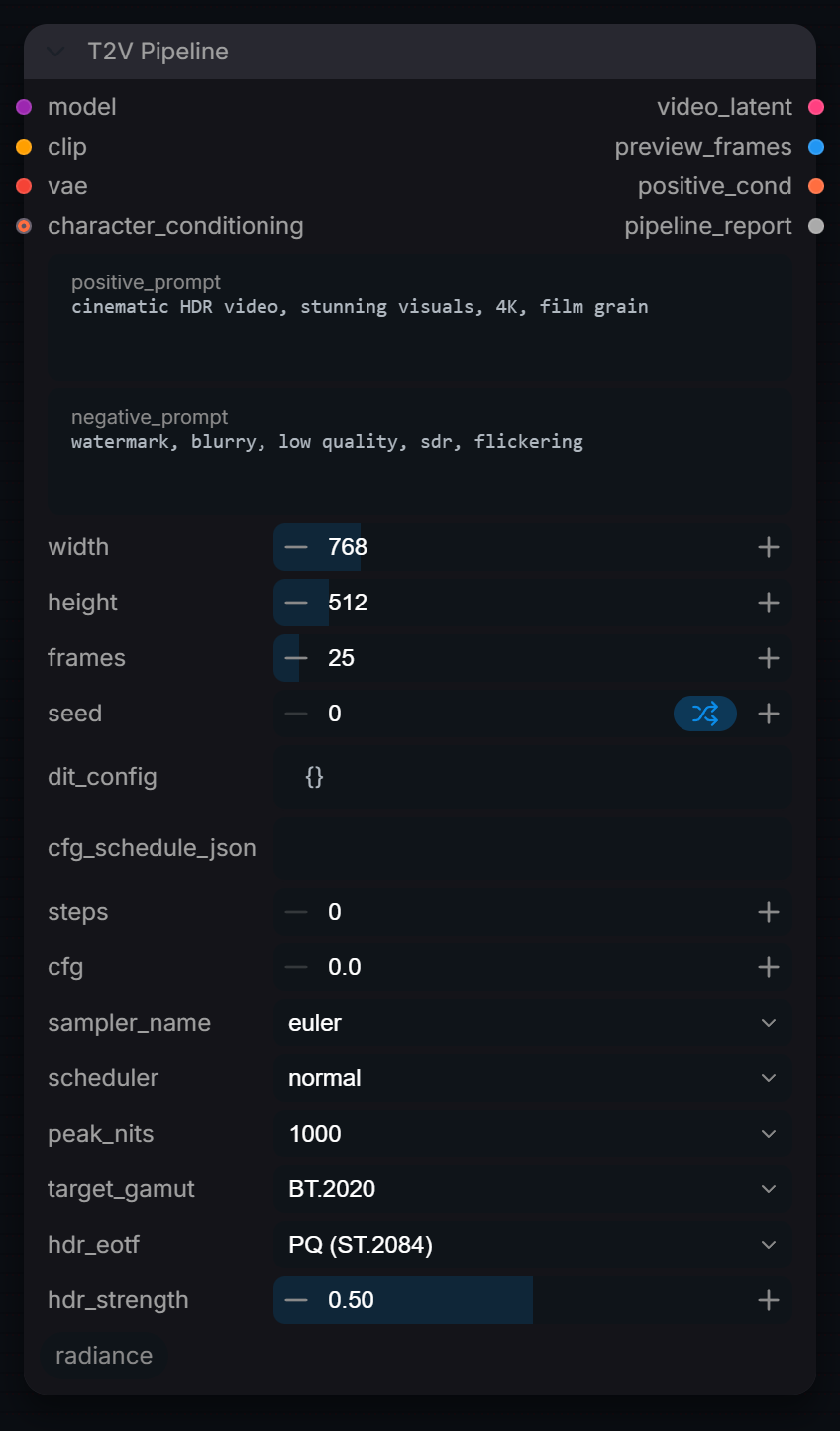
T2V Pipeline
Captured from Radiance 3.5.0 · Default interface · Select to open the full-resolution screenshot. Controls can change with presets and connections.Settings and usage →
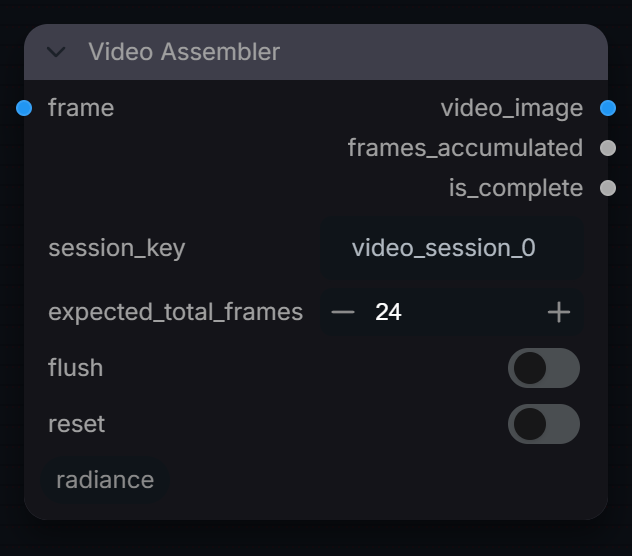
Video Assembler
Captured from Radiance 3.5.0 · Default interface · Select to open the full-resolution screenshot. Controls can change with presets and connections.Settings and usage →
Video Batch Decode
Captured from Radiance 3.5.0 · Default interface · Select to open the full-resolution screenshot. Controls can change with presets and connections.Settings and usage →
Video Cond Merge
Captured from Radiance 3.5.0 · Default interface · Select to open the full-resolution screenshot. Controls can change with presets and connections.Settings and usage →
Video Export
Captured from Radiance 3.5.0 · Default interface · Select to open the full-resolution screenshot. Controls can change with presets and connections.Settings and usage →
Video Frame Router
Captured from Radiance 3.5.0 · Default interface · Select to open the full-resolution screenshot. Controls can change with presets and connections.Settings and usage →
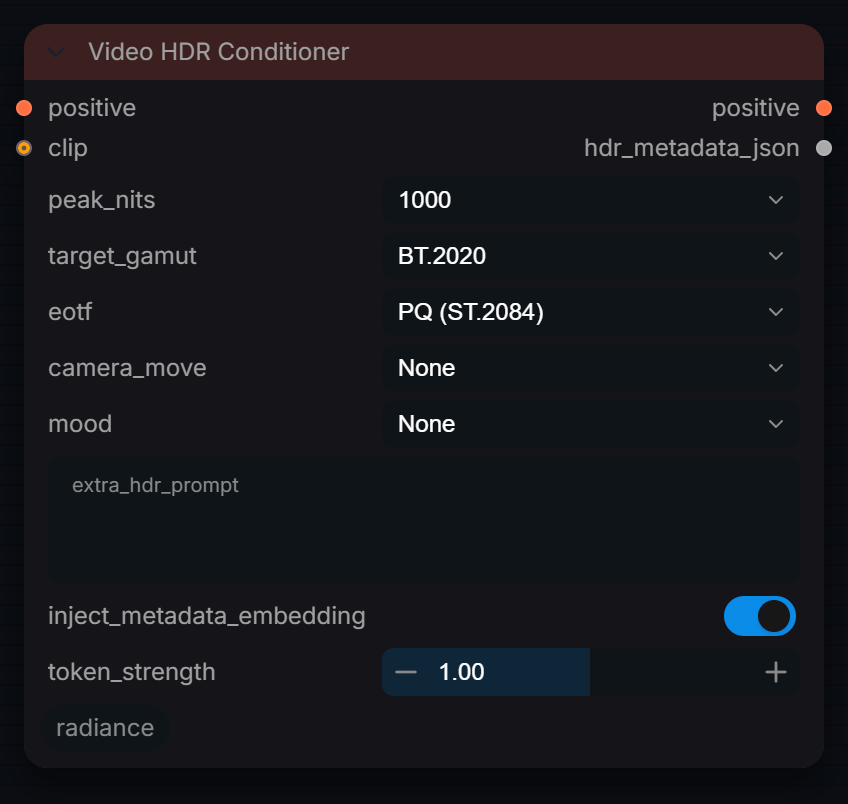
Video HDR Conditioner
Captured from Radiance 3.5.0 · Default interface · Select to open the full-resolution screenshot. Controls can change with presets and connections.Settings and usage →
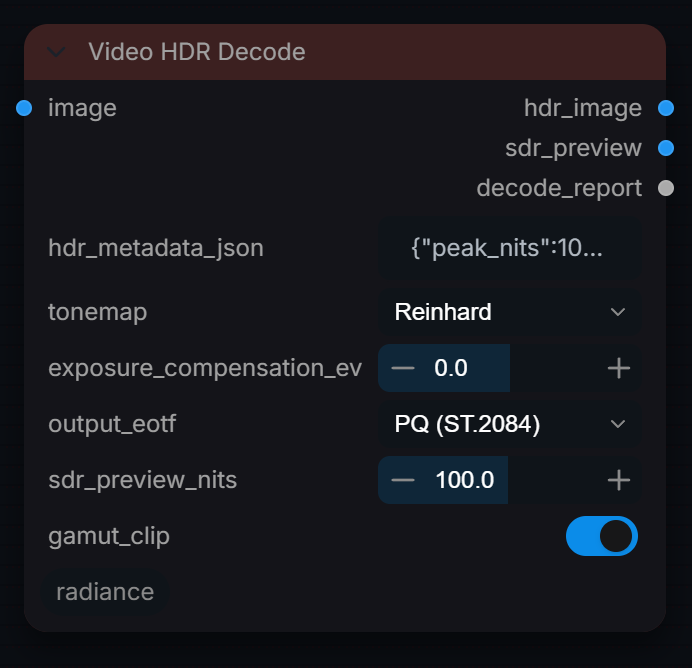
Video HDR Decode
Captured from Radiance 3.5.0 · Default interface · Select to open the full-resolution screenshot. Controls can change with presets and connections.Settings and usage →
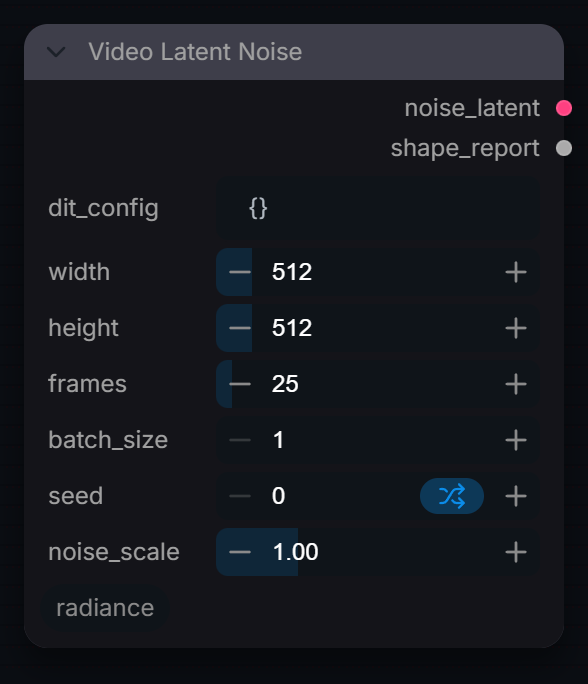
Video Latent Noise
Captured from Radiance 3.5.0 · Default interface · Select to open the full-resolution screenshot. Controls can change with presets and connections.Settings and usage →
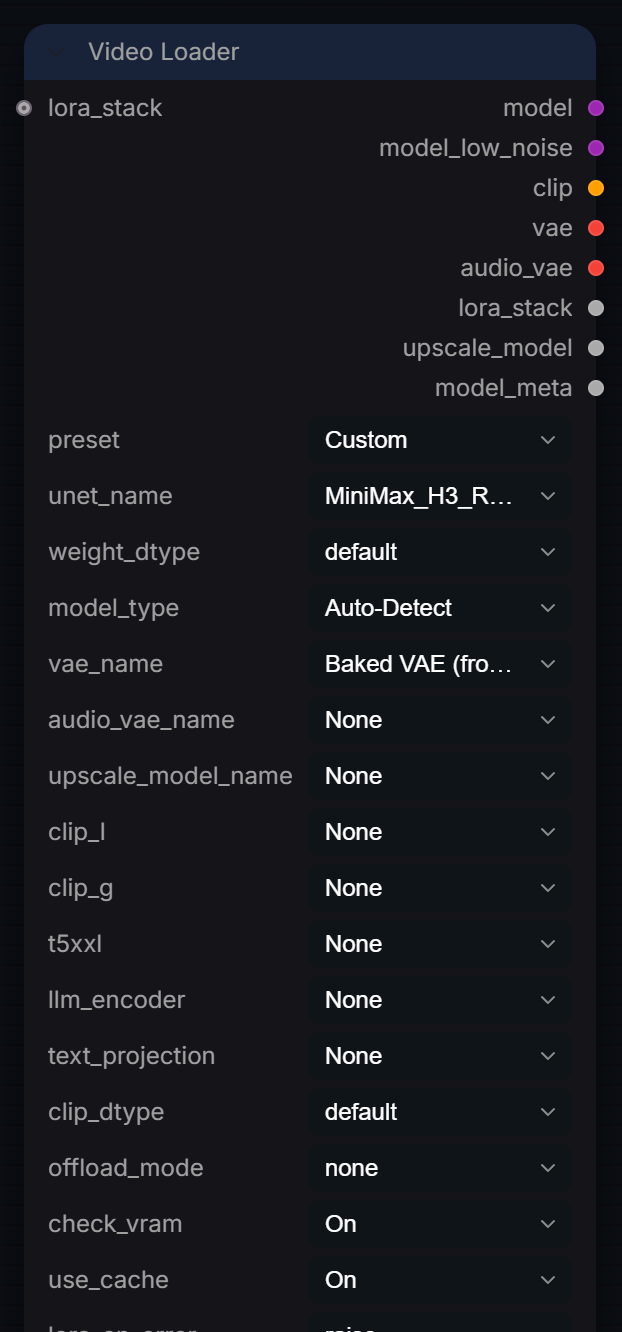
Video Loader
Captured from Radiance 3.5.0 · Default interface · Select to open the full-resolution screenshot. Controls can change with presets and connections.Settings and usage →
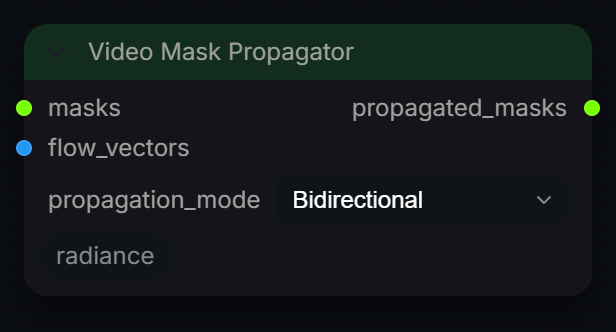
Video Mask Propagator
Captured from Radiance 3.5.0 · Default interface · Select to open the full-resolution screenshot. Controls can change with presets and connections.Settings and usage →
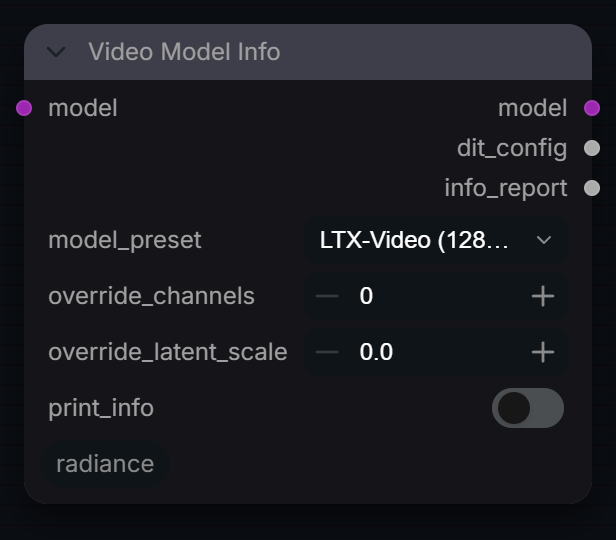
Video Model Info
Captured from Radiance 3.5.0 · Default interface · Select to open the full-resolution screenshot. Controls can change with presets and connections.Settings and usage →
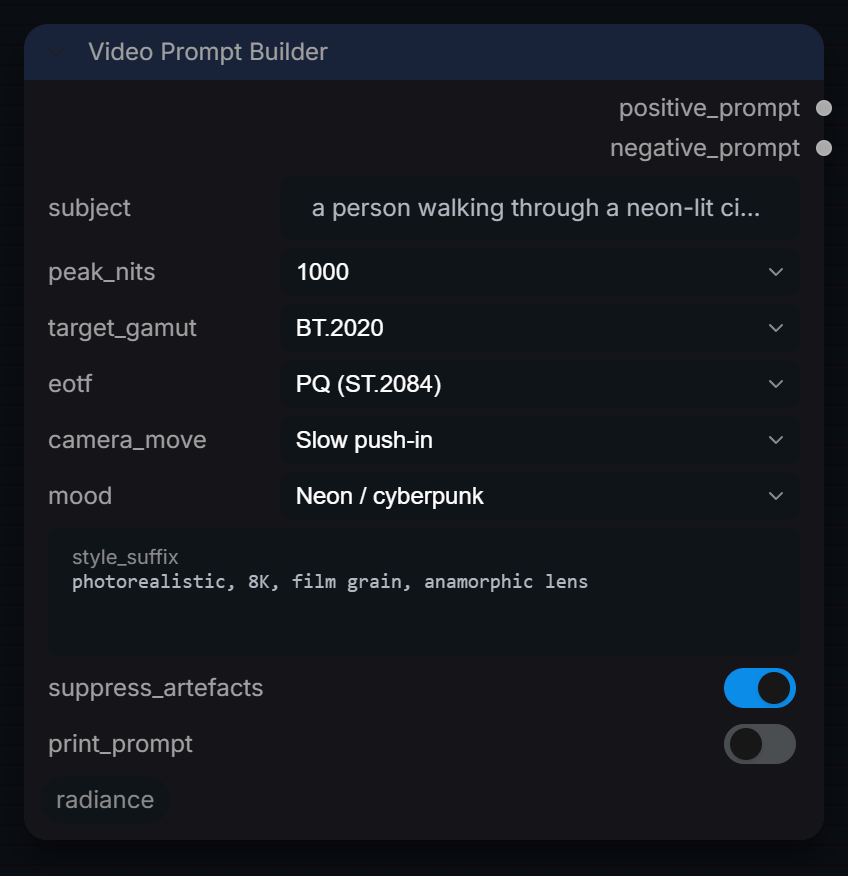
Video Prompt Builder
Captured from Radiance 3.5.0 · Default interface · Select to open the full-resolution screenshot. Controls can change with presets and connections.Settings and usage →
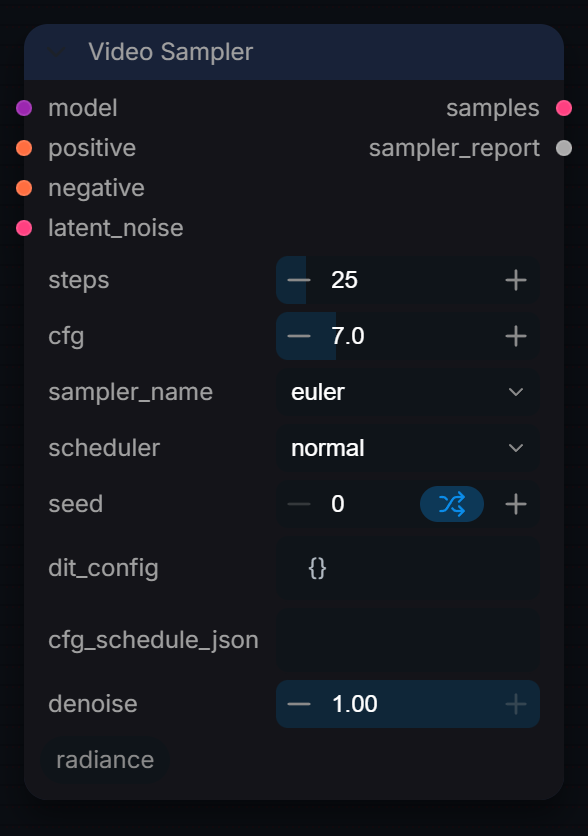
Video Sampler
Captured from Radiance 3.5.0 · Default interface · Select to open the full-resolution screenshot. Controls can change with presets and connections.Settings and usage →